
Technical Tip: Adding Multiple DDNS entries on FortiGate and troubleshooting basic DDNS issues
Description
This article explains how to configure multiple DDNS entries on a single interface or multiple interfaces.
Scope
Any supported version of FortiGate.
Solution
A situation may arise where single or multiple DDNS entries are needed on FortiGate when the external Interface has a dynamic IP.
A license or subscription is not required to use the DDNS service, but configuring DDNS in the GUI is not supported if any of the following apply:
The FortiGate model is a 1000-series or higher.
The FortiGate is a VM.
The DNS server is not using FortiGuard as the DNS.
To add a single entry, use the GUI. If the device does not fall under the above criteria, check the reference link added at the bottom of the document.
From FortiOS v7.4.0 onward, multiple DDNS entries are supported from the GUI:
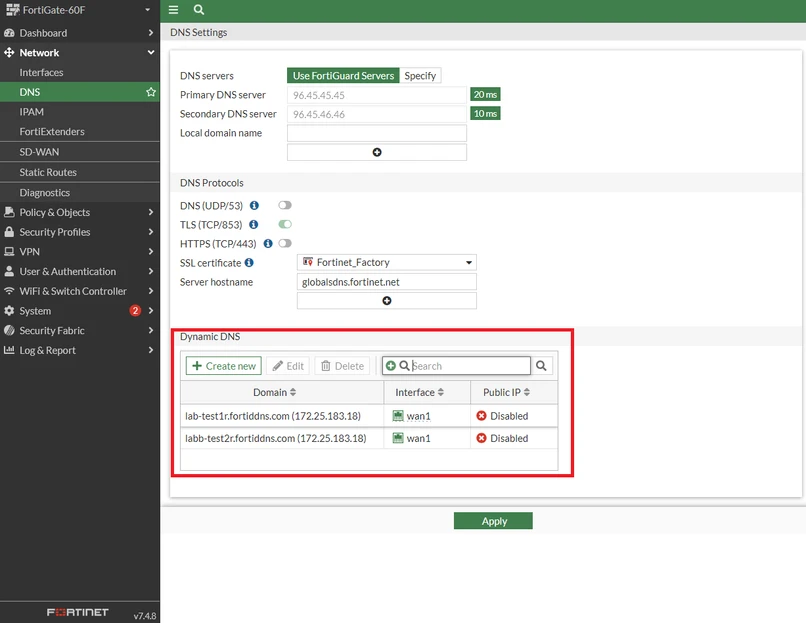
The same configuration can be accomplished by using the CLI. See the configuration examples below:
config system ddns
    edit 1
        set ddns-server FortiGuardDDNS
        set ddns-domain "vishal.fortiddns.com"
        set monitor-interface "port1"
    next
    edit 2
        set ddns-server FortiGuardDDNS
        set ddns-domain "vishal1.fortiddns.com"
        set monitor-interface "port2"
    next
end
The domain fortiddns.com was used above as an example. To determine which domain to use, follow the steps below.
When using the FortiGuard DDNS service, there are 3 domains: fortiddns.com, fortidyndns.com, and float-zone.com. It is possible to use the DDNS servers below, but some of them may not work if the service is disabled from the server side. They can only be configured using the CLI.
dyndns.org        members.dyndns.org and dnsalias.com
dyns.net          www.dyns.net
tzo.com           rh.tzo.com
vavic.com         Peanut Hull
dipdns.net        dipdnsserver.dipdns.com
now.net.cn        ip.todayisp.com
dhs.org           members.dhs.org
easydns.com       members.easydns.com
genericDDNS       Generic DDNS based on RFC2136.
FortiGuardDDNS    FortiGuard DDNS service.
noip.com          dynupdate.no-ip.com
To double-check the correct domain, use the information that follows in this article. Configure the DDNS with the correct server and use any domain.
See the following example:
config system ddns
   edit 1
       set ddns-server FortiGuardDDNS
       set ddns-domain "vishal"
       set monitor-interface "port1"
   next
end
After completing the configuration above, run the following command (example output is provided):
diagnose test application ddnscd 3
FortiDDNS status:
ddns_ip=173.243.138.225, ddns_ip6=::, ddns_port=443 svr_num=1 domain_num=3
svr[0]= 173.243.138.225
domain[0]= fortiddns.com
domain[1]= fortidyndns.com
domain[2]= float-zone.com
Note:
The command will not show any output if the DDNS service is not running. As a result, the configuration is required to verify the domain.
Basic troubleshooting:
Before starting the troubleshooting steps below, verify whether the FortiGate is running FortiOS v7.4.10, v7.4.11, or v7.4.12. These releases contain a known issue that may prevent communication with the FortiGuard DDNS service due to the DNS over TLS trust chain. If applicable, follow the workaround or upgrade recommendation before continuing with further troubleshooting.
Solution:
Upgrade to the latest FortiOS v7.6.x release or upcoming FortiOS v7.4.13 and above.
Workaround:
Download the DigiCert High Assurance EV Root CA from the DigiCert portal and import it into the FortiGate trusted certificate store. See Technical Tip: FortiGuard (96.45.45.45, 96.45.46.46) DNS over TLS not working on FortiOS v7.4.10/v7.4.11/v7.4.12.
Use the command below to check if the DDNS entries are updated:

Verify the public IP on FortiGate and the DDNS resolved IP, then check the WAN IP using the following commands:
diagnose sys waninfo
diagnose sys waninfo ipify
Use the ping-option source command (use the WAN interface IP on which DDNS is enabled) and verify if the DDNS server IP receives pings. If necessary, obtain the DDNS server IP with the following command. If no ping can be made, check the route configuration for errors.
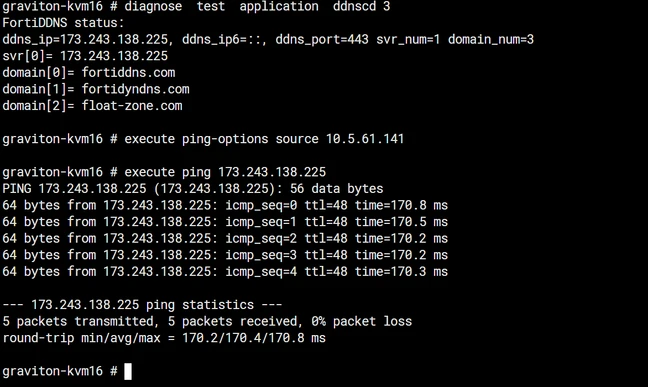
Change the FortiGuard DDNS IP from 0.0.0.0 to the IP obtained with the diagnose test application ddnscd 3 command. Additionally, ensure FortiGuard connectivity is available. If it is not, troubleshoot the connectivity first.

If there is still an issue, obtain the debug logs and check for issues:
diagnose debug application update -1
diagnose debug application ddnscd -1
diagnose debug enable
Wait for 2-5 minutes and check for relevant logs after obtaining the logs. If no logs are obtained, debug and restart the DDNS with the following commands:
diagnose test app ddnscd 4
fnsysctl killall ddnscd
After getting the relevant output, disable the debugging:
diagnose debug disable
Some errors and their solutions:
DDNS query for DDNS ID 1 cannot be sent due to an unsupported zone
Verify the domain name in the DDNS configuration and correct it as needed. Common issue for this is putting up in CLI only 'vishal' under the ddns-domain and not the whole 'vishal.fortiddns.com'.
Failed on update FortiGuardDDNS (vishal.fortiddns.com), due to bad rsp/other error
Check whether the FQDN is already in use (run the ping test for the FQDN).
Failed on update FortiGuardDDNS (example_domain.fortiddns.com), due to internal/config/connect/io err
If a private IP is configured on the interface, set the port to use the public IP in the DDNS configuration.
config system ddns
    edit 1
        set use-public-ip enable
end
If the issue persists, raise a TAC case (Support) and update it with all of the information collected from the debug processes.
Related documents:
