


Technical Tip: BASH script to retrieve debug information periodically with SSH and SSH multiplexing
Description
This article describes how to create a BASH script for continuous monitoring via an SSH connection for a specific time and an unknown amount of data that will be provided.
Scope
FortiManager, FortiAnalyzer and FortiGate
Solution
The following must be installed on the Linux/GNU platform:
-
openssh-client
-
ssh-keygen (optional, better security and fluency)
-
ssh-pass (when the ssh-keygen can not be used)
-
crontab
This article will demonstrate how to create a script that can be used for different purposes such as:
- Periodically retrieving data from FortiManager, FortiAnalyzer and FortiGate when needed.
- Occasionally changing parts of their configuration.
Two users will be used in this example:
- A localuser under the Linux/GNU platform.
- A remoteuser under the FortiAnalyzer.
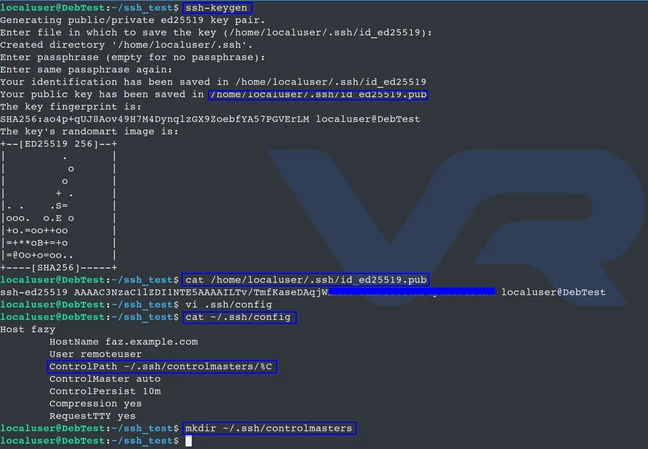
Under the localuser, the 'ssh-keygen' will create a private and public key for the user, which will be in .ssh/id_ed25519(.pub) by default. The public key will be copied and pasted later in to the FortAnalyzer administrator profile.
Use the following command to open the default public key:
cat ~/.ssh/.ssh/id_ed25519.pub
This script relies on SSH multiplexing to achieve its goals.
SSH multiplexing is a feature that keeps persistent a single SSH session for specific time.
All of the settings can be reviewed from the man pages (man 5 ssh_config):
- mkdir ~/.ssh/controlmasters (if the directory does not exist).
- ~/.ssh/config (will have the following settings:).
Host fazy HostName faz.example.com ControlPath ~/.ssh/controlmasters/%C ControlMaster auto ControlPersist 10m Compression yes RequestTTY force
If the debug will take 5 minutes, specifying 10m under ControlPersist is recommended. Additionally, consider how often the script will be started.
-
Host: Name for the current configuration.
-
HostName: IP/FQDN also 'Tokens'.
-
ControlPath: The path to the control socket (mkdir ~/.ssh/controlmasters/ to create it if there is not yet created one).
-
ControlMaster: Auto means to create a new session if there is not an existing one.
-
ControlPersist: Define a specific time to keep an already created connection in the background. Yes for persistent connection without specific limits.
-
RequestTTY: Yes is the equivalent of -t and -T of the ssh.

Connect to the FortiAnalyzer.
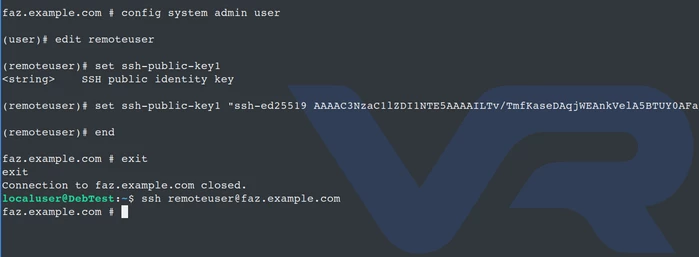
After copying the public key of localuser under the settings related to remoteuser under FortiAnalyzer, the next login will not require a password.
FortiAnalyzer administrator settings:
config system admin username edit remoteuser set ssh-public-key1 “ssh-ed25519 AAAA….” <- Up to 3 keys per username. end
Example of the BASH script:
#!/bin/bash # Author: vraev # Source: https://community.fortinet.com remotecommands="remotecommands.txt" #the name of the file which will contain all required commands USERNAME=('remoteuser') HOSTS=('fazy') # For more hosts use the example: HOSTS=('faz.example.com' ‘12.12.12.1’) SSHDATE=$(date +"%Y%m%dT%H%M") NLINES=('1,6 p' '8,10 p') NTIME=('600' '1') function sanit() { sed 's/^[ \t]*//;s/[ \t]*$//' | tr -s '[:space:]' } function remote() { ssh -tt ${USERNAME}@${1} } # This “remote” function is related with the SSH keygen when is in use. #function remote() # { # SSHPASS='PassWord' sshpass -e ssh -tt remoteuser@faz.example.com # } # When the user is restricted, SSHPass is the other option to have this script working. function retrieve() { for i in "${!NLINES[@]}"; do for HOSTNAME in "${HOSTS[@]}" do remote ${HOSTNAME} < <(sed -n "${NLINES[i]}" ${remotecommands} | sanit ) >> ${HOSTNAME}_${SSHDATE}.log & sleep ${NTIME[i]} && kill %% done done exit 1 } #cd ~/ssh_test/ retrieve
The example below provides the way to set up NLINES and NTIME.
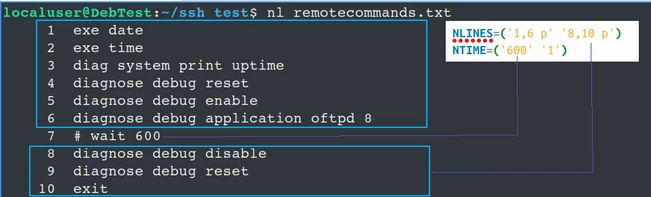
Note: The last entry in the NTIME array is 1.
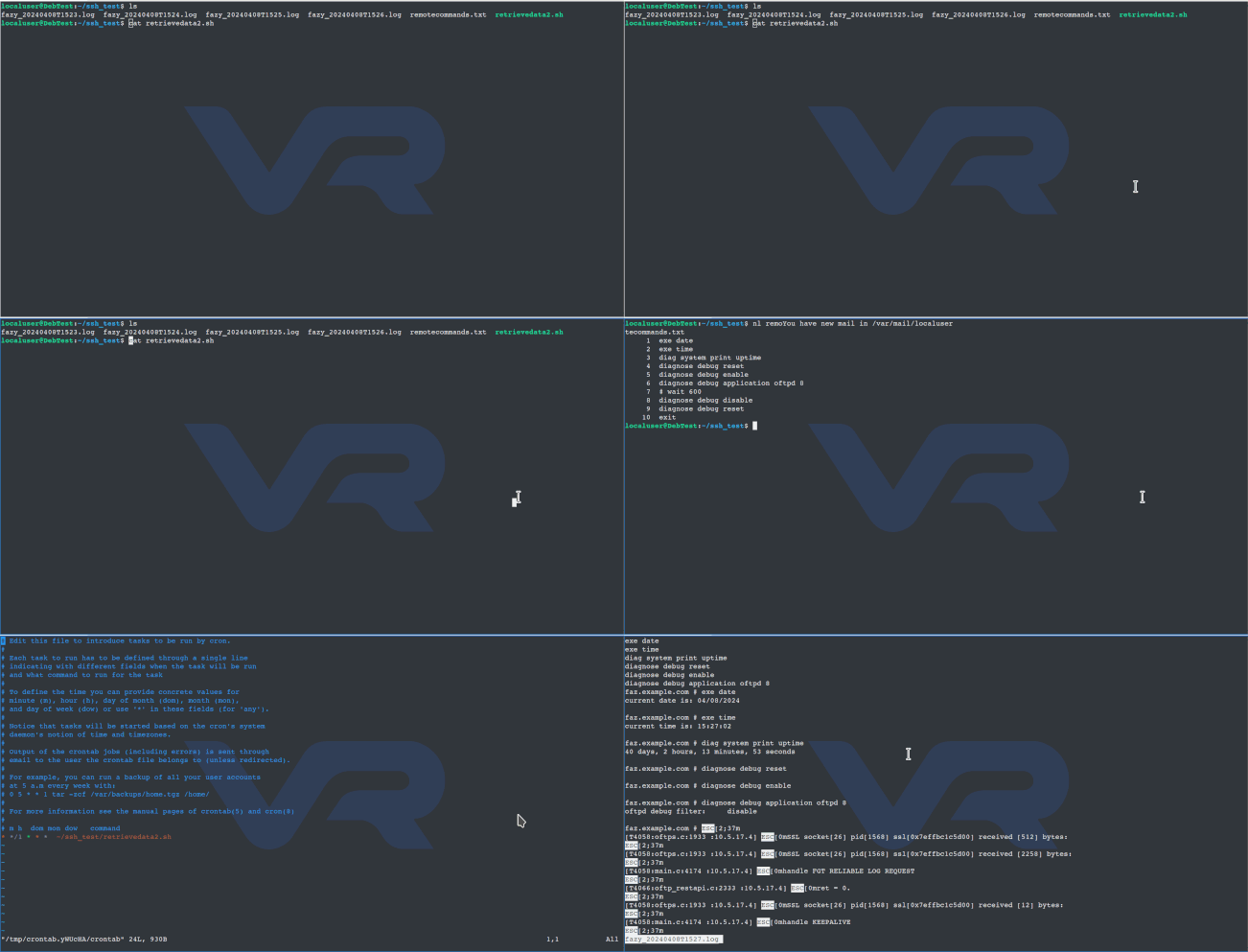
For instructions on how to schedule with crontab, see Technical Tip: Continuous Debug Monitoring with Bash and Crontab. More options regarding file security and additional troubleshooting steps can also be found in this aritcle.
Troubleshooting:
root@DebTestFr:~# gpg -d -q .hidenpass.gpg | sshpass ssh remoteuser@10.5.17.152
A pseudo-terminal will not be allocated because stdin is not a terminal.
This error can be mitigated by adding -tt options under the ssh client.
If read-write access to the 'System Settings' is not allowed in the administrator profile for the remoteuser, the following error will be observed:
FAZ_742 $ get sys stat No permission to 'get system.status'
Note: Command parameters are case sensitive. Quotes are always used around the parameters like in this example: 'my_Account'.
Related articles:

