


How to configure netflow
Description
Instructions on configuring a FortiGate for NetFlow.
Scope
FortiGate.
Solution
NetFlow is a feature that provides the ability to collect IP network traffic as it enters or exits an interface. By analyzing the data provided by NetFlow, a network administrator can determine items such as the source and destination of traffic, class of service, and the causes of congestion.
NetFlow records are traditionally exported using User Datagram Protocol (UDP) and collected using a NetFlow collector.
The IP address of the NetFlow collector and the destination UDP port must be configured on the sending device (in this case, it is the FortiGate).
The standard value is UDP port 2055, but other values like 9555, 9025, or 9026 can also be used.
In a multi-VDOM environment, it will not be possible to configure Netflow on the root VDOM or any management VDOM as this configuration will be inherited from the global VDOM.
Configure the Netflow collector IP. This can be done in a non-VDOM environment or under the global VDOM to monitor any management VDOM traffic in a multi-VDOM environment:
config system netflow
    set collector-ip <ip>
    set collector-port <0-65535>
    set active-flow-timeout <integer. Values 1-60. Default 30>
    set inactive-flow-timeout <integer. Values 10-600. Default 15>
    set template-tx-timeout <integer. Values 1-1440. Default 30>
    set template-tx-counter <integer. Values 10-6000. Default 20>
end
In the new FortiOS firmware versions 7.2.8, 7.4.2, and above: it is possible to configure the NetFlow as shown below.
set active-flow-timeout: Timeout to report active flows (60 - 3600 sec, default = 1800).
set inactive-flow-timeout: Timeout for periodic report of finished flows (10 - 600 sec, default = 15).
set template-tx-timeout: Timeout for periodic template flowset transmission (60 - 86400 sec, default = 1800).
set template-tx-counter: Counter of flowset records before re-sending a template flowset record.
set interface-select-method: The method to use when selecting the outgoing interface to reach the server.
config system netflow
    set active-flow-timeout
    set inactive-flow-timeout
    set template-tx-timeout
    set template-tx-counter
        config collectors
            edit <table value>
                set collector-ip <Collector IP>
                set collector-port <NetFlow collector port number>
                set source-ip <Source IP address for communication with the NetFlow agent>
                set interface-select-method <Method>
            next
        end
end
Note:
To get the correct source-ip and interface value, run the following command:
get router info routing-table details [IP_of_Netflow_collector]
Configuring the source interface in the netflow configuration is now possible starting with FortiOS v7.6.0 and higher.
config system netflow
    config collectors
        edit <id>
            set source-ip-interface <interface_name>
        next
    end
end
Refer to the following document for the default values:
Technical Tip: How to Configure Netflow
Additional configuration:
In some environments where SD-WAN is incorporated and traffic for Netflow may be required to go over a tunnel interface not associated with the SD-WAN setup, setting the source IP and creating a static route in the routing table will not be enough to ensure the traffic flows over the specified interface. In this case, use the following configuration to ensure traffic goes over the specified interface.
config system netflow
    config collectors
        edit <id>
            set interface-select-method specify
            set interface <tunnel or required interface>
        next
    end
end
The interface-select-method is set to auto by default, so it can use various methods of selection such as SD-WAN rules.
Enabling Netflow on the Interface:
In newer versions of FortiOS, Netflow packet sampling can be configured, which can be exported as a report after the sampling value threshold is met.
config system interface
    edit <interface name>
        set netflow-sampler both
        set netflow-sample-rate 499
        set netflow-sampler-id 80
end
The following options are available for the Netflow sampler:
tx: Monitor transmitted traffic on this interface.
rx: Monitor received traffic on this interface.
both: Monitor transmitted/received traffic on this interface.
If the connection is from Client to Server, either download or upload, it is still in the same direction and is in one session.
Diagram:
If the user downloads or uploads, it is still one session. (Source IP and destination IP are the same.)
Server -------------P2_FGT_P1------------ Client1
|----------- Client2
In the above scenario, even if netflow-sampler is chosen as 'both', traffic would not be seen as different concerning ingress and egress.
If there are two users from two ends connecting to the opposite side then it should show both directions as shown below:
Server1 ------------|P2_FGT_P1 |--------------- Client1
Client2 ------------|__________|--------------- Server2
Verification of Configuration and troubleshooting:
If the data is not seen on the Netflow collector after configuring the Netflow as shown above, the following sniffer commands should help verify if there is communication between the FortiGate and the Netflow collector:
diagnose sniffer packet any 'port 9995' 6 0 a
The collector port is 9995.
Alternatively, use a sniffer on the Netflow collector IP:
diagnose sniffer packet any 'host x.x.x.x' 6 0 a
(x.x.x.x is the IP address of the Netflow collector).
Using Netflow with VDOMs.
For VDOM environments, excluding the management VDOM, Netflow must be configured using the following CLI commands:
config vdom
    edit root
        config sys vdom-netflow
            set vdom-netflow enable
                config collectors
                    edit 1
                        set collector-ip <ip>
                        set collector-port <0-65535>
                        set source-ip <ip>
                end
                config system interface
                    edit wan1
                        set netflow-sampler both
                end
 end
Root is an example. Change it to the non-management VDOM name as required. The setting vdom-netflow must be enabled before proceeding to the next setting. Under system interface configuration, change the interface to the one to be used.
Note: The source-ip option is hidden when ha-direct option is enabled in the HA config.
When 'ha-direct' is disabled under HA settings, Netflow always tries to send the traffic out on the mgmt interface. To send the NetFlow traffic via a routed interface in each VDOM, NetFlow IP must be disabled or put 0.0.0.0 under global settings.
Viewing the configuration:
Netflow does not have a separate daemon and is instead running under sflowd. The current Netflow configuration can be viewed by using test level 3 or 4:
diagnose test application sflowd 3
diagnose test application sflowd 4
FortiGate allows for the setup of Netflow in multi-VDOM environment interfaces, but it will not allow configuring it in the management VDOM as the command is simply not there.
This happens because the management VDOM feeds the Netflow configuration from the Global configuration. This means that, if it is necessary to set up Netflow for a management VDOM, it is necessary to do it in the Global VDOM.
In a multi-VDOM environment and for any non-management VDOM, it will be possible to set up Netflow with the command 'config system vdom-netflow'.
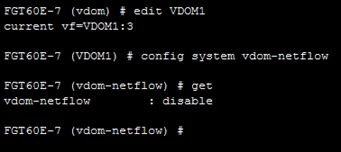
But for the management VDOM that does not work:

It is therefore necessary to configure it on the Global VDOM with the following command:
config system netflow
Important note: It is not possible to directly configure NetFlow with DNS names. NetFlow requires IP addresses for configuration.
Note: The Firewall is working as a NetFlow logs collection and exporter to external Monitoring tools. These tools will processed the traffic flow collected and display GUI output.
For NetFlow review in Wireshark, see Technical Tip: How to Configure Netflow.
Related articles:

