


Technical Tip: Correctly configuring Two-Factor Authentication for LDAP users using SSL VPN
Description
This article describes how to correctly configure Two Factor-Authentication on a FortiGate firewall for LDAP users.
Scope
FortiGate with LDAP.
Solution
Two-Factor-Authentication works when specifying an LDAP user name, but when specifying a group name, permission is denied and the Token code is not received.
Verification of Configuration:
Integrate the firewall with the LDAP server and verify the connectivity:
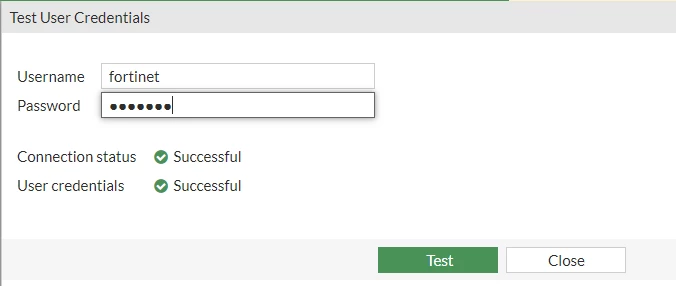
Create a remote group with a remote server and group name.
Create an LDAP user with Two-Factor Authentication enabled with any of the available methods, such as SMS, email, and FortiToken.
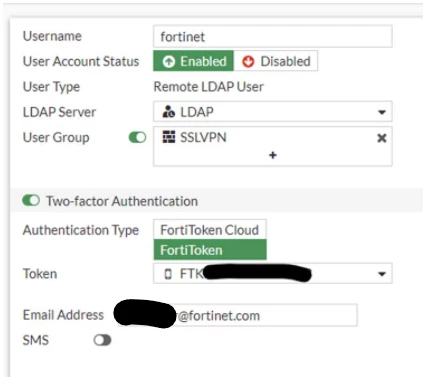
To enable 2FA on the CLI:
config user local
    edit "fortinet"
        set status enable
        set type ldap
        set two-factor <fortitoken / fortitoken-cloud / email / SMS >
        set email-to ''
        set sms-server fortiguard
        set sms-phone ''
        set authtimeout 0
        set auth-concurrent-override disable
        set ldap-server "LDAP"
        set workstation ''
    next
end
Create a local group for the LDAP users.
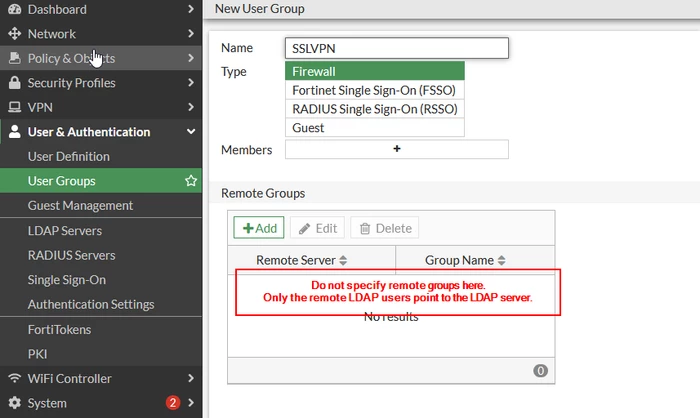
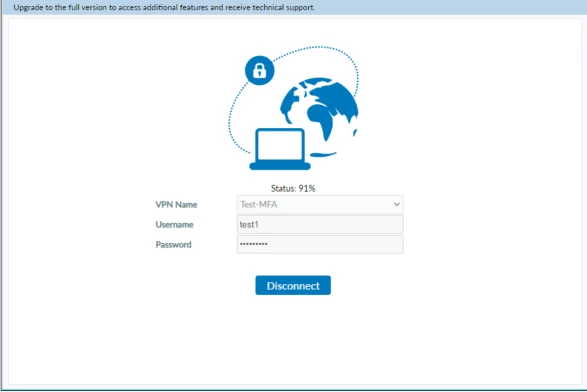
Include the local group in the SSL VPN settings and firewall policy. Make sure not to refer to the remote group. Create a local firewall group for LDAP users with Two-Factor Authentication enabled. Try to connect to an SSL VPN from FortiClient. It will ask for the token code:
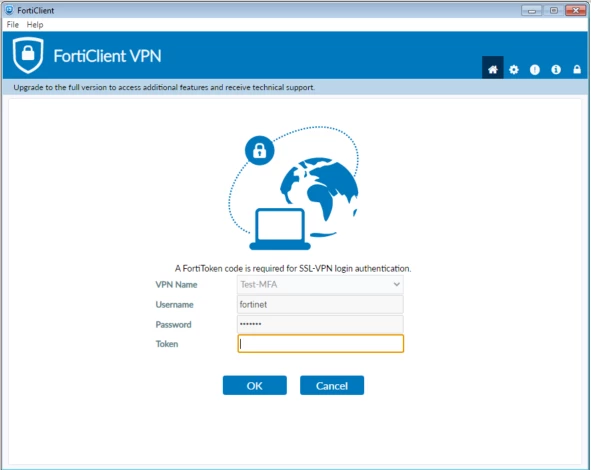
Users who do not have the FortiToken configured will simply be able to log in as shown below:

Troubleshooting:
If this has been configured properly and users are still not getting prompted for 2FA, check if there are any RADIUS groups configured.
If 'Include in every user group' is enabled on that RADIUS group, this will also affect the LDAP groups and prevent 2FA from working.
Use the following commands to debug:
diagnose debug reset
diagnose debug application fnbamd -1
diagnose vpn ssl debug-filter src-addr4 x.x.x.x
diagnose debug application alertmail -1
diagnose fortitoken debug enable
diagnose debug application sslvpn -1
diagnose debug enable
diagnose debug disable
'diagnose debug application fnbamd -1' <----- To verify the authentication process.
'diagnose vpn ssl debug-filter src-addr4 x.x.x.x' (Substitute x.x.x.x with the client's public IP).
'diagnose debug application alertmail -1' <----- To verify Token delivery.
'diagnose fortitoken debug enable' <----- To verify Fortitoken issues.
'diagnose debug disable' <---- Once the issue has been identified, disable the debug.
To identify whether the user is being authenticated via two-factor authentication, refer to the following truncated logs:
[2553] fnbamd_ldap_result-Result for ldap svr ldap is SUCCESS
..
[913] update_auth_token_session-Token is needed
..
[2060:root:4f]fam_auth_proc_resp:1365 fnbam_auth_update_result return: 7
..
[2060:root:4f]Auth requires token
..
[2096] handle_req-Rcvd auth_token rsp for req 8847639814153
[2149] handle_req-Check token '849741' with user 'fortinet'
..
[2060:root:4f]fam_auth_proc_resp:1391 Receive Manually input token result. Push: 0
..
[2060:root:4f]Auth successful for user fortinet in group SSLVPN  <----- After 2FA is verified, authentication is completed.
[2060:root:4f]fam_do_cb:768 fnbamd return auth success.
'[2553] fnbamd_ldap_result-Result for ldap svr ldap is SUCCESS' <----- User successfully authenticated on LDAP.
'[913] update_auth_token_session-Token is needed' <----- Prompt for a two-factor authentication OTP.
'[2060:root:4f]fam_auth_proc_resp:1365 fnbam_auth_update_result return: 7' (token code required)
'[2060:root:4f]Auth successful for user fortinet in group SSLVPN' <----- After 2FA is verified, authentication is completed.
Note:
Sometimes, users will not be prompted for a token because of case sensitivity under user settings. To change the settings, use the following command:
config user local
    edit "<name>"
        set type password
        set username-case-sensitivity disable/enable
end
Note:
v5.0 to v7.2 are outside of engineering support. These commands may be different in higher versions. Consider upgrading the device firmware to a supported version (7.2 up to 7.6). Check the firmware path and compatibility depending on the hardware.
Starting from FortiOS v7.6.3, the SSL VPN tunnel mode feature is no longer available in the GUI and CLI. This applies to all FortiGate models.
Related articles:
Technical Tip: Configuring Remote LDAP users with Two-Factor Authentication

