



Technical Tip: Certificate Error in Admin Access
Description | This article describes how to resolve an issue where, when a user connects to FortiGate GUI using the FortiGate IP address, the web page displays the certificate error: ERR_CERT_COMMON_NAME_INVALID. |
Scope | FortiGate. |
Solution | The following certificate error is seen.
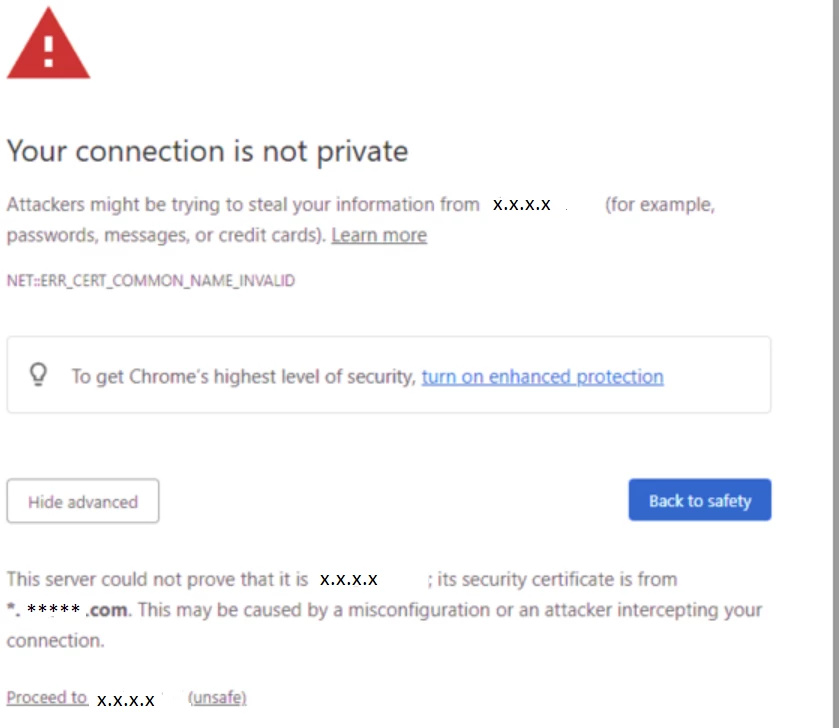
The Common Name represents a server name protected by the SSL certificate. The certificate is valid only if the requested hostname matches the certificate's common name.
Check the Certificate, it is issued to *****.com:
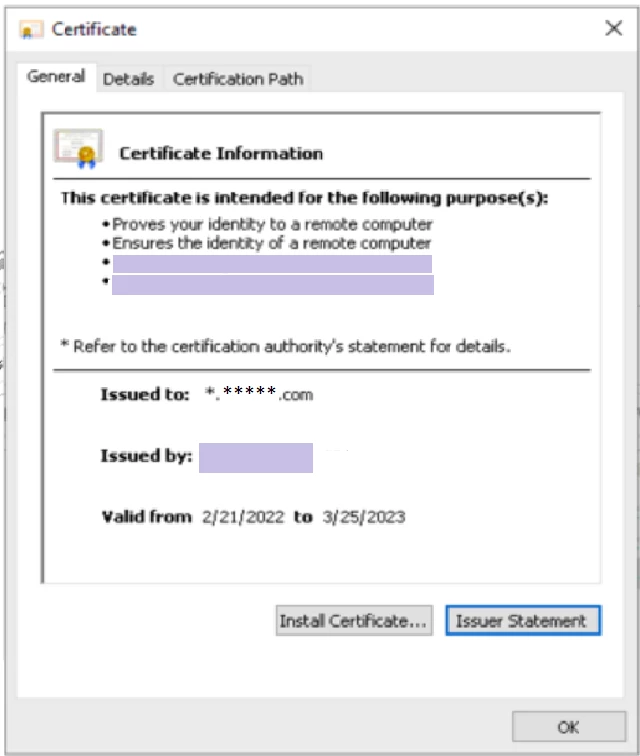
The user connects to the IP address https://x.x.x.x. The certificate's common name is *****.com, which does not match. The certificate should be issued to the IP address x.x.x.x, or the user should connect to the URL *****.com.
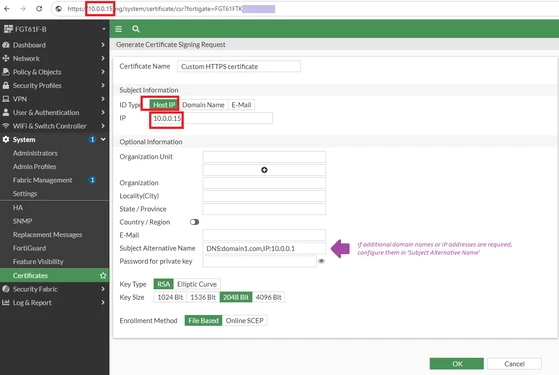
Complete the CSR, download it, have it signed by an internal Certificate Authority, and import it back to FortiGate. Publicly-trusted Certificate Authorities such as Symantec, Comodo, GoDaddy, and Let'sEncrypt will not sign a certificate issued to an IP address.
Once the certificate is imported back to FortiGate, assign it to the admin access:
It is also worth noting that the Google Chrome and some other browsers have remove support for CommonName (CN) matching in certificates. Subject Alternative Name (SAN), which is marked in above snapshot, has been mandatory in the most recent version of Google Chrome.
Configure the Fortinet_GUI_Server certificate under System -> Setting -> Administration Settings -> HTTPS server certificate.
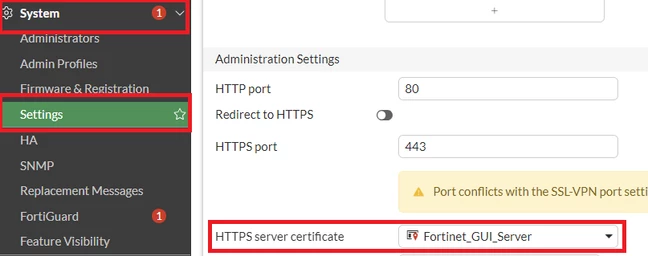
After, install the Fortinet CA SSL on the PC as a Trusted Root Certificate. The error will be removed. The Fortinet CA SSL certificate can be downloaded from System -> Certificate->Fortinet_CA_SSL. 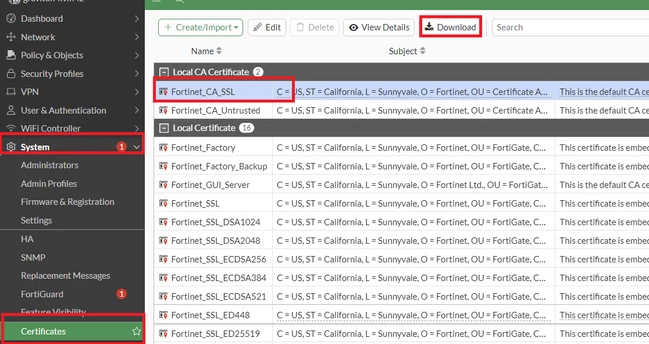
Technical Tip: How to assign a SSL certificate for remote administration of FortiGate Generating a CSR on a FortiGate Troubleshooting Tip: A guide to FortiGate and certificate issues Technical Tip: GUI Untrusted HTTPS server certificate Technical Tip: Certificate warning while accessing FortiGate
Related Video:
|


