Technical Tip: Configuring access lists
Description
This article describes how to configure an access list on FortiGate.
Scope
FortiGate v6.0, v6.2, v6.4, v7.0, v7.2, v7.4, v7.6.
Solution
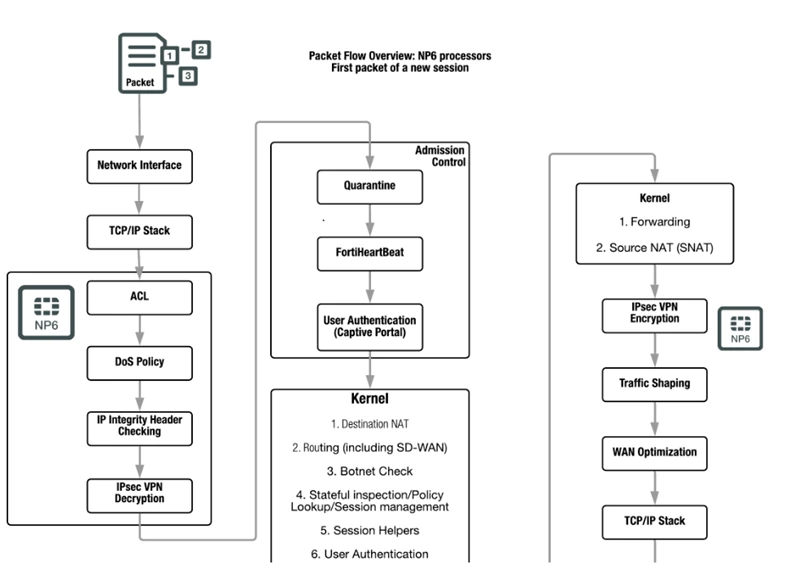
Sometimes the access list is used to block the incoming traffic from different IP addresses based on the FortiGuard IP Geolocation database. This service allows Fortinet devices to query the cloud-based FortiGuard servers for the location of public IP addresses.
It is possible to configure an access list to use as a source IP object which is from type 'Geography', for example, there is a country, Finland:
config firewall address
edit "Finland_addresses"
set uuid 1fe3d272-2534-51ee-ddb1-10d3c8fdd4d0
set type geography
set comment ''
set associated-interface ''
set color 0
set fabric-object disable
set country "FI"
next
end
To block the incoming traffic from IP addresses located in Finland, the ACL will look like :
config firewall acl
edit 1
set status enable
set name "block_ACL"
set comments ''
set interface "wan1"
set srcaddr "Finland_addresses" -
set dstaddr "all"
set service "ALL"
next
end
It is mandatory to note that, if traffic is generated from the LAN to the IP address located in Finland, the return traffic will be blocked by the ACL, because ACL works like a normal stateless 'access-list'. The 'access-list' does not track if the packet is SYN or SYN/ACK.
For example, if the host located behind the FW initiates a SYN packet to a web server in Finland, the server will respond with SYN/ACK, but that packet will be blocked on the firewall if there is an ACL like the one above.
The behavior is the same even if a normal IP address configured is used on the access-list for the source address.
Enable GUI visibility:
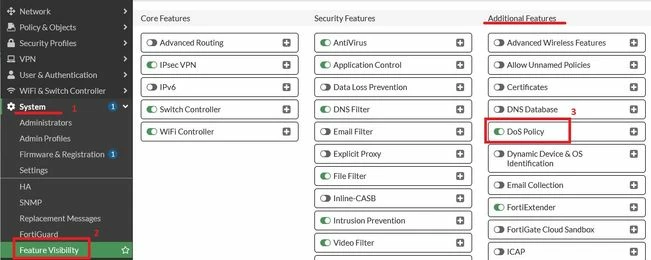
To enable the GUI visualization of this option, it is necessary to enable the Additional Feature 'DoS Policy' under the Feature Visibility in the System configuration, as shown below:
Notes:
- The ACL feature is available only on FortiGates with NP6-accelerated interfaces. ACL checking is one of the first things that happens to the packet, and checking is done by the NP6 processor. The result is very efficient protection that does not use CPU or memory resources.
- The ACL feature is available for select FortiGate models. Check the related article for more information.
Before configuring an access list, read the following to confirm whether the device supports that feature: Config Firewall ACL.
Refer to the article below to troubleshoot traffic blocked by ACL: Troubleshooting Tip: How to troubleshoot if the traffic is blocked by ACL.