

Technical Tip: Create an additional Winbind instance for a second domain
Description
This article describes the steps to create an additional or multiple Winbind instances in FortiNAC that connects to a different domains and its respective Domain Controllers. The reason why the configuration of Winbind is required in FortiNAC is explained in this article: Technical Tip: MSCHAPv2 authentication, join FortiNAC in domain and checks.
The same steps can be followed to configure the DNS server used by FortiNAC, in case the required DNS records are missing. In environments that have only a single domain, the DNS server configured in FortiNAC is often one of the domain controllers, which typically has all the required DNS records pre-configured by default.
Note:
If there are multiple Domain Controllers but they are used for the same domain, these steps are not required; all the DCs should be automatically discovered and used in rotation.
Scope
FortiNAC.
Solution
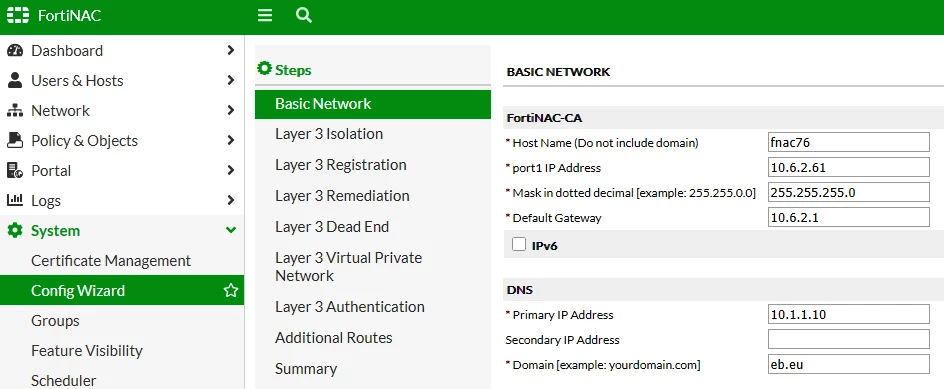
Step 1. The DNS server that is used by FortiNAC is configured in the 'Config Wizard' during initialization. This configuration can be later changed by going in System -> Config Wizard -> Basic Network -> DNS. A reboot of the appliance is required to apply the changes.
Step 2. Due to the nature of Winbind and the compatibility requirements by Microsoft, some specific DNS records need to be configured for the Winbind instance to successfully join the domain. More details are shown in this section of the Microsoft server website: How to verify that SRV DNS records have been created for a domain controller.
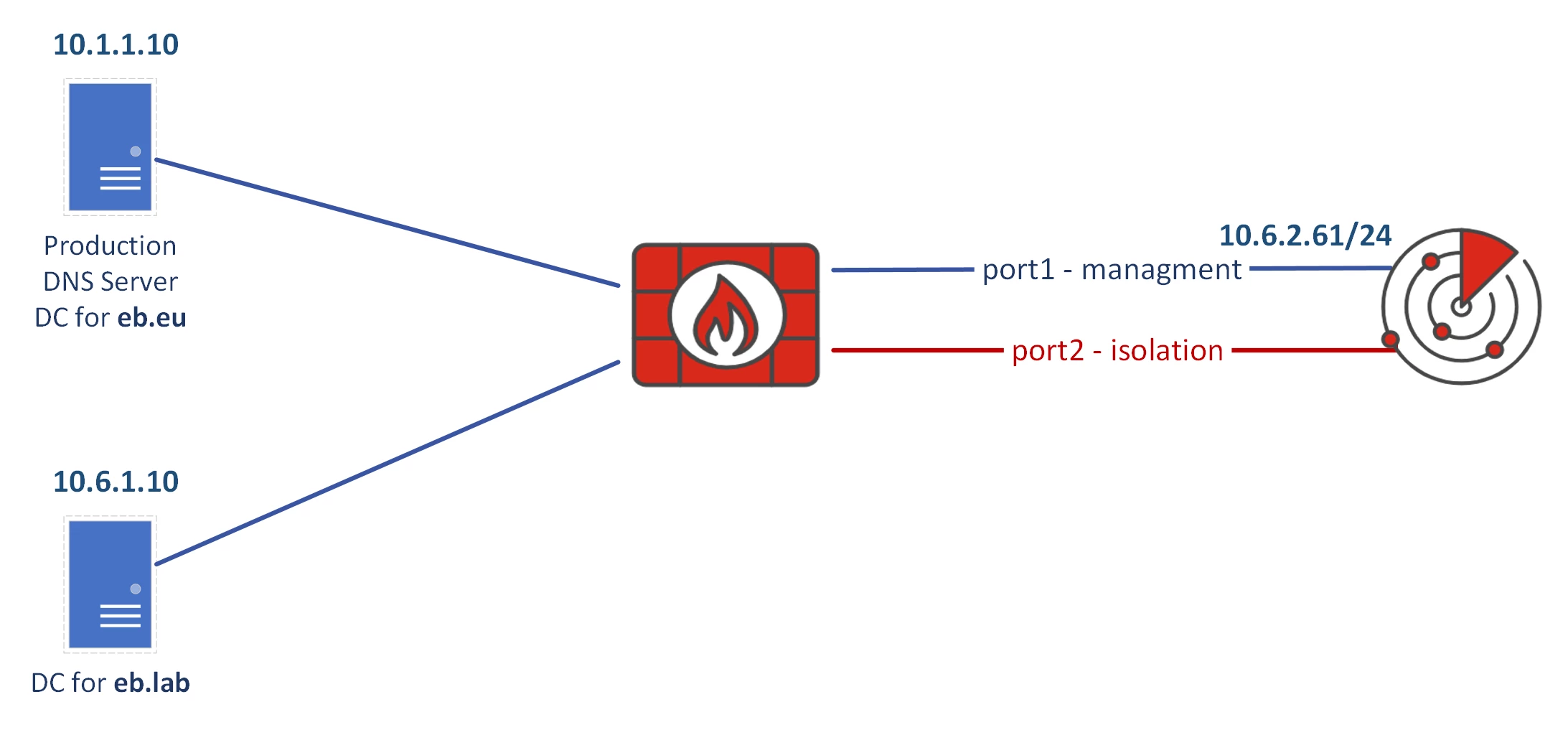
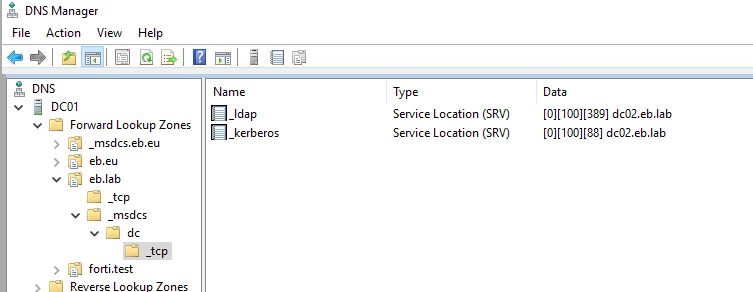
Step 3. In this example, FortiNAC is using the first Domain Controller Production DNS Server DC (10.1.1.10) as its DNS server, which hosts the domain 'eb.eu'. The Winbind instance is already created and working for this domain without any extra configuration on the DNS server. The requirement is to add a Second Winbind instance pointing to the new domain 'eb.lab', which is hosted in another Domain Controller. For this configuration to work, the DNS server (10.1.1.10) should include at least the following DNS records pointing to the second domain and Domain Controller (10.6.1.10:(
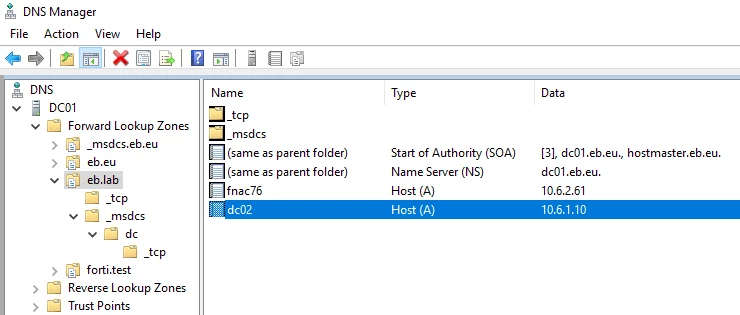
Step 4. Then a normal DNS A record for the second Domain Controller (10.6.1.10) itself must be added:
Step 5. Verify the correct functioning of Kerberos and LDAP SRV records for the new domain and the FQDN of the Domain Controller from the FortiNAC CLI:
execute enter-shell
host -t SRV _kerberos._tcp.dc._msdcs.eb.lab
Expected output:
_kerberos._tcp.dc._msdcs.eb.lab has SRV record 0 100 88 dc02.eb.lab. # host -t SRV _ldap._tcp.dc._msdcs.eb.labExpected output:
_ldap._tcp.dc._msdcs.eb.lab has SRV record 0 100 389 dc02.eb.lab.
ping dc02.eb.lab
The ping test should be successfully.
Step 6: The DNS traffic and the query responses can also be checked in a packet capture through another FortiNAC CLI session:
execute tcpdump port 53 -v
17:47:33.879717 IP (tos 0x0, ttl 64, id 20045, offset 0, flags [none], proto UDP (17), length 77)
    fnac76.eb.eu.58211 > DC01.eb.eu.domain: 37142+ SRV? _kerberos._tcp.dc._msdcs.eb.lab. (49)
17:47:33.902416 IP (tos 0x0, ttl 126, id 21362, offset 0, flags [none], proto UDP (17), length 124)
    DC01.eb.eu.domain > fnac76.eb.eu.58211: 37142* 1/0/1 _kerberos._tcp.dc._msdcs.eb.lab. SRV dc02.eb.lab.:88 0 100 (96)

17:48:02.445248 IP (tos 0x0, ttl 64, id 50231, offset 0, flags [none], proto UDP (17), length 73)
    fnac76.eb.eu.36158 > DC01.eb.eu.domain: 44870+ SRV? _ldap._tcp.dc._msdcs.eb.lab. (45)
17:48:02.467963 IP (tos 0x0, ttl 126, id 21364, offset 0, flags [none], proto UDP (17), length 120)
    DC01.eb.eu.domain > fnac76.eb.eu.36158: 44870* 1/0/1 _ldap._tcp.dc._msdcs.eb.lab. SRV dc02.eb.lab.:389 0 100 (92)

17:50:55.966874 IP (tos 0x0, ttl 64, id 4941, offset 0, flags [DF], proto UDP (17), length 57)
    fnac76.eb.eu.38145 > DC01.eb.eu.domain: 51898+ A? dc02.eb.lab. (29)
17:50:55.989501 IP (tos 0x0, ttl 126, id 21550, offset 0, flags [none], proto UDP (17), length 73)
    DC01.eb.eu.domain > fnac76.eb.eu.38145: 51898* 1/0/0 dc02.eb.lab. A 10.6.1.10 (45)
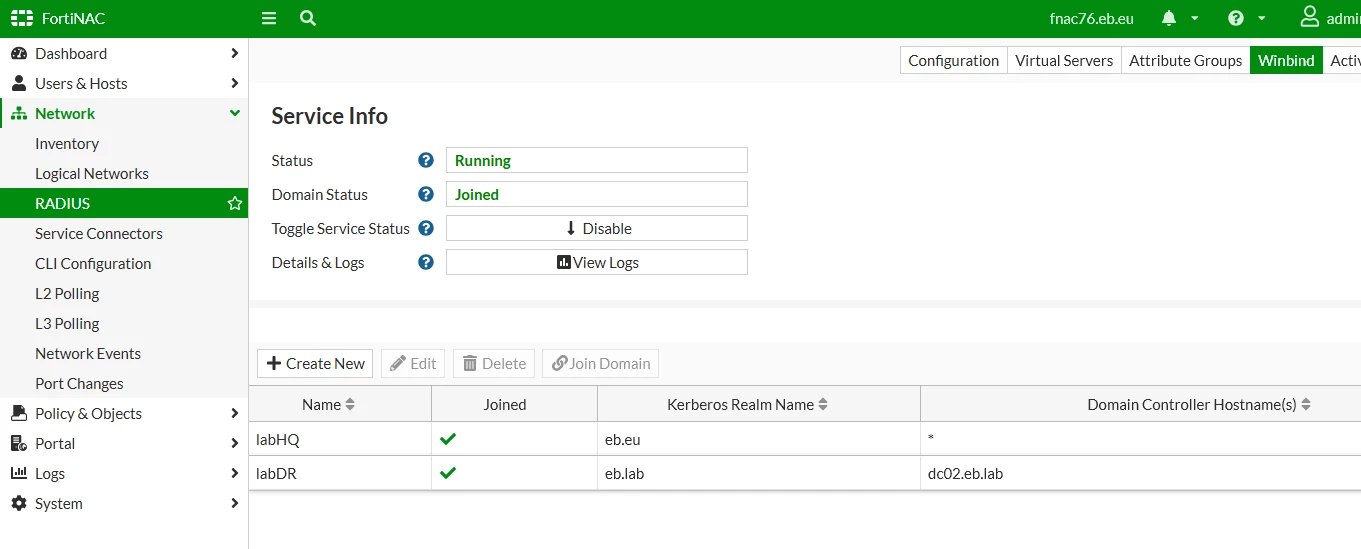
Step 7. Complete the Winbind configuration for the second instance and check the status in the FortiNAC GUI:
Important Note: Do not use Domain Controller short hostnames such as 'dc02'. Use this 'dc02.eb.lab' which corresponds to the FQDN or hostname + domain of the AD server.
Step 8. Carry out some tests from a host belonging to the second domain. The configuration can be considered complete after a RADIUS Request is accepted for an MSCHAPv2 authentication request with a user from the second domain. The details can be seen in the RADIUS 'Service Log' in the FortiNAC GUI:
(2) Received Access-Request Id 0 from 10.6.2.1:22006 to 10.6.2.61:1812 length 142
(2)   NAS-Identifier = "FGVM-DR"
(2)   User-Name = "gimi@eb.lab"
(2)   MS-CHAP2-Response = 0x8c00fd4c5db2f8fc47c31ab98fd842ac66f90000000000000000406b95ebc1f4e611dfe09176981e46617aa4ccb452fc3dc1
(2)   MS-CHAP-Challenge = 0x2c4955011b178ad0a03f5cffbb488c1e
(2)   Message-Authenticator = 0x327601c040b0b7903a7e2a86cb9c4a2f
...
(2) Login OK: [gimi@eb.lab] (from client 10.6.2.1 port 0)
(2) Sent Access-Accept Id 0 from 10.6.2.61:1812 to 10.6.2.1:22006 length 197
(2)   Message-Authenticator = 0x00
(2)   MS-CHAP2-Success = 0x8c533d39443641433942313038373032463333413232414631453032323735313644314234384342313442
(2)   MS-MPPE-Recv-Key = 0x2a5e2092bbd50cef012d4d0df76ef76d
(2)   MS-MPPE-Send-Key = 0x8fe2579c97c7fc9600a9911ed5b34764
(2)   MS-MPPE-Encryption-Policy = Encryption-Allowed
(2)   MS-MPPE-Encryption-Types = RC4-40or128-bit-Allowed
(2) Finished request
Note: If it is necessary to add a Third Winbind instance, repeat steps 3 through 8.
Related articles: