




Technical Tip: Hardware switch, Software switch, VLAN switch: Use cases, compiled details
Description
This article discusses the topic of switch-like functionality on the FortiGate that is not covered by existing documentation. It also provides an ideal starting place for first-time users and answers questions like:
- Which type of switch interface should be used in a given topology.
- How to allow more VLANs on a switch.
- Whether or not a switch 'needs' a trunk port.
This article is not all-encompassing but is a starting point (a stub) with information and examples that are intended to be expanded upon.
Scope
Familiarizing with the VLAN traffic and the types of switches available on FortiGates, and their capabilities.
Solution
VLAN tags consist of a 4-byte frame extension to Ethernet frames that are used to identify the VLAN/broadcast domain that the traffic belongs to. Notably, VLAN tagging and removal is done when the packet leaves the network device (for example, a switch receives a tagged frame, determines the tag matches the VLAN assigned to the egress port, then removes the VLAN tag before sending the frame out of the switchport).
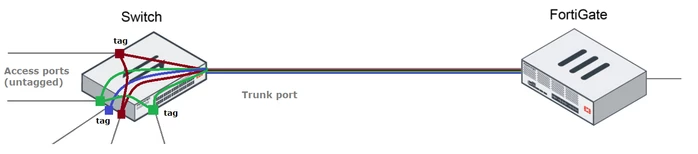
VLAN tags can be applied to packets that are transmitted from a network device, but client devices (such as laptops and workstations) do not typically apply a VLAN tag to their own outgoing traffic and will instead send out untagged traffic and expect untagged traffic to be received. For example:
- Network switches that receive untagged traffic from a workstation may then apply a VLAN tag when forwarding these frames over a trunk port (i.e., a port that allows VLAN-tagged frames to be sent/received and has a different native VLAN than the sender).
- Routers may apply VLAN tags to traffic that is egressing from a VLAN sub-/virtual-interface.
Administrators should take care when designing switching setups that have both end-users connected (which expect untagged traffic) and network switches (which may expect tagged and/or untagged traffic), especially when using switch interfaces on the FortiGate. The general recommendation is to have client-facing access ports handled via a dedicated network switch, rather than on the FortiGate directly.
VLAN Assignment:
On a Layer-2 network switch, each physical interface may be associated with a single native VLAN (i.e. the VLAN associated with untagged traffic) and may also have tagged VLANs associated with it. Switch interfaces that allow untagged and tagged frames to be sent/received are commonly referred to as 'trunk ports', as they can carry traffic tagged for multiple different VLANs over a shared physical link.
On the FortiGate, it is possible create multiple VLAN sub-interfaces on top of a parent interface (e.g., a single interface, an Aggregate interface, a Hardware/Software/VLAN Switch, etc.). Each VLAN sub-interface that shares a parent interface must have a unique VLAN ID and should also have non-overlapping IP addresses assigned (just like with physical interfaces on the FortiGate), whereas VLANs on different parent interfaces may have overlapping VLAN IDs (but not overlapping IP addresses, generally speaking).
For example, in the following screenshot, VLAN 5 on port1 is assigned an IP address of 192.168.5.1/24. The administrator can create a VLAN interface on port2 that also has a VLAN ID of 5, but that new interface cannot be assigned the same IP address as the VLAN 5 interface on port1.
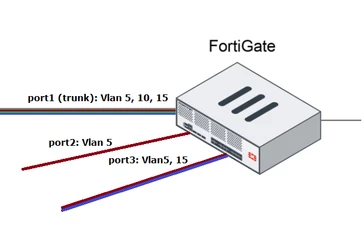
Note: VLAN sub-interfaces that have different parent interfaces are not interconnected, even if they share the same VLAN ID. For example, VLAN 5 on port1 is not in the same broadcast domain as VLAN 5 on port2, so devices on these separate VLANs would need to use the FortiGate as a Layer 3 router to reach one another (which requires network routes and firewall policies), rather than talking directly in a Layer 2 fashion.
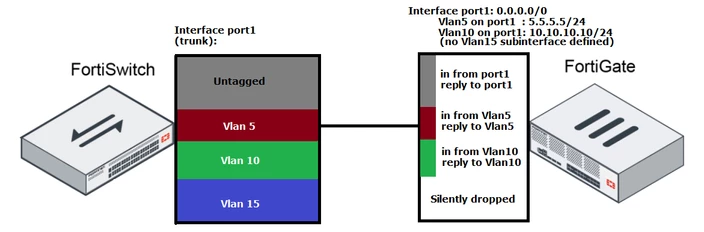
When the FortiGate receives VLAN-tagged frames, it will receive and accept that packet as long as that physical interface has a corresponding VLAN sub-interface with the same tag. For example, traffic tagged with VLAN 5 and received on port1 will be accepted, whereas traffic tagged with VLAN 123 on port1 will not.
Likewise, when traffic is transmitted out from a VLAN sub-interface, the FortiGate will apply a new VLAN tag to that outgoing frame before transmitting it over the physical medium (e.g., out on the cable connected to port1). Traffic received on one VLAN and then routed/transmitted out another will have the incoming tag removed, and the outgoing tag applied when the FortiGate transmits the frame outbound.
Note: Certain VLAN IDs are unavailable to be assigned to VLAN sub-interfaces on the FortiGate. For a list of these VLANs, refer to the following KB article: Technical Tip: Special/Reserved VLAN IDs on the FortiGate.
Switches (Software / Hardware / VLAN).
The FortiGate has several interface types that can allow for switch-like functionality for connected clients. These switch interfaces are as follows:
- Software Switch: Software/CPU-based solution that allows all types of interfaces to be combined into a virtual 'switch' interface.
- For example, software switches could be used to combine a tunnel-mode WiFi SSID with the physical LAN ports so that users on wireless and wired connections are on the same broadcast domain with the same IP addresses assigned.
- Notably, software switches generally do not support hardware acceleration and also require handling by the FortiGate CPU, so the maximum performance of a software switch is lower than a non-software solution (see also: Software switch interfaces and NP processors).
- Hardware Switch / VLAN Switch: Uses onboard hardware (referred to as an Integrated Switch Fabric, or ISF) to allow for true hardware-based switching of packets between physical interfaces assigned to the switch.
Notably, hardware/VLAN switches only allow physical FortiGate interfaces connected to the ISF to be added to the switch (i.e., port1, port2 are allowed, but not VLAN sub-interfaces, tunnel-mode WiFi SSIDs, IPsec tunnels, etc.). However, FortiGate hardware acceleration is fully supported for hardware/VLAN switch interfaces.
Note: Hardware switches and VLAN switches are nearly-identical in functionality and can be largely used interchangeably, but VLAN switches have two additional features: 1) the ability to set a VLAN tag on the switch itself (similar to setting a native VLAN on a network switch interface), and 2) the ability to pair with an Ethernet Trunk interface. For additional information, refer to the following documentation: Virtual VLAN switch.
For a more in-depth comparison of the three switch types, refer to the following KB article: Technical Tip: Comparing Hardware switches, Software switches, and VLAN switches on the FortiGate.
In general, all FortiGate switch interfaces work by assigning member interfaces to a logical switch interface. Members of the switch interface are in the same broadcast domain and can communicate with one another directly via Layer 2, rather than needing to have the FortiGate route traffic via Layer 3. IP addressing is assigned to the logical switch interface, rather than separate settings for each switch member, and all members of a switch interface are effectively trunk ports, so any member of the switch can send/receive VLAN-tagged traffic if a VLAN sub-interface is created with the switch interface as the parent.
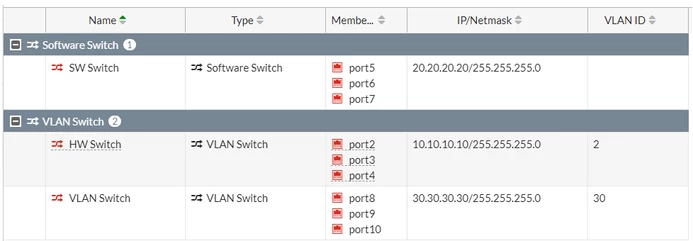
The following screenshots show examples of the switch interfaces mentioned above, both from the GUI and from the CLI (note that the entry labelled 'HW Switch' used to be a hardware switch but is now changed into a VLAN switch):
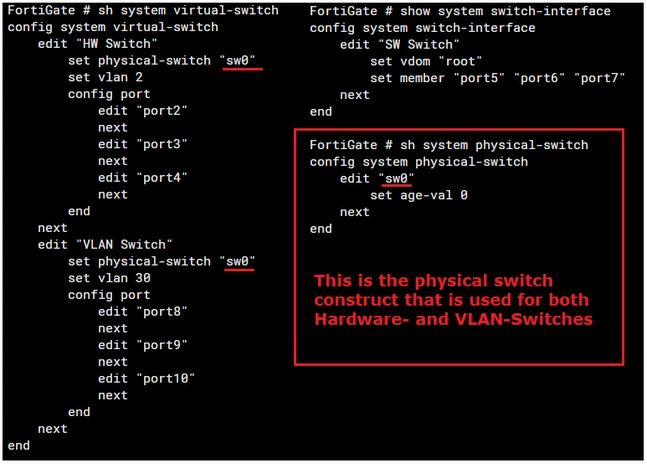
Similar to other network interfaces on the FortiGate, switch interfaces also have corresponding entries under config system interface:
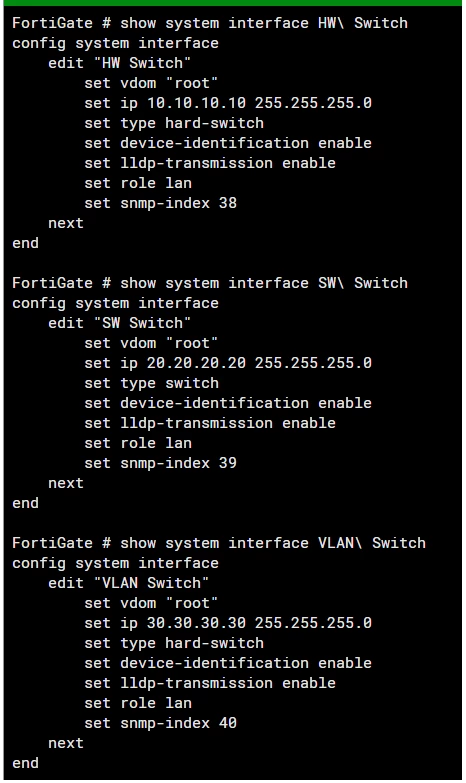
Additional info for FortiGate switch interfaces:
Notably, software switch interfaces have several additional features that hardware/VLAN switches do not have, since they are not based on switching hardware and are handled by more flexible software-based solutions:

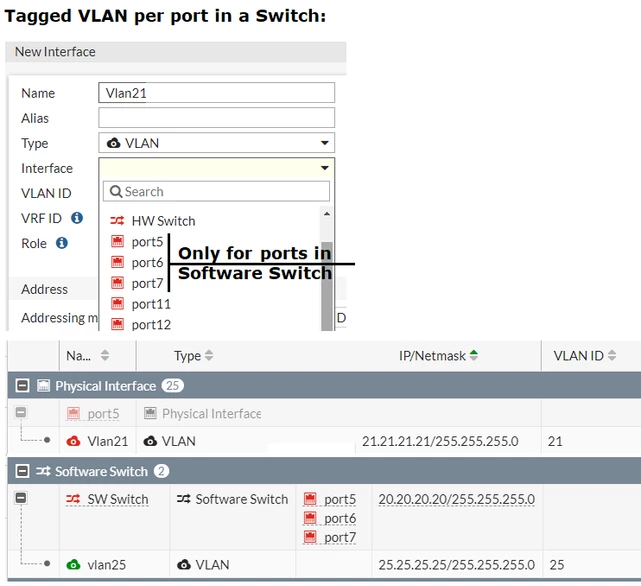
Additionally, software switches have a unique feature where member interfaces can have VLAN sub-interfaces that are separate from the rest of the switch members. The following screenshot shows an example where 'Vlan21' is created under the port5 interface only, even when port5 is a member of a software switch. This means that traffic tagged with VLAN 21 is only accepted on port5:
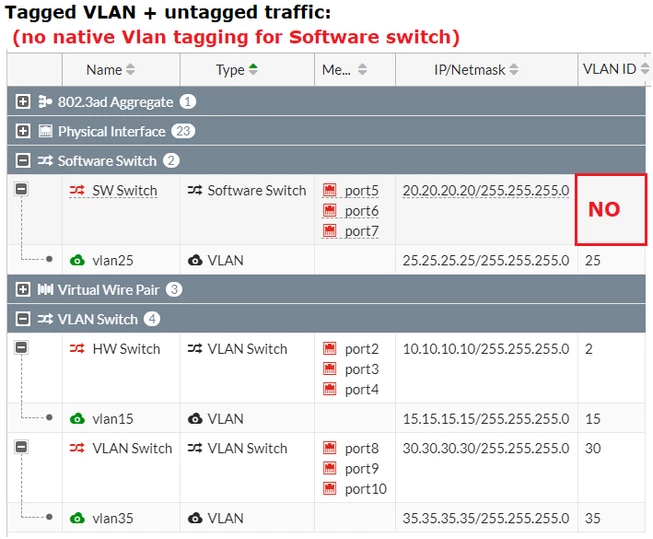
As mentioned earlier, VLAN switch interfaces have the option to set a native VLAN ID, which is not an available option for software or hardware switches. This setting only takes effect when traffic is forwarded to/from a VLAN switch and a dedicated Ethernet Trunk interface (i.e., client sends untagged traffic to VLAN switch, FortiGate receives traffic and sends it tagged out Ethernet Trunk interface). Traffic that is sent between members of the same VLAN switch is always untagged:
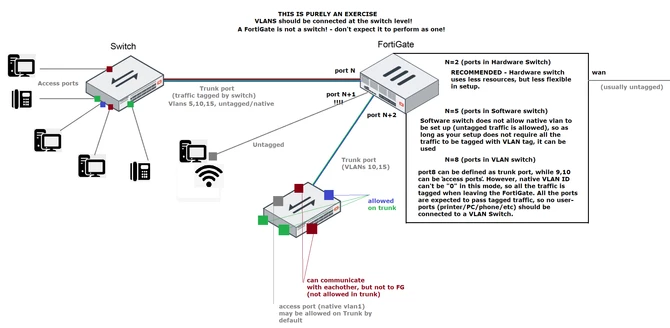
The following screenshot presents an example topology and discusses how these switch interfaces might be used within this environment:
Related articles:
Technical Tip: Comparing Hardware switches, Software switches, and VLAN switches on the FortiGate
Technical Tip: How to create a VLAN tagged interface (802.1q) on a FortiGate - tagged/untagged traffic
Technical Tip: Compatibilities of Hardware Switch with FortiGate