


Technical Tip: Configuring FortiExtender (Legacy)
Description
Important: This article is now considered legacy, with the FortiOS version and the FortiExtender configuration steps no longer being relevant for modern FortiOS. Refer to the following Documentation links for up-to-date information regarding FortiGate/FortiExtender setup (this document will be retained for historical purposes only):
Scope
Solution
Before starting, it is recommended to have a SIM card with no PIN assigned for initial configuration to avoid an issue during first-time setup. A smartphone or tablet with a SIM slot may be used to remove this PIN. It is also recommended to use a 3ft long USB extension cable to connect the USB 3G/LTE Modem to the FortiExtender (for further improving signal integrity/strength).
Configuration Steps:
Connect the FortiExtender to an available interface on the FortiGate (if using a PoE injector or a standalone power supply for the FortiExtender). Alternatively, connect the unit to a PoE-capable switch that is downstream of the FortiGate. The FortiGate interface that will be communicating with the FortiExtender must have the Addressing mode set to Dedicated to FortiAP.
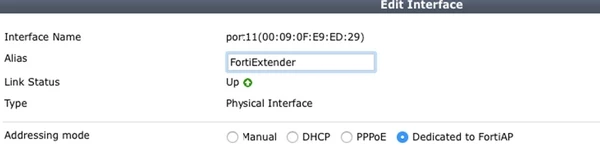
In FortiGate CLI, enable the FortiExtender and wireless-controller functionality:
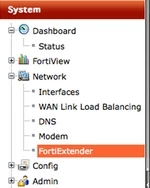
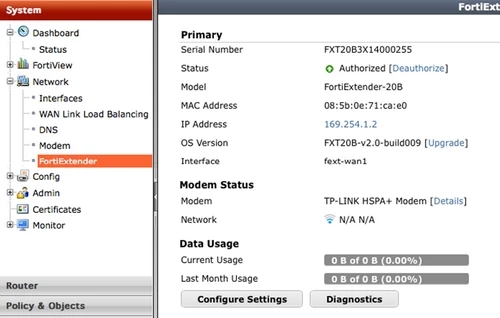
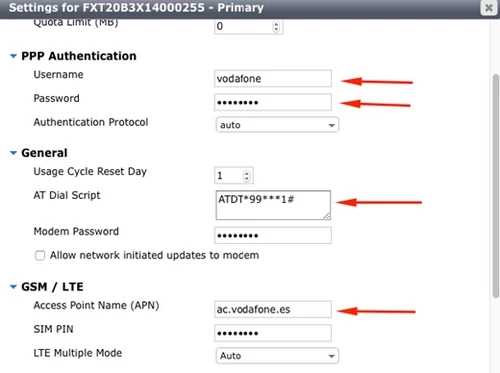
Vodafone-Spain Parameters:
User : vodafone
Password : vodafone
Phone number: *99***1#
Movistar-Spain Parameters:
User : MOVISTAR
Password : MOVISTAR
Phone number: *99***1#
By default, the 3G/LTE modem is configured with 'Always connect'. If the configuration is changed to 'On Demand', then the following FortiGate CLI command must be executed to manually bring up the cellular connection:
To allow access to the Internet via the FortiExtender's modem, create a Firewall Policy with the outgoing interface set to FEXT-WAN1. To access the FortiExtender directly via the management IP, create a Firewall Policy that allows traffic from the local LAN interface (where the management workstation is located) to the FortiGate interface used to manage the FortiExtender. HTTP access to the FortiExtender will be allowed by default, using the next credentials: admin/admin.