Question
Guide : FortiSOAR Active Directory (LDAP) Integration
FortiSOAR Active Directory (LDAP) Integration Guide
Integrating Active Directory (AD) with FortiSOAR enables seamless user authentication and management via LDAP. This guide walks you through setting up LDAP authentication and importing users from AD into FortiSOAR.
Step 1: Enable LDAP Authentication
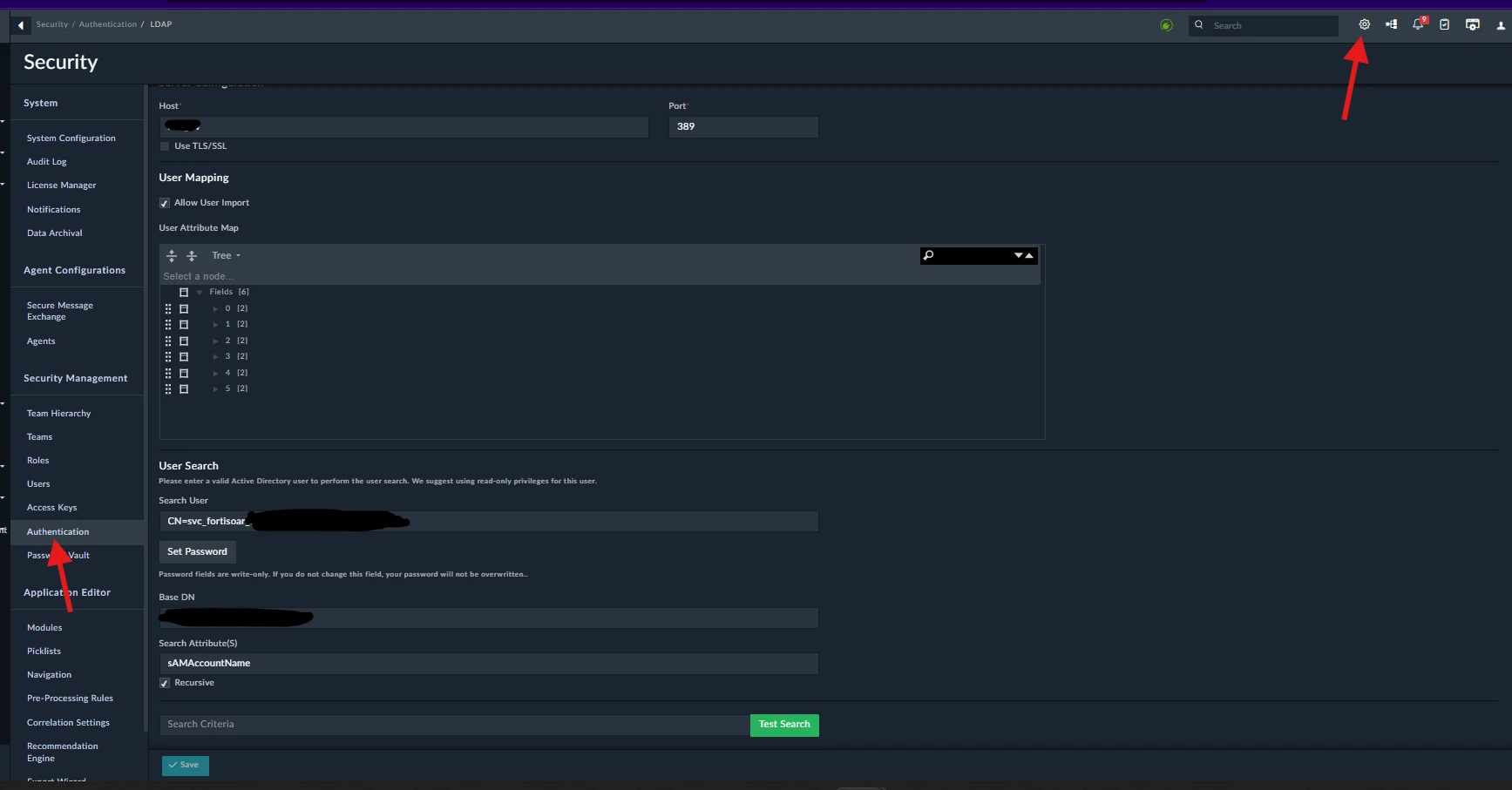
Go to Settings → Authentication → LDAP.
Check the :white_heavy_check_mark: Enable LDAP box.
Enter the following details:
- Host: (Active Directory IP or FQDN)
- Port: 389 (Default for LDAP)
Step 2: Configure LDAP Search Settings
Enter the search parameters:
- Search User:
- (Format:) CN=UserName,CN=Users,DC=XXX,DC=XXX
- (Example:) CN=admin,CN=Users,DC=company,DC=com
- Base DN: (Defines where to search users)
- (Format:) CN=Users,DC=XXX,DC=XXX
- (Example:) CN=Users,DC=company,DC=com
- Search Attribute(s): (Defines user search criteria)
- (Example:) sAMAccountName
- Check the Recursive box (for deep searches)
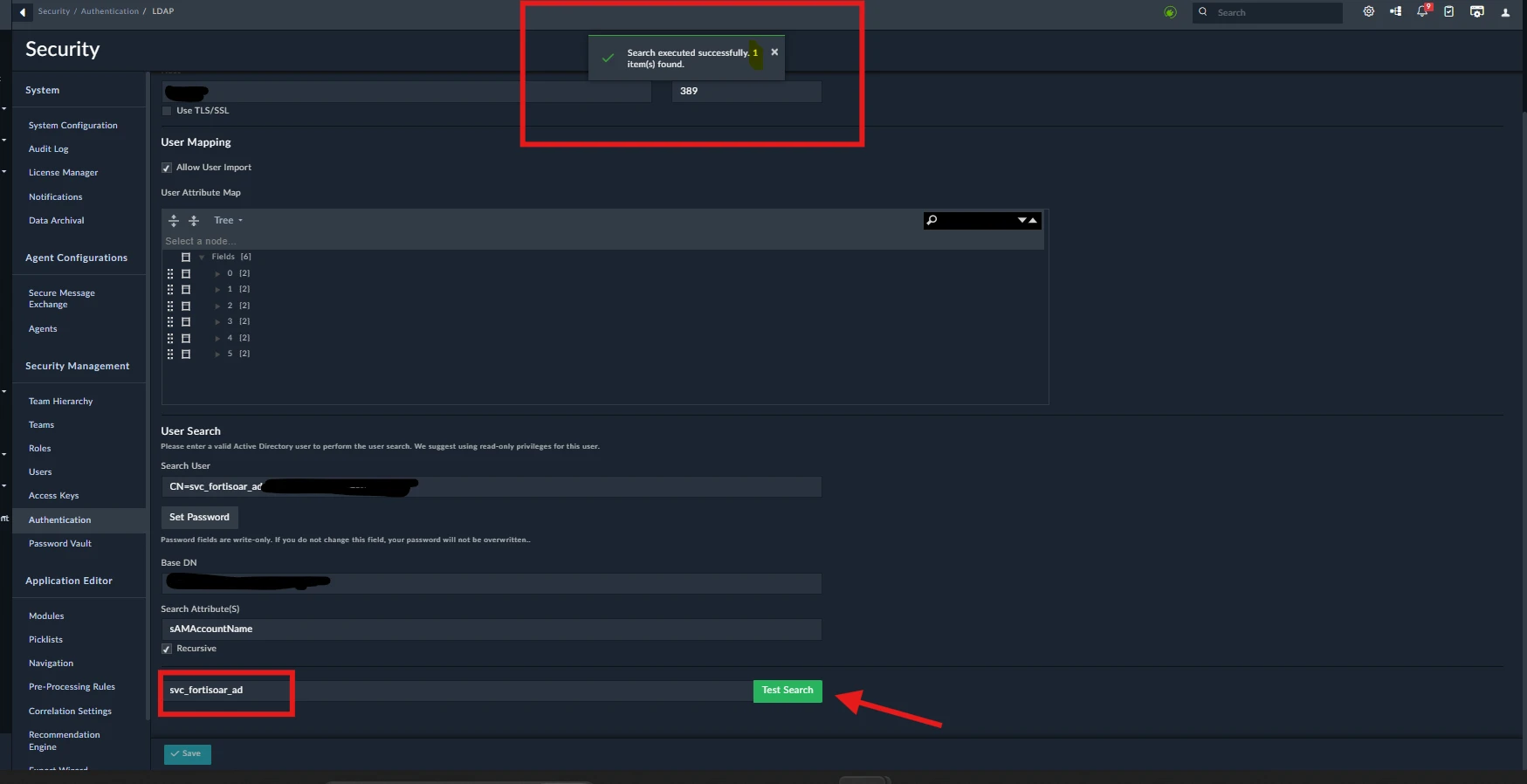
- Search Criteria:
- (Example: Enter the username of the user to test the query)
- Click Test User to verify the user record.
Step 3: Import Users from AD / LDAP
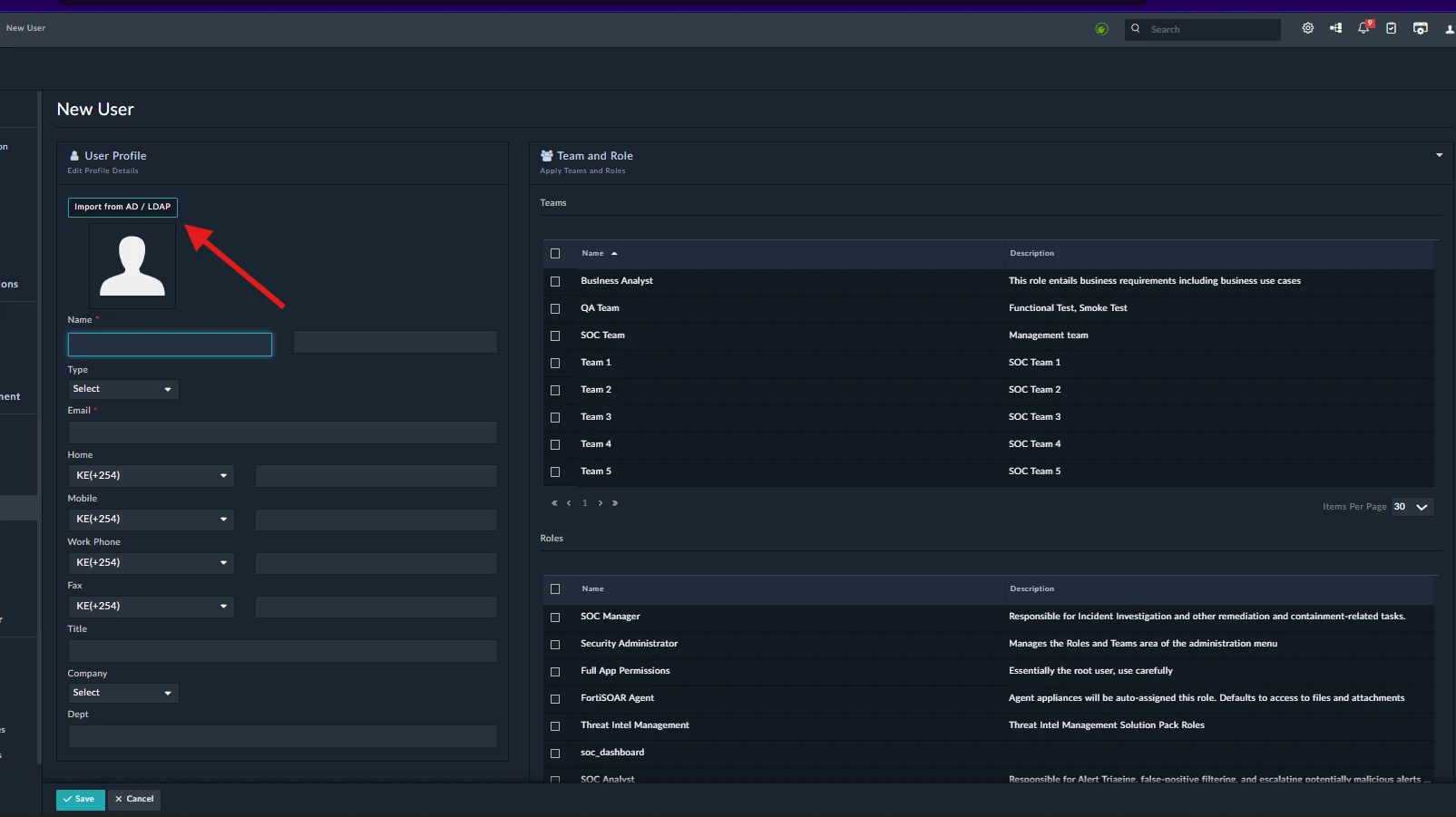
Navigate to Users → Create New User
Click Import from AD / LDAP
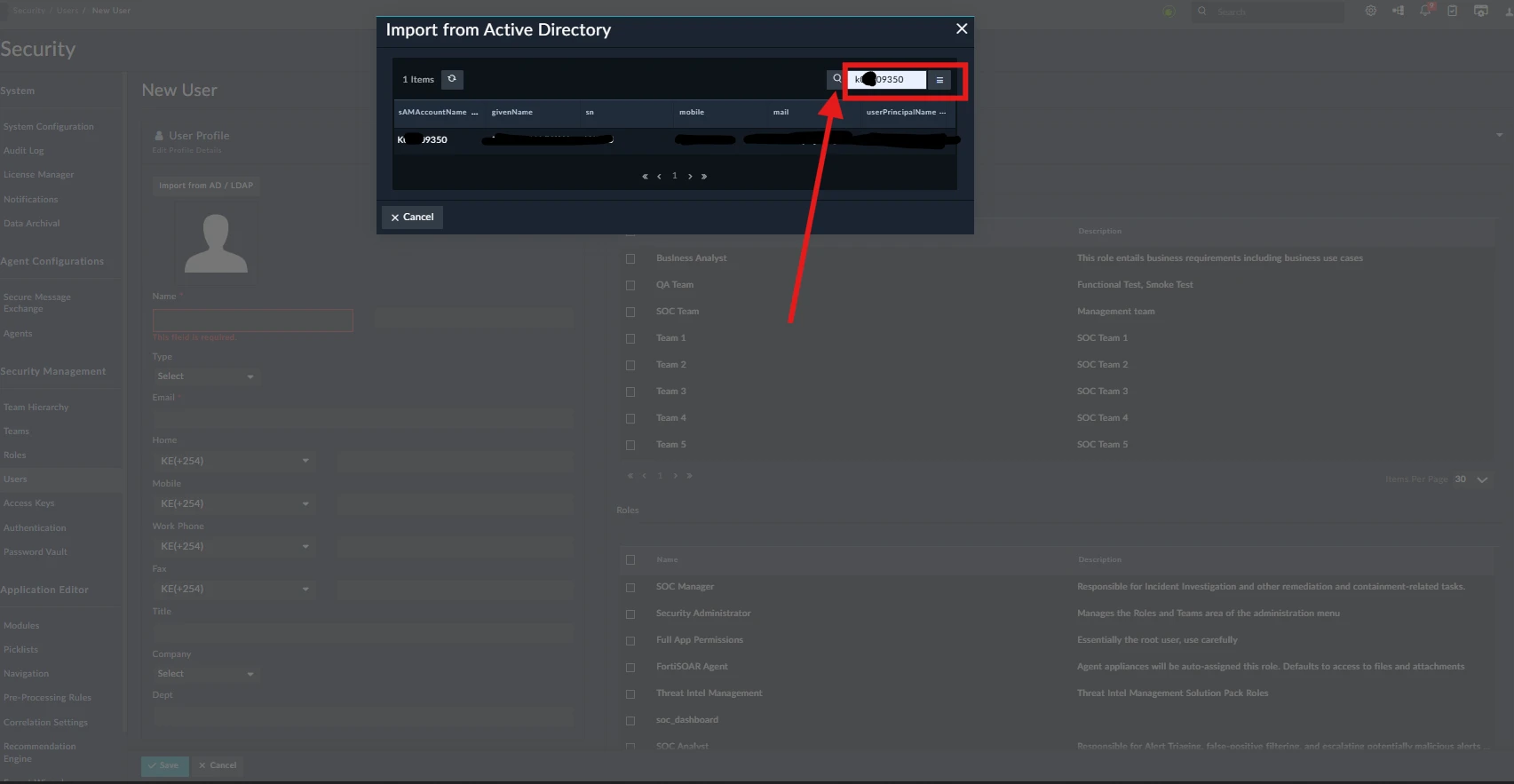
Enter the sAMAccountName of the user and click on the search button
The user details will be retrieved automatically
Double-Click on the entry to add the user to FortiSOAR