| Solution | - Log on to https://portal.azure.com/.
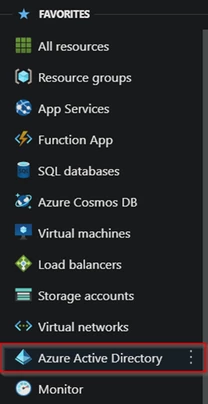
- From the left menu, click Azure Active Directory:
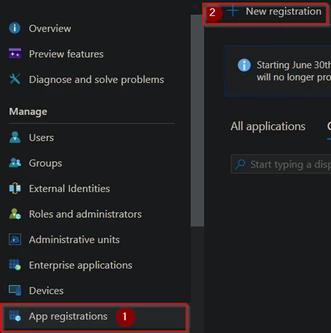
 - In the Manage section, select App registrations -> New registration:
 - On the Register an application screen, enter the following details:
- In the Name field, type FortiSOAR Graph Mail.
- From the Supported account types list, select Accounts in this organizational directory only (Default Directory only - Single-tenant).
- Leave the Redirect URI field blank.
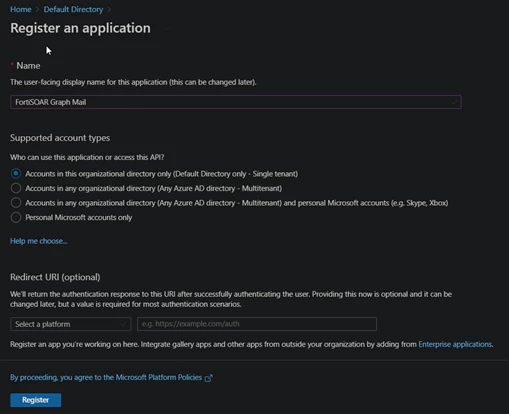 - Select Register to display the Overview Pane.
Copy the Application (client) ID and Directory (tenant) ID from the overview pane. You will require the client ID and tenant ID for further configurations and also when you are configuring the Microsoft Graph Mail connector. - Select Add a Redirect URI.
 - Select Add a Platform, and then select Web applications.
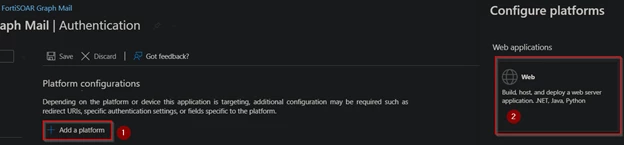 - In the Redirect URIs field, enter a valid Redirect URI and copy this URI to be used for further configurations and also when you are configuring the Microsoft Graph Mail connector.
Note: If not sure about the Redirect URI use https://localhost.
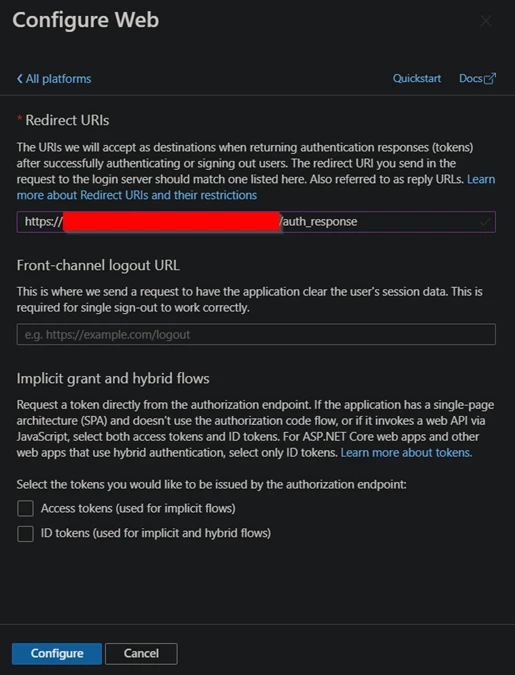 - Select Configure.
- From the left menu, select Certificates and then select Client Secrets -> New client secret.
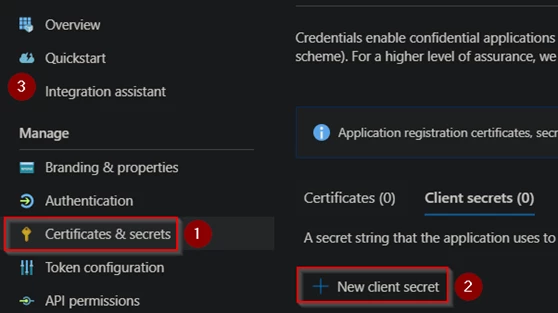 - Enter the Description and Expiration for the client secret, and then select Add.
- Copy the Value of the client secret, which will be required later when the Microsoft Graph Mail connector is configured.
Note: The value of the client secret is not displayed again. - From the left menu, select API Permissions -> Add a Permissions.
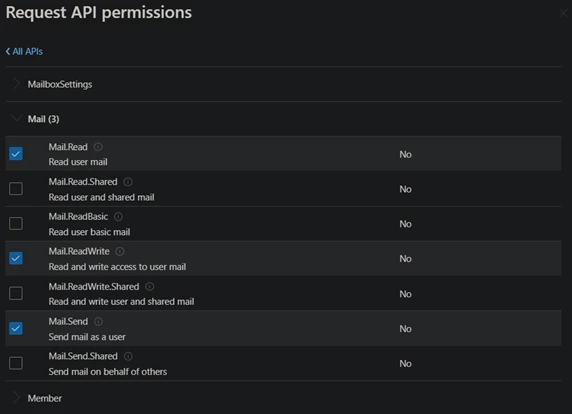
- Select Microsoft Graph API -> Delegated Permissions. Scroll to the Mail section, and add the following options. Select Add Permissions to save the newly added permissions.
 - Open the following URL and replace the TENANT_ID, CLIENT_ID, and REDIRECT_URI with the values that you have saved in the earlier steps:
https://login.microsoftonline.com/TENANT_ID/oauth2/v2.0/authorize?response_type=code&scope=offline_access User.Read Mail.ReadWrite Mail.Send Mail.Read&client_id=CLIENT_ID&redirect_uri=REDIRECT_URI - Sign in with the Microsoft account of the user to whom needs to delegate Email permissions. A Permissions requested screen will be visible:
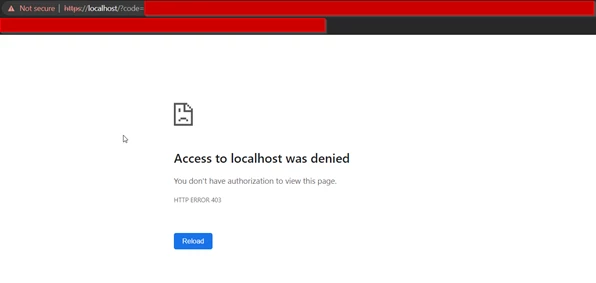
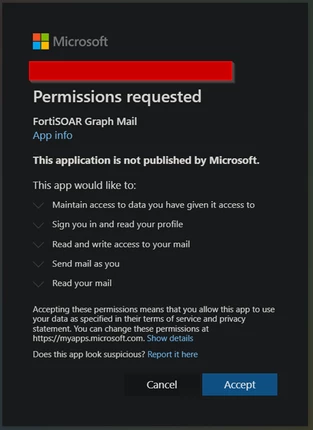 It will redirect to the URL set in your Response URI, and the URL will have the following format:
REDIRECT_URI?code=AUTH_CODE&session_state=SESSION_STAT
Copy the Auth_CODE from the above URL to be used later when you are configuring the Microsoft Graph Mail connector.
If specified https://localhost as the redirect URL, the following page will be visible:
 - Configure the Microsoft Graph Mail connector using saved Tenant ID, Client ID, Secret, and Auth Code.
For more information, see Use Microsoft Defender for Endpoint APIs article. |



