How to enable Trusted Hosts for an organization in FortiPortal
Description
This article describes how to enable and configure Trusted Hosts for an organization in FortiPortal, including the prerequisite steps required to activate the feature and assign trusted hosts to users.
Scope
FortiPortal.
Solution
By default, the Trusted Hosts feature is disabled for organizations, and the checkbox cannot be selected.
Note: Trusted Hosts can be configured for users when local user authentication is used. If the organization is using remote authentication, authentication is handled by the configured remote authentication server.
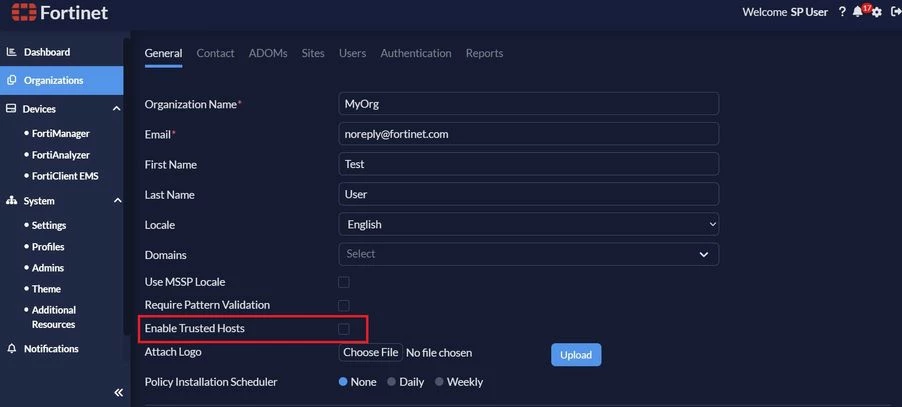
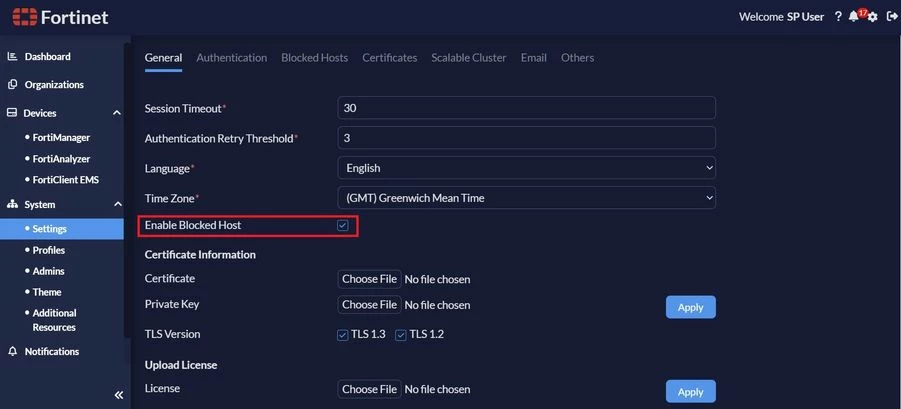
To enable it, an administrator must first turn on the Blocked Hosts option. This can be done from the administration portal by navigating to
System -> Settings -> General, then selecting Enable Blocked Hosts.
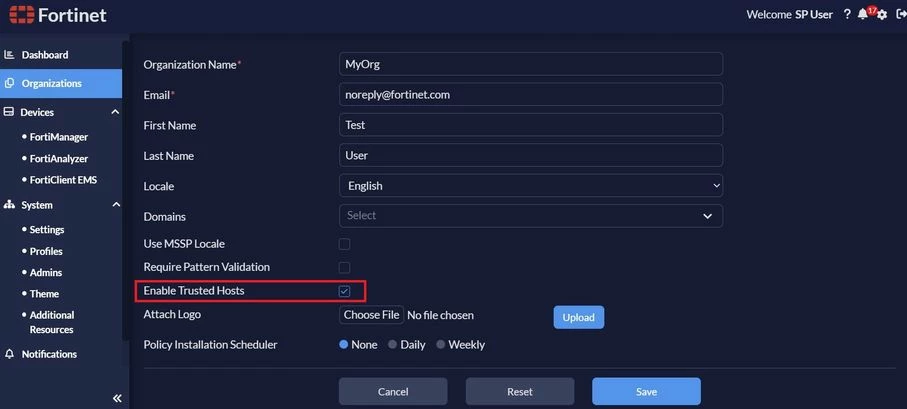
Once Blocked Hosts is enabled, the option to enable Trusted Hosts becomes available. Go to Organization -> Select and Edit the Organization -> General, and check the box for Enable Trusted Hosts.
After that, trusted hosts for users can be configured. Navigate to Organization -> Select and Edit the Organization -> Users, select the desired user, then select Trusted Hosts to create a new list.
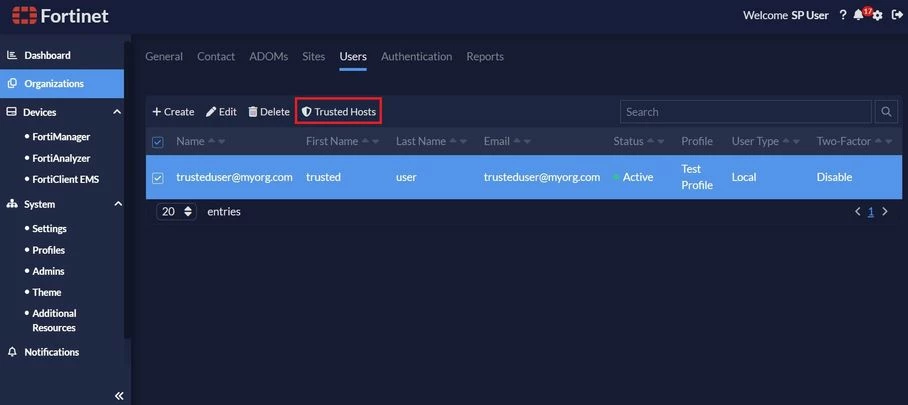
The Trusted Hosts list works as an allow list for the selected user. The user will only be able to log in from source IP addresses matching the configured Trusted Hosts entries.
When creating a Trusted Hosts entry, select IPv4 or IPv6 and configure the required source IP address together with the corresponding subnet mask or IPv6 prefix.
Make sure the IP address or subnet used by the user to access FortiPortal is included in the Trusted Hosts list. Otherwise, the user may no longer be able to log in.