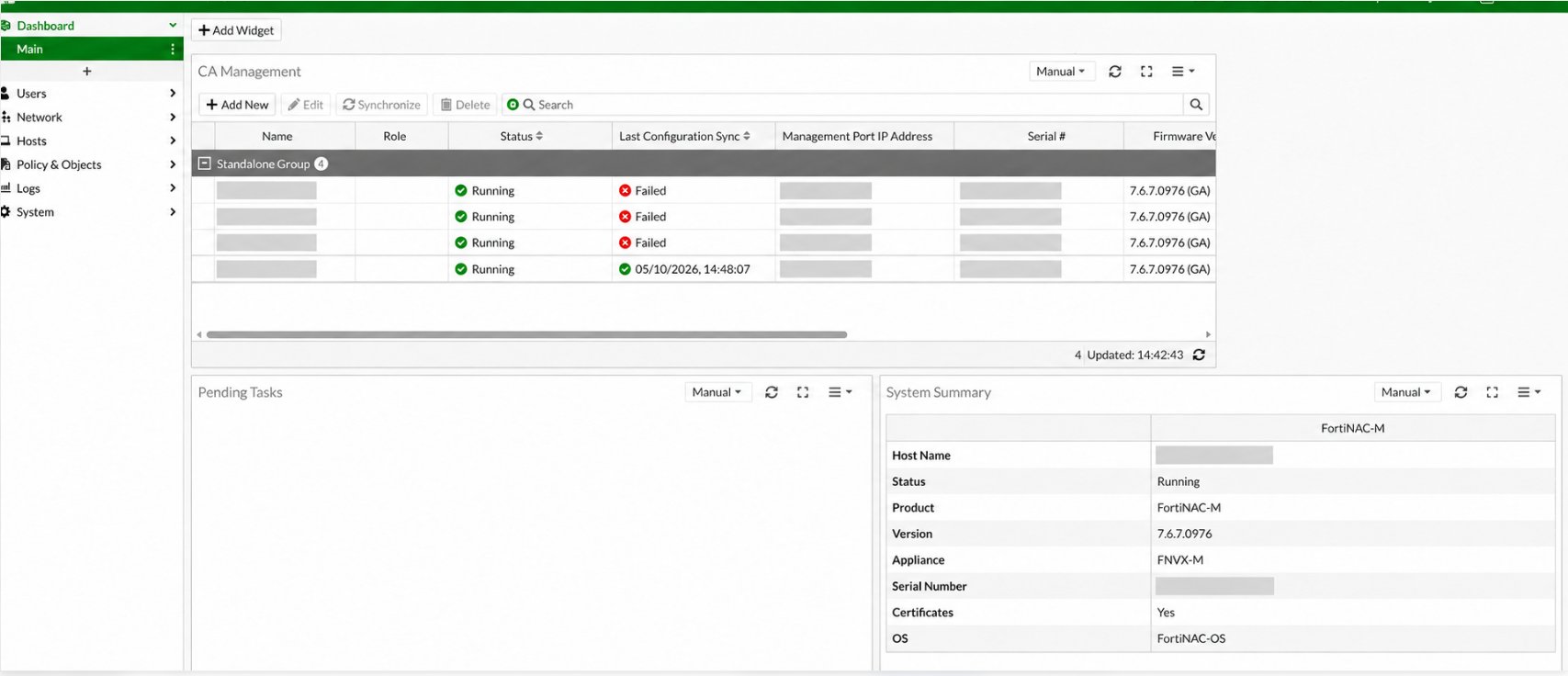
FortiNAC Manager uses the GUID value to identify globally synchronized objects. The local database ID on the managed FortiNAC-F server does not have to be the same as the corresponding object ID on the Manager.
For example, a working configuration may have:
Manager: ID = 1481818496667662 guid = 1481818496667662
Managed CA:
ID = 295942325798912 guid = 1481818496667662
The local IDs are different, but the GUID is the same.
When synchronization fails, check the affected Group on both the Manager and managed server.
SELECT
    `ID`,
    `name`,
    `guid`,
    `landscape`,
    `globalModifiedDate`,
    `LAST_MODIFIED_DATE`,
    `LAST_MODIFIED_BY`
FROM `Group`
WHERE `name` = 'ALL_MANAGEMENT'\G
An affected managed CA might show the following:
ID   = 1
name = ALL_MANAGEMENT
guid = 1
While the Manager shows the following:
ID   = 1481818496667662
name = ALL_MANAGEMENT
guid = 1481818496667662
If the Group exists on the Manager and the managed server contains a stale/local GUID, reset only the managed server's GUID to the unassigned value -1.
Take a database backup before modifying the database.
UPDATE `Group`
SET `guid` = -1
WHERE `ID` = 1
  AND `name` = 'ALL_MANAGEMENT'
  AND `guid` = 1;
Confirm the new value:
SELECT
    `ID`,
    `name`,
    `guid`
FROM `Group`
WHERE `name` = 'ALL_MANAGEMENT'\G
Expected:
ID   = 1
name = ALL_MANAGEMENT
guid = -1
If multiple groups are affected, obtain an inventory on the Managed CA first:
SELECT
    `ID`,
    `name`,
    `guid`,
    `globalModifiedDate`,
    `LAST_MODIFIED_DATE`
FROM `Group`
WHERE `guid` <> -1
ORDER BY `guid`, `name`;
Important:
Compare the names and GUIDs against the Manager. Only reset Groups that correspond to Manager global objects and contain stale GUIDs. Do not reset objects that exist only on the managed server. Direct database modifications should only be performed after taking a current database backup and preferably during a maintenance window under Fortinet Support guidance.
|