In order to achieve this, FortiNAC should be accessed via a terminal emulator with the root credentials.
Follow these steps:
Download the new license from the support portal. Refer to page 14 of this guide.
Access FortiNAC via a terminal emulator like PuTTY with root credentials.
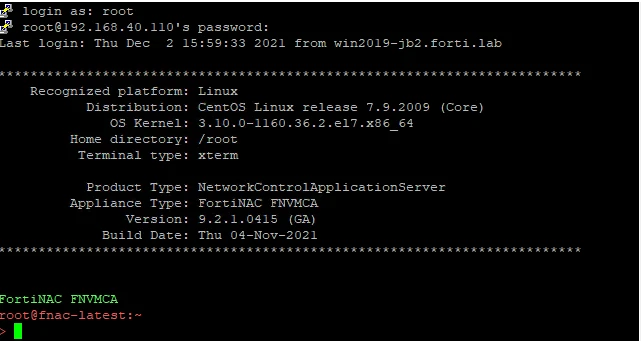 Navigate to the directory /bsc/campusMgr.
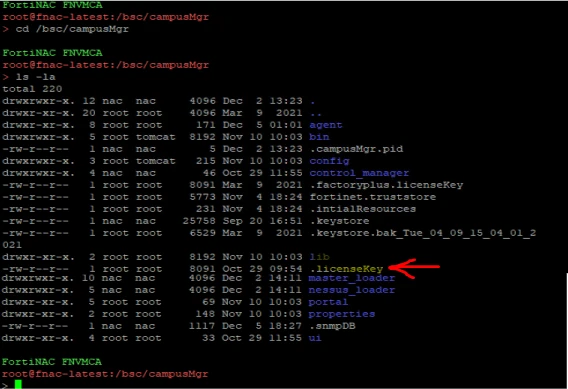
cd /bsc/campusMgr
ls -la
'ls -la' is an optional step to check the contents of the directory. An existing license is highlighted in yellow and noted with the red arrow.
 Rename the existing licenseKey to .licenseKeyOLD with the command below:
mv .licenseKey .licenseKeyOLD
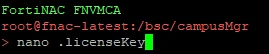
Create a new file named .licenseKey using the nano or VI editor.
nano .licenseKey
 Paste the key from the license file downloaded in step 1.
Tip: It can be opened with notepad and must start with FNC:

The end of the key should terminate with two delimiter characters (==). Restart the FortiNAC appliance with this command:
restartNAC
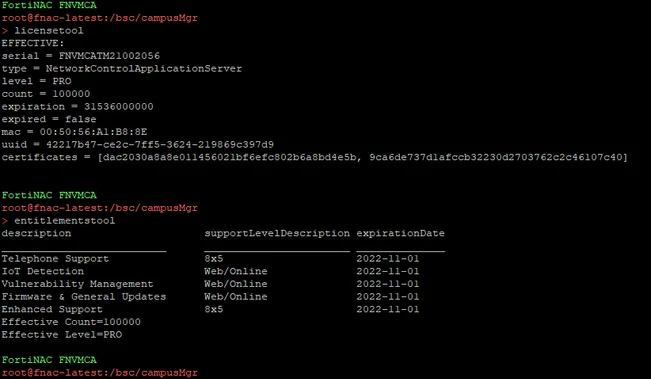
 The new license now should be applied. It can be checked via the CLI.
licensetool -check
entitlementstool
 Note: This method can be used if the FortiNAC appliance is not reachable via the GUI because of a 'processes are down' error or if the license is not applicable via ConfigWizard, like in v9.2.0 where ConfigWizard is not a separate webservice and is included in the main GUI instead. In a FortiNAC-F environment, refer to the steps in Technical Tip: How to add a license to FortiNAC-F v7.x from the CLI: Download the new license file from the support portal.
Refer to page 9 of the FortiNAC upgrade license guide.
Log in to the FortiNAC CLI and issue the following command:
execute license add <license file contents>
For example:
execute license add FNC:KEgYrWC34d59R....
Related articles:
| 
