


Troubleshooting Tip: How to recover a missing Static Route Template in FortiManager
Description
This article describes how to recover missing Static Route templates in FortiManager when they are missing.
Scope
FortiManager-VM, FortiManager appliances.
Solution
The following examples show static route templates within FortiManager:

When it is accidentally deleted or if the DB is corrupted and templates are lost, recover them with the following steps.
Navigate to Device Manager -> Provisioning Templates -> Static Route -> More -> Import.
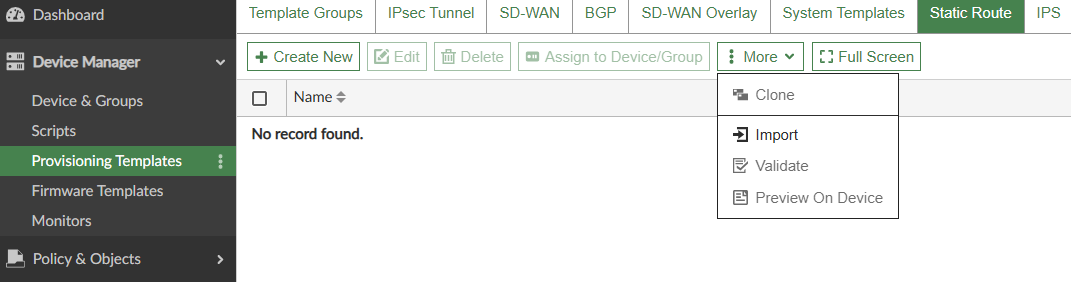
Select the Device, Import a static route (under the More drop-down menu), and give a name to the template.

The template will be recovered.
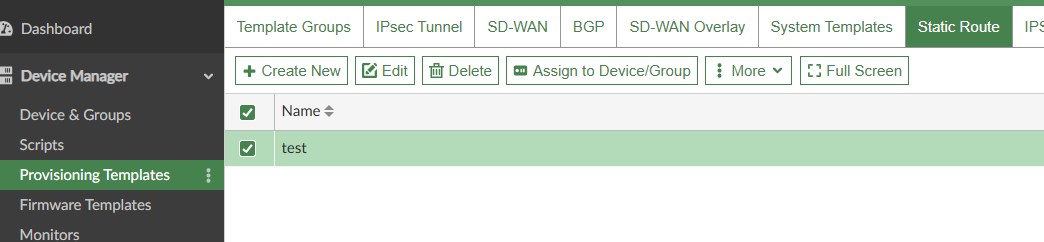
If the import fails or the option is not available:
If the template cannot be recovered with the steps above, check the following:
The Import option is greyed out, or no static routes are shown:
The import reads the static routes from the device's configuration stored in the FortiManager database. If the selected device has no static routes configured, or its configuration is not in sync, there is nothing to import.
Go to Device Manager -> Device & Groups and select the device.
Check that the Config Status is not shown as Modified or Unknown.
If needed, retrieve the latest configuration from the device: select the device, then Import Policy / Retrieve Config (the exact wording varies by FortiManager version).
Confirm that the device has static routes in Device Manager -> (Device) -> Router -> Static Routes.
Make sure the correct ADOM is selected, as templates and devices are ADOM-specific.
The template name already exists:
If a template with the same name already exists in the ADOM, the import fails or cannot be saved.
Use a different, unique name when importing the static route.
Alternatively, rename or delete the existing template if it is no longer needed.
The ADOM is locked (workspace mode):
If workspace mode is enabled and the ADOM is locked by another administrator, changes cannot be made, and the import cannot complete.
Go to Device Manager and check the lock status of the ADOM.
Lock the ADOM with the administrator account used for the recovery, or ask the other administrator to save and unlock it.
After the import, save the changes and unlock the ADOM.
