- Create the below request to initiate the config retrieve:
{
"id" : "1",
"method" : "exec",
"params" : [
{
"url" : "dvm/cmd/reload/dev-list",
"data": {
"adom" : "root",
"flags" : [ "create_task", "nonblocking" ],
"reload-dev-member-list" : [
{
"name" : "FORTIGATE-NAME"
}
],
"tag" : "Retrieve via API",
"from" : "dvm"
}
}
],
"session" : "{{session}}"
} 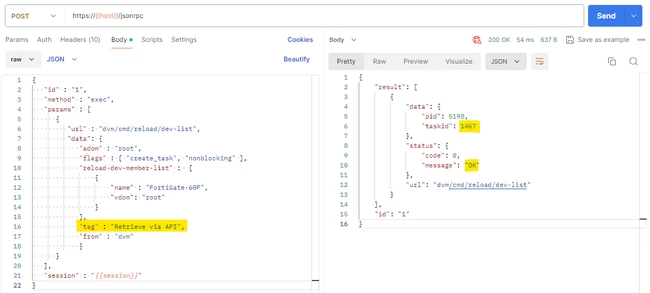
This creates a Task in FortiManager -> System Settings -> Task Monitor: 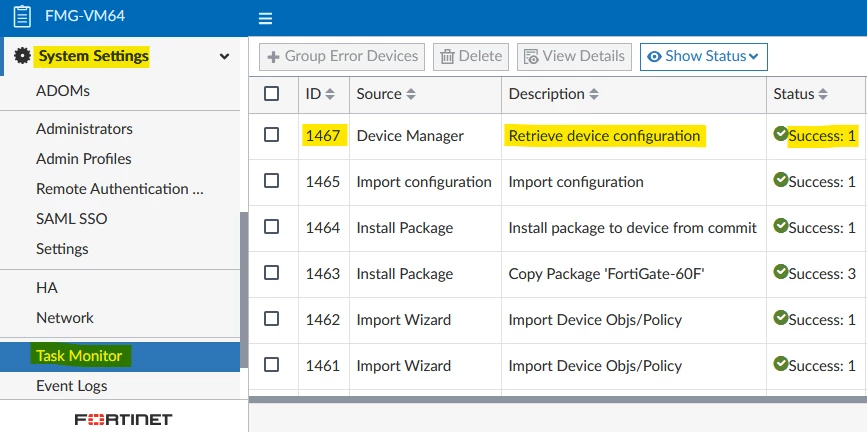
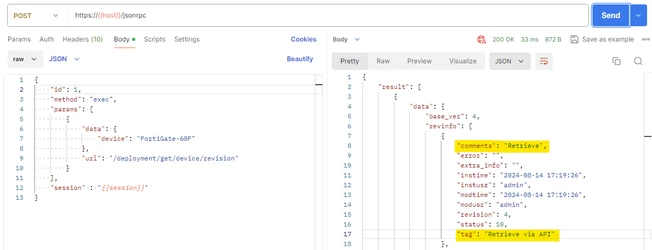
- Verify the revision using below API Call:
{
"id": 1,
"method": "exec",
"params": [
{
"data": {
"device": "FORTIGATE-NAME"
},
"url": "/deployment/get/device/revision"
}
],
"session" : "{{session}}"
} 
- Verify in FortiManager GUI: Device Manager -> Device & Groups -> Managed FortiGate -> Select the FortiGate -> Dashboard -> Summary -> Configuration & Installation widget, select the Revision History icon:
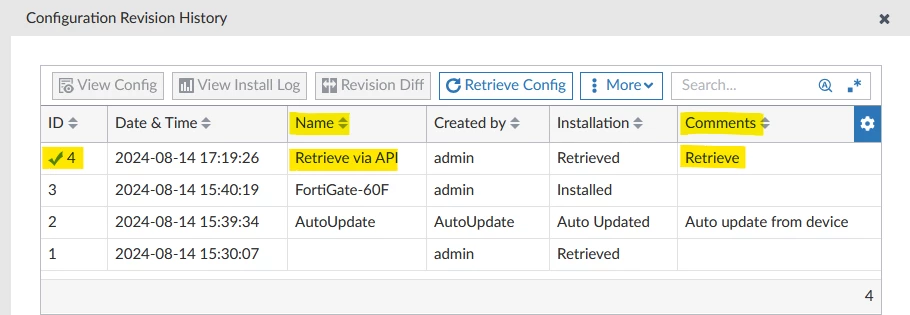
- GUI shows the newly created revision using an API call.
For a complete list of FortiManager API calls and details, refer to Fortinet Development Network (FNDN). Related documents: Technical Tip: Using FortiManager API Fortinet Development Network (FNDN) - FortiManager Technical Tip: Getting Revision History for FortiGates and reverting them using FortiManager API Calls Technical Tip: How to retrieve config from multiple managed FortiGates using the FortiManager JSON API |