tnesh
Staff & Editor
Staff & Editor
Sep 25, 2024 10:21 AM UTC

Technical Tip: FortiManager/FortiAnalyzer monitoring script

  • Apr 24, 2026 3:44 PM UTC
  • 0 replies
  • 1026 views
  • Translate All
Description

This article describes how to use Tera Term to remotely execute scripts and collect data from FortiManager/FortiAnalyzer. This script helps monitor the device's health and capture random occurrences like CPU spikes.

Scope FortiManager/FortiAnalyzer.
Solution
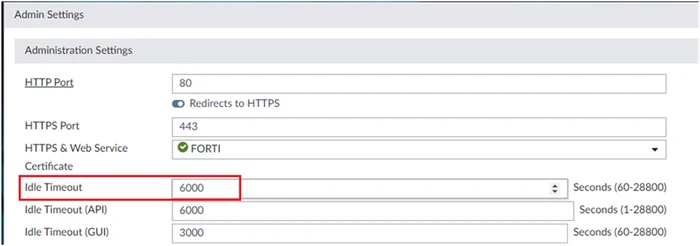
  1. Make sure the FortiManager idle timeout setting is more than 6000 seconds under FortiManager -> System Settings -> Admin Settings.


idle-timeout.png


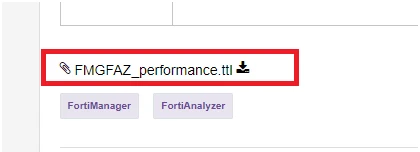
  1. Download the attached FMGFAZ_performance.ttl script from this article:


download-script.png


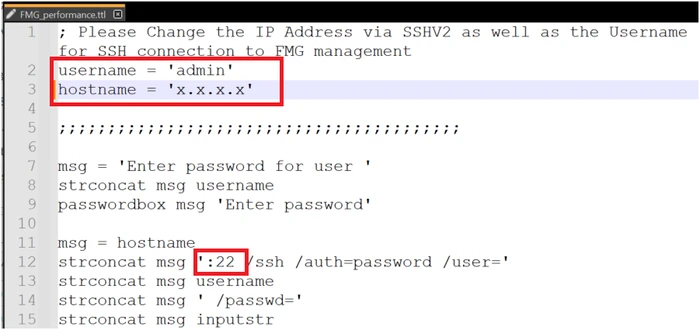
  1. Edit the .ttl file with the correct user credential, IP address, and SSH port number:


ttl-script-update-user.png


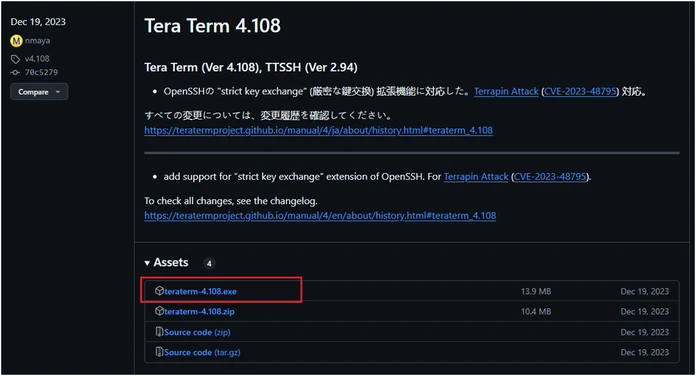
  1. Download and install the Tera Term application on a local PC.

Note:

Use Tera term v4 to have compatible syntax.


teraterm version download.png


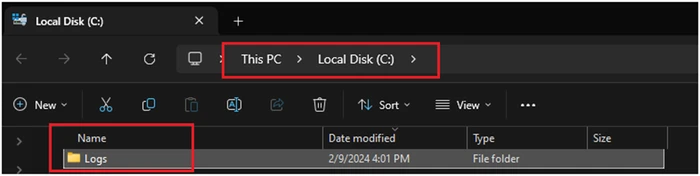
  1. Create a Logs folder in C drive.

Note:

Make sure the 'Logs' folder is created in C drive:


logs-folder.png


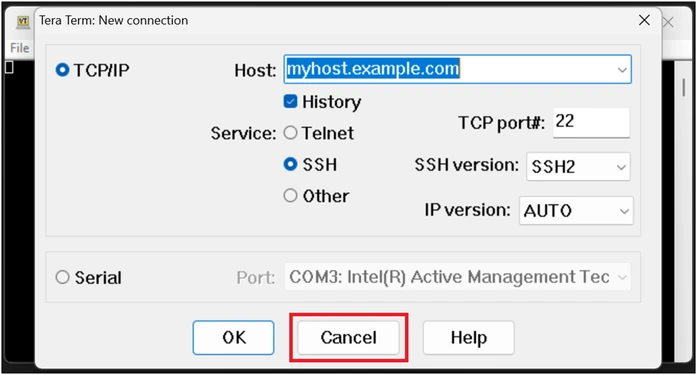
  1. Open Tera Term application -> Cancel:


teraterm-cancel.png


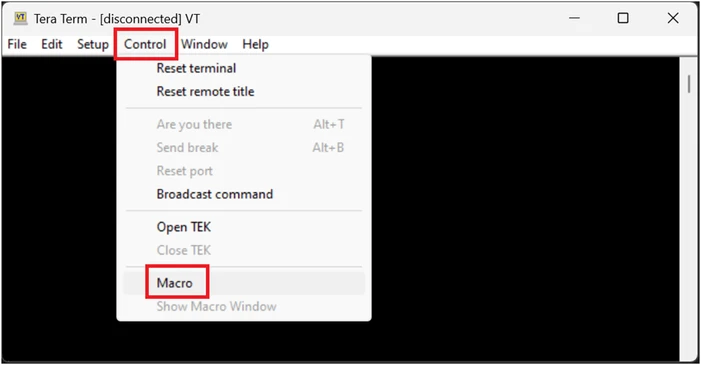
  1. Select Control -> Macro:


teraterm-macro.png


  1. Select the updated TTL file as in Step 4:


macro-select-ttl-script.png


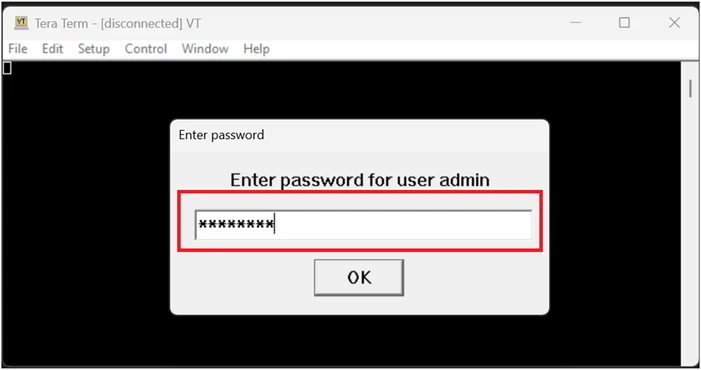
  1. Enter the password and select 'OK':


teraterm-enter-password.png


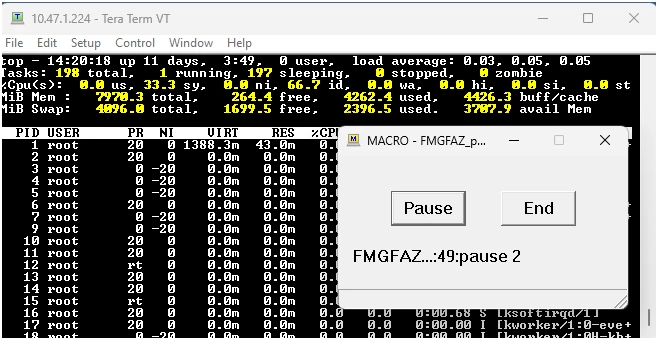
  1. The monitoring script will be running until it reaches the total count as in the TTL script:


teraterm-script-running.png


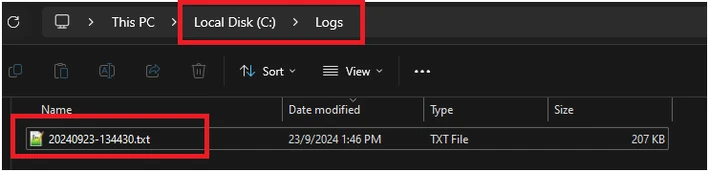
  1. Make sure logs are generated in the C:\Logs folder:


log-output.png


Related article:

Technical Tip: How to gather information and fix high CPU and Mem utilization conditions


Risk and Resilience in the Age of AI. An OT Thought Leadership Summit for Houston's Critical Infrastructure Leaders. Date: Thursday, December 3, 2026. Time: 8:30 am - 1:30 pm (CT). Location: The Westin Houston, Memorial City | 945 Gessner Road, Houston, TX 77024