


Technical Tip: Restricting quarantine release privilege only to distribution list group owner
Description
This article describes how to restrict 'quarantine release' privilege only to the group owner of the distribution list (email list). If no restriction is in place, all members of the distribution list may receive the quarantine summary and release the message for other members too. This may not be desirable in some circumstances.
Scope
FortiMail 7.6
FortiMail 8.0
Solution
What will be achieved after implementing this configuration is summarized below:
A user will send an email to the distribution list address.
If the email is quarantined, list members will not receive the original email.
The generated quarantine report will only be sent to the distribution list owner configured in Microsoft Exchange.
Only the group owner will be able to see the report and release the email.
The primary achievement is the prevention of any standard user from releasing a quarantined email.
Test setup:
Distribution list platform: Microsoft Exchange
Distribution list address: sales@internal100.lab
Group owner: bob@internal100.lab
Distribution Group Config in Microsoft Exchange:
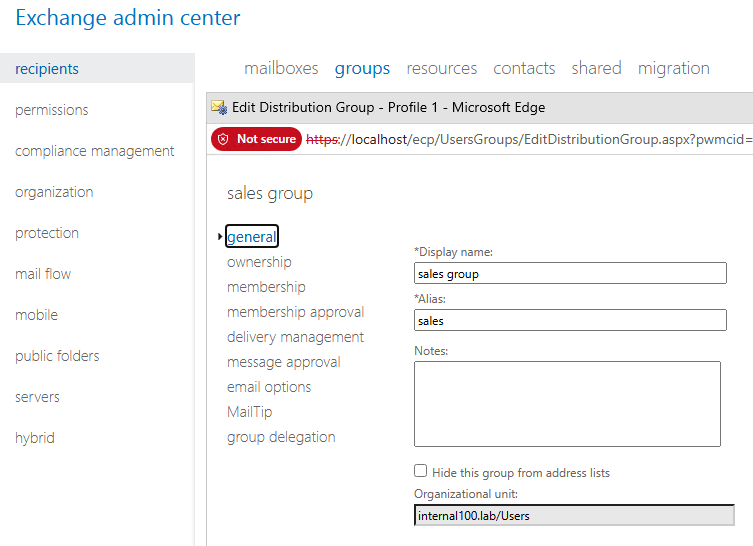
Under Exchange Admin Center, the group name is set to sales i.e. the group email address is sales@internal100.lab. This is the DL that the users are members of.
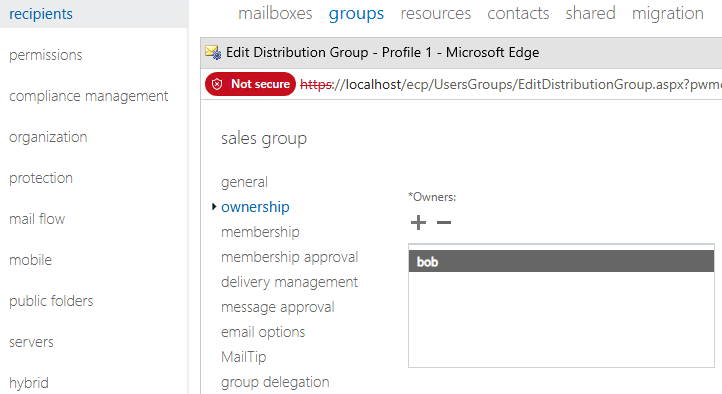
The Group Owner of this sales DL is the user bob:
By using an LDAP browser, check the attributes of sales@internal100.lab group as below:
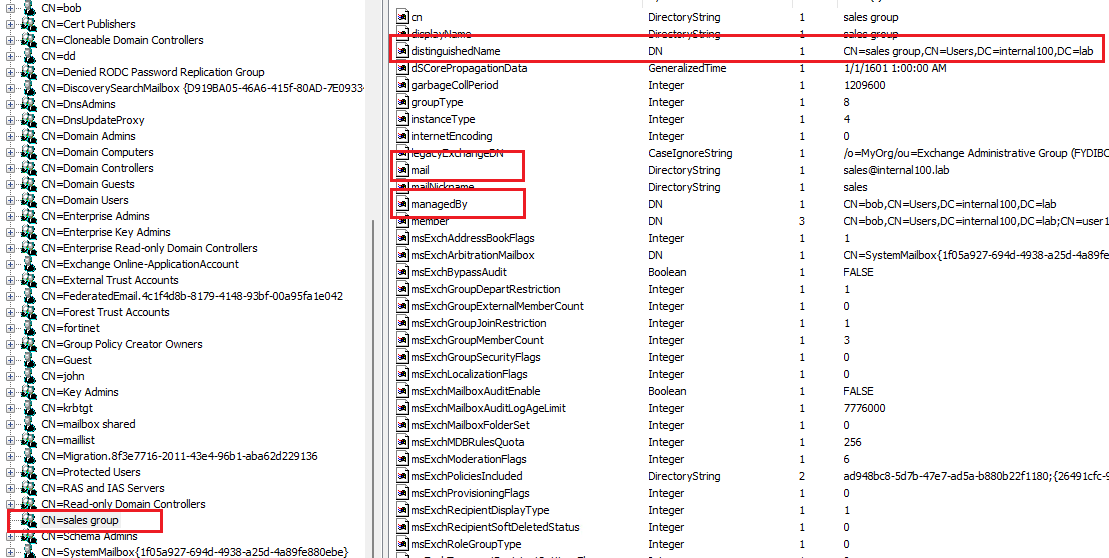
Note the following attributes, which will be used in FortiMail LDAP profile configuration later.
The attribute names (not values) managedBy and mail. Active Directory should have these attributes by default.
The distinguishedName attribute value (note that it is a value, not a name) e.g. CN=sales group,CN=Users,DC=internal100,DC=lab.
FortiMail config:
Go to Profile -> LDAP.
Select the profile of the domain (e.g dc-100) and select the Edit button.
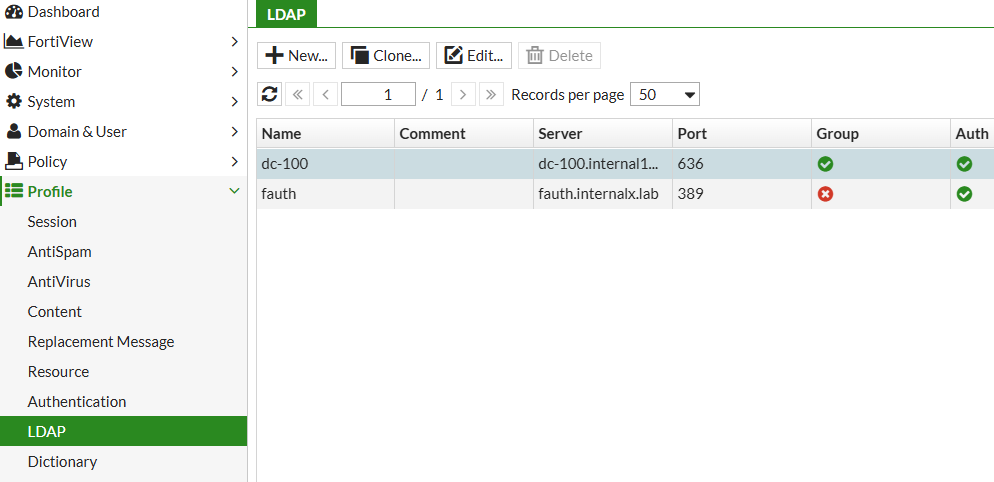
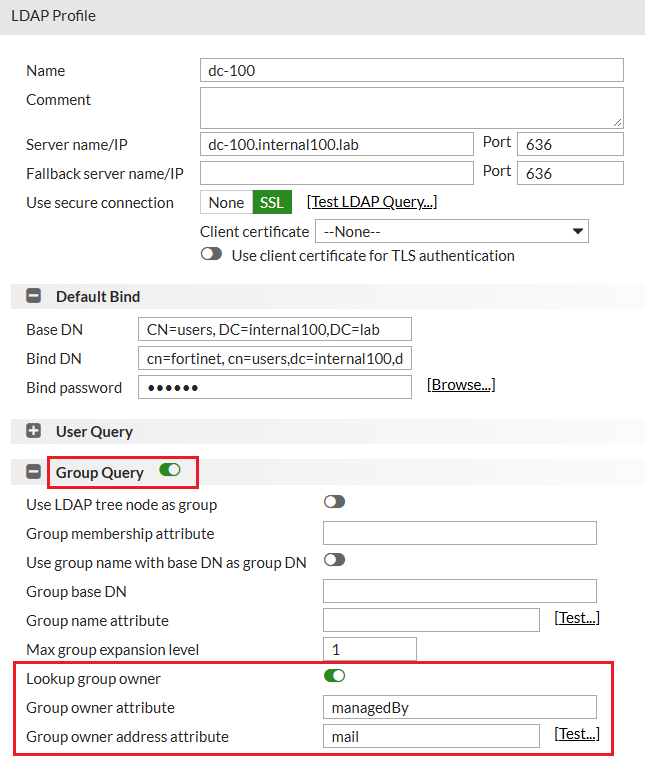
In the new LDAP Profile window, configure the Group Query as below. This is the crucial part.
Enable 'Group Query' if it is not enabled.
Enable 'Lookup group owner'.
Fill in the 'Group owner attribute' e.g. 'ManagedBy'.
Fill in the 'Group owner address attribute' e.g. 'mail'.
Test the Group LDAP query:
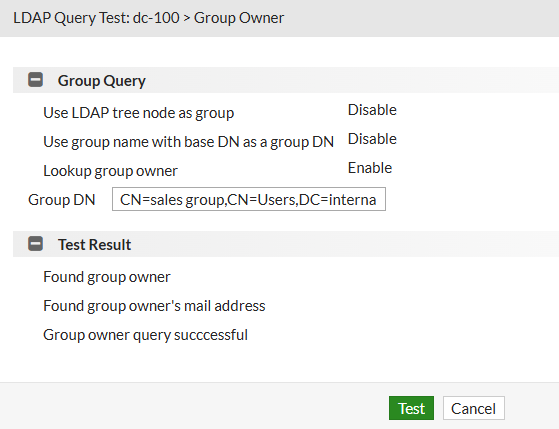
Select 'Test' next to 'Group owner address attribute' to open the LDAP query window shown below.
Fill in 'Group DN' with the value of the distinguishedName obtained from the LDAP browser. In the example, it is 'CN=sales group,CN=Users,DC=internal100,DC=lab'.
Select the 'Test' button.
The test result should be successful for this feature to work. If it is not working, check the configuration again before proceeding.
Configure the quarantine report recipient setting.
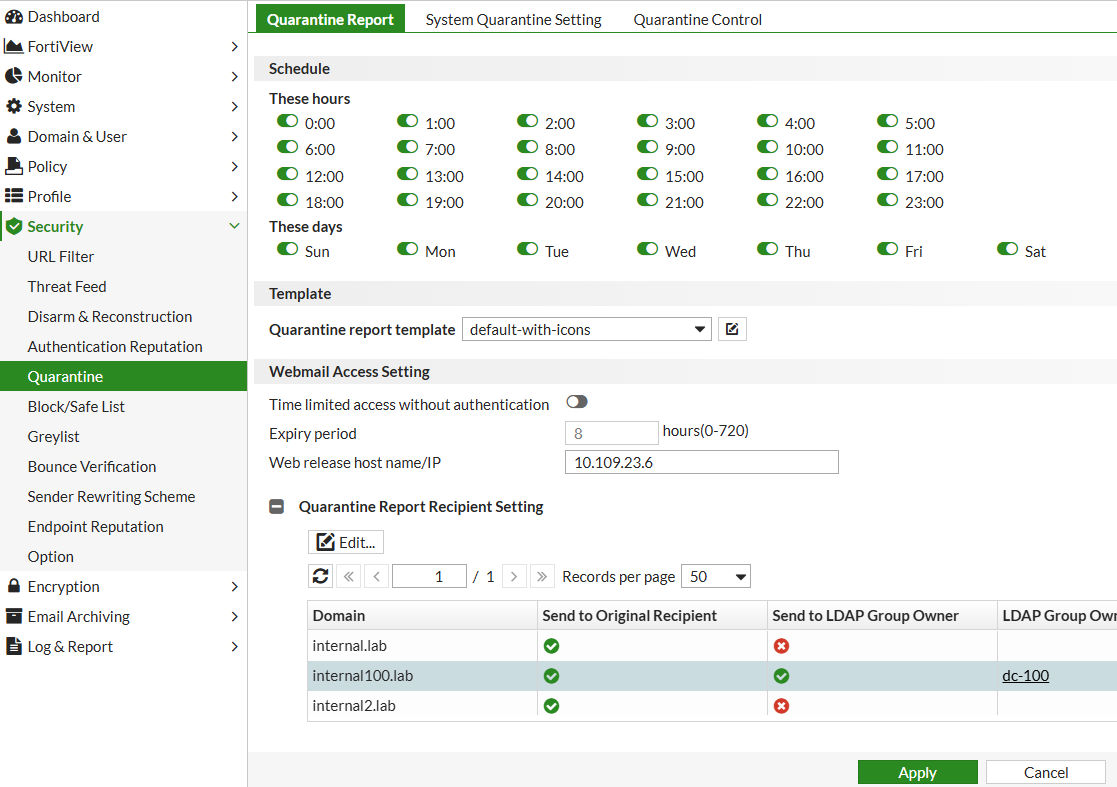
In order to send the quarantine only to the LDAP group owner, modify the following setting.
Go to Security -> Quarantine -> Quarantine Report.
Under the 'Quarantine Report Recipient Setting', select the domain and select Edit.
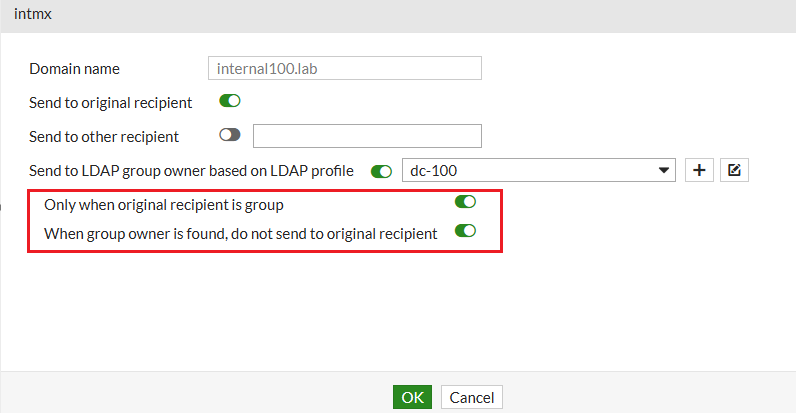
In this setting window, the following options must be enabled:
Only when the original recipient is a group.
When the group owner is found, do not send to the original recipient.
When these options are enabled, original recipients don't receive the quarantine report but only the group owner.
Final test:
Send an email to the distribution list, e.g sales@internal100.lab.
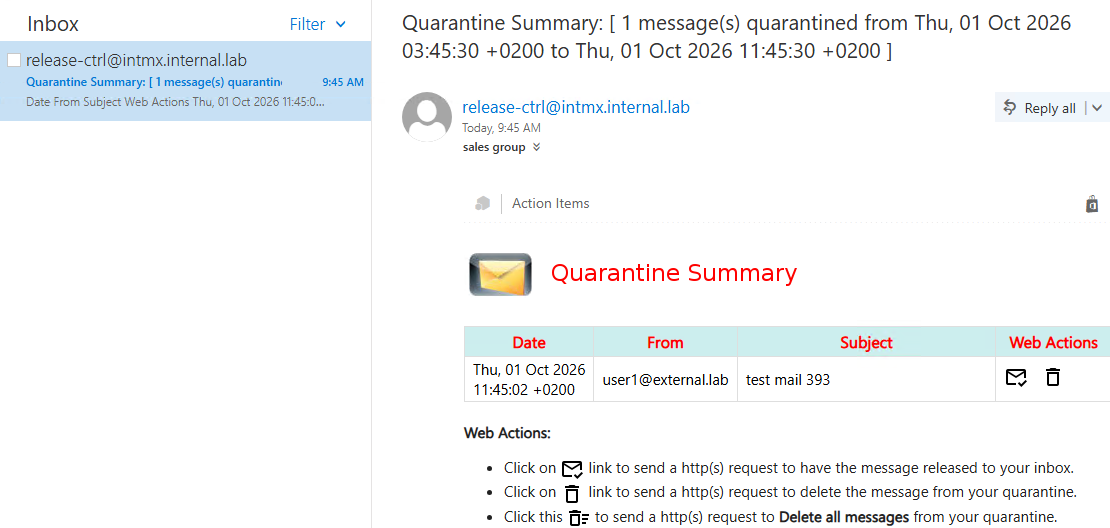
When a quarantine summary is sent on a scheduled time or if it is sent manually, only the user bob (i.e. the group owner) will receive the summary shown below. The other users should not see this report.
Once the group owner releases this mail, other members of the distribution list will receive the original email.
Note:
Verify the Distribution Group Owner using PowerShell:
Before configuring the FortiMail LDAP profile, verify that the distribution group has an owner and that the required LDAP attributes are populated.
For an on-premises Exchange environment, run the following Exchange Management Shell commands:
$Group = "sales@internal100.lab"

Get-DistributionGroup -Identity $Group |
    Format-List Name,PrimarySmtpAddress,ManagedBy
Confirm that ManagedBy lists the expected group owner. Then check that the owner has a mail-enabled recipient object and identify its email address:
$DistributionGroup = Get-DistributionGroup -Identity $Group

$DistributionGroup.ManagedBy | ForEach-Object {
    Get-Recipient -Identity $_ |
        Format-List Name,RecipientType,PrimarySmtpAddress
}
To verify the corresponding Active Directory attributes, run this from a system with the Active Directory PowerShell module:
$Group = Get-ADGroup -LDAPFilter "(mail=sales@internal100.lab)" -Properties mail,managedBy,distinguishedName
$Group | Format-List Name,mail,managedBy,distinguishedName
The values needed for the FortiMail LDAP profile are:
Group owner attribute: managedBy
Group owner address attribute: mail
Group DN: the value of distinguishedName
Check that the managedBy value resolves to the intended owner and that the owner has a usable email address. If the group has multiple owners, verify how the configured FortiMail version handles that setup before relying on it.
Note:
PowerShell is used only to verify the Exchange and Active Directory distribution group attributes. It is not required on FortiMail. Configure the FortiMail LDAP profile and quarantine report settings through the FortiMail GUI as described below.
