


Technical Tip: How to change FortiMail administrative ports (HTTPS, HTTP, SSH, and Telnet)
Description
This article describes how to change the administrative port of FortiMail.
Scope
FortiMail.
Solution
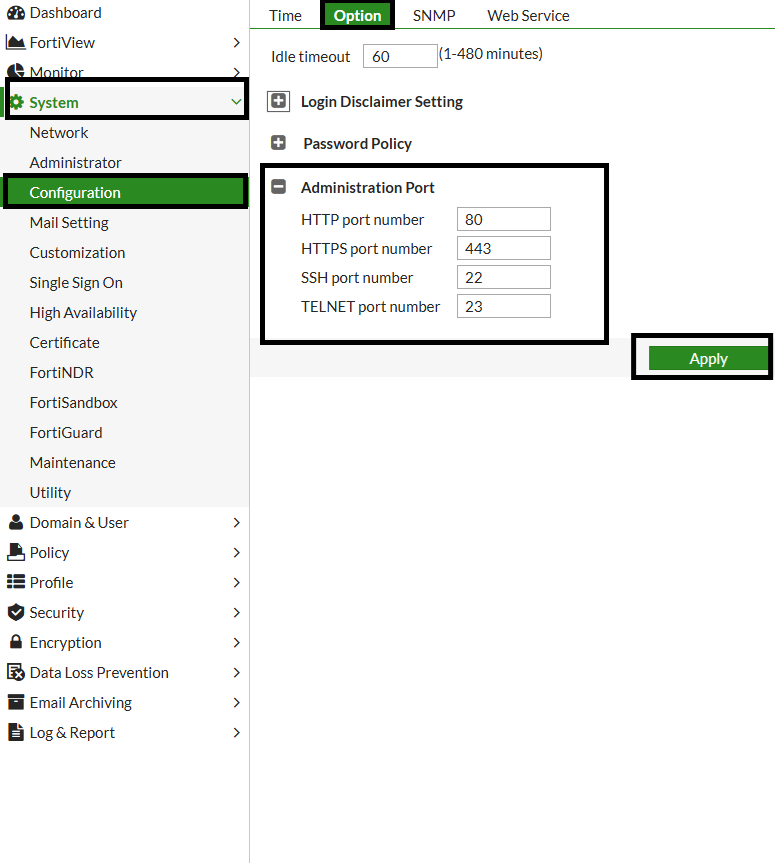
Navigate to System -> Configuration -> Option -> Administration Port -> HTTPS port number, HTTP port number, SSH port number, TELNET port number.
Under HTTPS port number, set the desired port and select Apply.
Under HTTP port number, set the desired port and select Apply.
Under SSH port number, set the desired port and select Apply.
Under TELNET port number, set the desired port and select Apply.
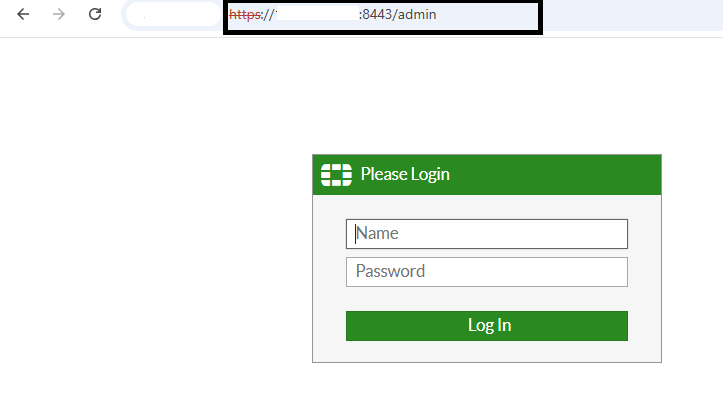
The FortiMail HTTPS GUI can then be accessed using the new port number through https://<FortiMail IP>:<port number>/admin. For example: https://x.x.x.x:x443/admin.
Note: Changing the HTTPS port from the default value affects access to the Administrative GUI (HTTPS), REST API, quarantine service, and Webmail (server mode only).
Note:
Before making any changes, create a backup.
To change HTTPS, HTTP, SSH, and TELNET ports in the CLI, use 'config system global'. See the document: system global.
CLI configuration example:
FML# config system global
FML (global) # set port-https 8443
FML (global) # end