


Troubleshooting Tip: FortiToken Mobile transfer error due to SMTP certificate issue
Description
This article describes how to resolve a FortiToken Mobile transfer failure on FortiAuthenticator caused by missing SMTP server certificates.
Scope
FortiAuthenticator.
Solution
When a user attempts to transfer a FortiToken Mobile to a new device, the FortiAuthenticator sends a transfer code via email. If the FortiAuthenticator cannot verify the identity of the SMTP server, the transfer process fails.
Root Cause:
The FortiAuthenticator cannot establish a secure connection with the SMTP server because the required Root or Intermediate certificates of the mail server are not installed in the FortiAuthenticator certificate store.
This results in the following error in the logs:
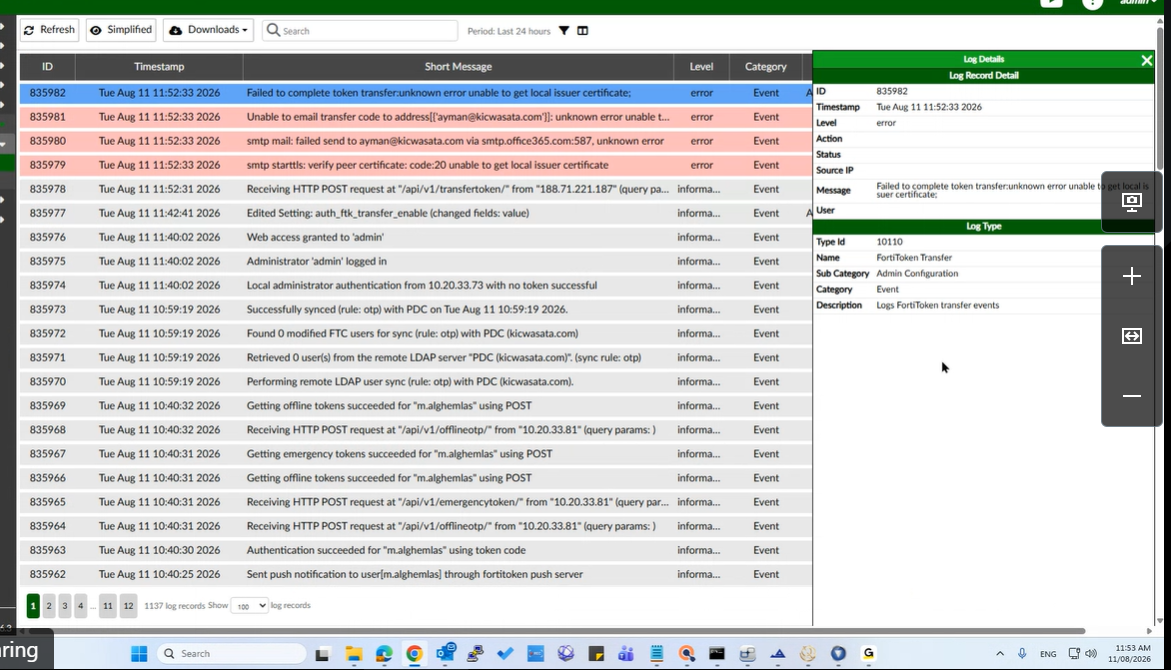
Failed to complete token transfer: unknown error unable to get local issuer certificate.
Resolution:
Verify that the token transfer feature is enabled on the FortiAuthenticator interface:
Navigate to Authentication -> User Account Policies -> Tokens.
Enable the Enable token transfer feature option.
Verify the SMTP server configuration:
Navigate to System -> Administration -> System Access.
Confirm that the Public IP/FQDN for the FortiToken Mobile field is configured correctly.
Identify the SMTP server being used (e.g., smtp.office365.com).
Download the Root and Intermediate certificates from the SMTP server provider.
Import the certificates into the FortiAuthenticator:
Navigate to System -> Certificates -> Local Certificates.
Select Import and upload the Root and Intermediate CA certificates.
Test the SMTP connection to ensure the 'unable to get local issuer certificate' error is resolved.
Perform the token transfer again from the FortiToken Mobile application on the old device.
