


Troubleshooting Tip: Fix FortiSwitch showing with the 'Offline' status
Description
This article describes how to fix an issue where FortiSwitch shows as 'Offline' in the FortiGate unit under Security Fabric -> Physical Topology -> FortiSwitch -> Status: Offline.
Scope
FortiGate with FortiSwitch connected.
Solution
When this issue occurs, the FortiSwitch is connected to the FortiGate but does not work as expected.
Check the status in FortiGate under Security Fabric -> Physical Topology -> FortiSwitch -> Status: Offline.
With the factory default settings, the FortiLink interface will be as below:
config system interface
    edit "fortilink"
        set vdom "root"
        set fortilink enable
        set ip 10.255.1.1 255.255.255.0
        set allowaccess ping fabric
        set type aggregate
        set member "a" "b"
        set lldp-reception enable
        set lldp-transmission enable
    next
end
Initial troubleshooting steps:
If the 'set fortilink' option was previously disabled via the GUI or CLI, it must be re-enabled, and this can only be done via the CLI. Otherwise, FortiSwitches will not synchronize.
To re-enable it:
config system interface
    edit "fortilink"
        set fortilink enable
    next
end
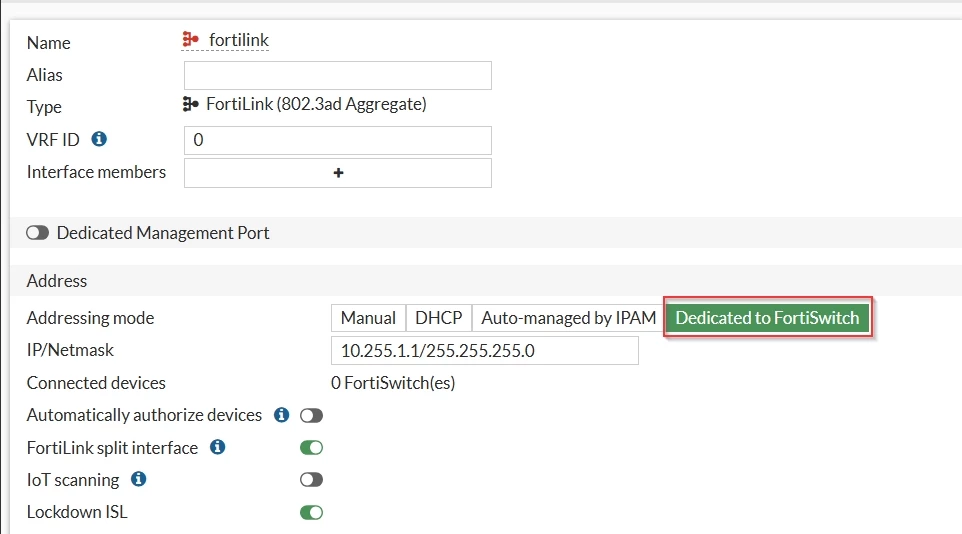
When the 'FortiLink' feature is disabled, the 'Dedicated to FortiSwitch' will not be visible in the GUI:
Mismatched times cause a large number of issues. Before proceeding, verify on the FortiSwitch side that the date, time, and time zone are the same as they are in the managing FortiGate:
execute dhcp lease-list fortilink
fortilink
IP MAC-Address Hostname VCI SSID AP SERVER-ID Expiry
172.18.2.2 78:18:ec:xx:xx:xx S108FXXXXXXXXXXX FortiSwitch-108F-PO 1 Tue Nov 4 17:58:40 2025
execute ssh admin@172.18.2.2
Warning: Permanently added '172.18.2.2' (ED25519) to the list of known hosts.
admin@172.18.2.2's password:
S108FXXXXXXXXXXX #
diagnose sys ntp status
execute date
execute time
show system ntp
Use the following CLI command to check the FortiSwitch connection in FortiGate:
execute switch-controller get-conn-status <FortiSwitch-ID>
The result will appear as below (with the 'No CAPWAP IP address retrieved for FortiSwitch S448ENTFxxxxxxxx' error message).
Fortilink interface ... OK
FortiLink enabled

DHCP server ... OK
FortiLink enabled

NTP server ... FAIL
FortiLink not enabled
NTP server sync ... OK
HA primary: yes, HA primary ip: 192.168.0.1, management_vfid: 0 ha_direct=0, ha_mgmt_vfid=1
synchronized: no, ntpsync: enabled, server-mode: enabled

ipv4 server(ntp2.fortiguard.com) unresolved -- unreachable(0xff) S:0 T:2
no data
ipv4 server(ntp1.fortiguard.com) unresolved -- unreachable(0xff) S:0 T:2
no data

HA mode Active-Passive... enabled

Fortilink
Status ... SWITCH_AUTHORIZED_READY
Last keepalive ... 15 seconds ago


No CAPWAP IP address retrieved for FortiSwitch S448ENTFxxxxxxxx
CAPWAP
Remote Address : N/A
Status ... Idle
The message 'No CAPWAP IP address retrieved for FortiSwitch S448ENTFxxxxxxxx' appears. In this case, S448ENTFxxxxxxxx is the FortiSwitch serial number.
Consider adding a 'FortiLink' interface to the NTP settings as shown below to resolve the issue.
Run the following CLI configuration to check if it has any interface settings before:
config system ntp
get
  set interface “portxx” “portyy” “FortiLink”
end
In the above configuration, 'portxx' and 'portyy' are the old interface settings visible with the 'get' command.
FortiLink is the FortiLink interface that is added.
If the following error is observed after running the following command, follow the steps below:
execute switch-controller get-conn-status <FortiSwitch-ID>

Get managed-switch S248EFTF23009804 connection status:
Admin Status: Authorized
Connection: Idle

Diagnosing...
FGT can not detect S248EFTF23009804 at LAG.
Please Check FortiGate:
CAPWAP in LAG is enabled.
Please Check FortiSwitch:
1. S248EFTF23009804 is in FortiLink mode.
2. S248EFTF23009804 is managed via LAG.
3. Execute 'execute switch-controller diagnose-connection S248EFTF23009804' for further details.
Run the following command to check further; it is necessary to change the NTP server to 'local' in the FortiLink interface:
execute switch-controller diagnose-connection <FortiSwitch-ID>

Fortilink interface ... OK
LAG enabled

DHCP server ... OK
LAG enabled
WARNING : NTP service for DHCP entry should be set to local mode .... please check config

NTP server ... OK
LAG enabled
NTP server sync ... OK
HA primary: yes, HA primary ip: 169.254.0.2, management_vfid: 0 ha_direct=0, ha_mgmt_vfid=-1
synchronized: no, ntpsync: enabled, server-mode: enabled

ipv4 server(ntp2.fortiguard.com) unresolved -- unreachable(0xff) S:0 T:9
no data
ipv4 server(ntp1.fortiguard.com) unresolved -- unreachable(0xff) S:0 T:9
no data

HA mode Active-Passive... enabled

Fortilink
Status ... SWITCH_AUTHORIZED_READY
Last keepalive ... 2 seconds ago

No CAPWAP IP address retrieved for FortiSwitch S248EFTF23009804
CAPWAP
Remote Address : N/A
Status ... Idle
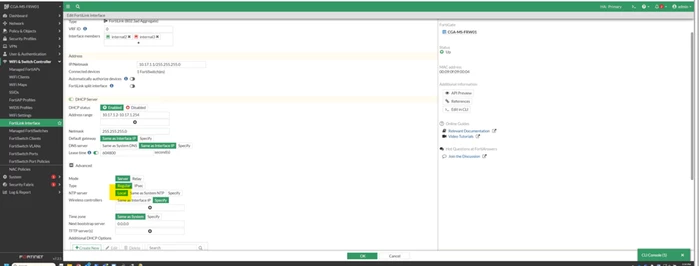
In the configuration of the FortiLink interface, change the NTP server from 'Specify' to 'Local':
Also, do check the interface settings on the FortiGate for the following; by default, it would be 4094:
config system interface
    edit <interface name>
        set switch-controller-mgmt-vlan 4094
end
edit <interface name> <- Example: FortiLink.
This is because sometimes the switch does not have a 4094 VLAN ID, and it is possible to change it to 4093 on FortiSwitch and FortiGate.
Verify that the FortiLink interface IP address is correct (for example, the Interface IP should not be 169.254.1.1 if the DHCP server is enabled on the FortiLink interface) and that the DHCP range is within the same range as the interface IP.
Also, make sure the FortiLink interface IP subnet and the allocated DHCP IP range are sufficient to cater to all the switches planned to be added under the FortiLink.
A packet capture can be performed to verify whether CAPWAP responses are being observed. The following command can be executed from the CLI:
diagnose sniffer packet any "port 5246 and host <FortiSwitch_IP>" 4 0 a
The capture can be stopped by pressing 'Ctrl+C'. Another related article for FortiSwitch offline reasons: Technical Tip: FortiGate not responding to the FortiSwitch CAPWAP discovery requests.
Gain console access to FortiSwitch and run the following commands:
Also, check if VCI is configured correctly under the DHCP server settings on FortiGate if FortiSwitch is sending the DHCP offer but not getting the IP address from FortiGate.
config system dhcp server
    edit <id>
        set vci-match enable
        set vci-string FortiSwitch
end
In FortiSwitch:
show switch auto-network
The configuration should look like this; 4094 is the default VLAN:
config switch auto-network
    set mgmt-vlan 4094
    set status enable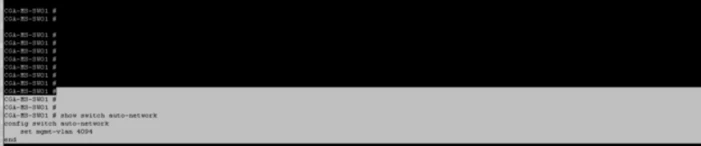
Also, check this setting in FortiSwitch:
config switch interface
    edit <interface connected to fortigate or fortiswitch>
show
If this setting appears:
unset allowed-vlans
Then change it to:
set allowed-vlans 4094
end
Restart the FortiSwitch and run the command again:
execute switch-controller diagnose-connection <FortiSwitch-ID>

Fortilink interface ... OK
LAG enabled

DHCP server ... OK
LAG enabled

NTP server ... OK
LAG enabled
NTP server sync ... OK
HA primary: yes, HA primary ip: 169.254.0.2, management_vfid: 0 ha_direct=0, ha_mgmt_vfid=-1
synchronized: no, ntpsync: enabled, server-mode: enabled

HA mode Active-Passive... enabled

Fortilink
Status ... SWITCH_AUTHORIZED_READY
Last keepalive ... 1 seconds ago

CAPWAP
Remote Address: 10.17.1.2
Status ... CONNECTED
Last keepalive ... 26 seconds ago

PING 10.17.1.2 (10.17.1.2): 56 data bytes
64 bytes from 10.17.1.2: icmp_seq=0 ttl=64 time=0.7 ms
64 bytes from 10.17.1.2: icmp_seq=1 ttl=64 time=0.6 ms
64 bytes from 10.17.1.2: icmp_seq=2 ttl=64 time=24.2 ms
64 bytes from 10.17.1.2: icmp_seq=3 ttl=64 time=3.0 ms
64 bytes from 10.17.1.2: icmp_seq=4 ttl=64 time=0.6 ms

--- 10.17.1.2 ping statistics ---
5 packets transmitted, 5 packets received, 0% packet loss
round-trip min/avg/max = 0.6/5.8/24.2 ms
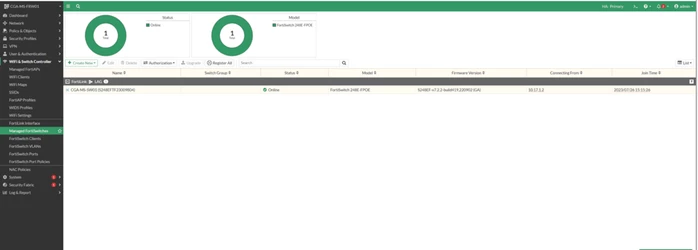
The ping is successful, which means the FortiSwitch is online. This can be verified from the GUI as well.
Make sure the LACP mode is consistent between the FortiGate and the FortiSwitch on the FortiLink port.
Additional troubleshooting steps:
Check the FortiLink interface on the FortiGate:
Check the uplink trunk on the FortiSwitch towards the FortiGate:
show full sys inter fortilink | grep lacp-mode
    set lacp-mode active
Check the uplink trunk on the FortiSwitch towards the FortiGate:
show full switch trunk 704CA5C8E4D2-0 | grep lacp
    set mode lacp-active
To check the line rate on a FortiSwitch, in the FortiSwitch CLI, the command below can be used.
diagnose switch physical-ports linerate
This command displays the transmit (TX) and receive (RX) packet and rate information for each port to monitor traffic flow and identify potential issues like high traffic volume or broadcast storms.
Ensure the switch is connected via the appropriate FortiGate interface/switch controller interface.
Check link status on both FortiGate and FortiSwitch.
FortiOS:
get hardware nic <interface-name>
Verify switch firmware is supported by the current FortiGate version; see FortiLink Compatibility.
FortiOS:
get system statusFortiSwitch:
show system firmware
Confirm the switch's management IP/subnet is reachable by the FortiGate.
Show status of the switch-controller and attached switches:
FortiOS:
diagnose switch-controller get-managed-switch <FortiSwitch-ID>
Show switch-controller global status:
diagnose switch-controller status
Restart the switch-controller service (on the FortiGate):
execute switch-controller restart
On the FortiSwitch: show registration status:
show system controller-management status
On FortiGate: view any licensing issue/managed switch limits:
get switch-controller licensing-status
Known Issues:
When the FortiGate is upgraded from earlier firmware versions to FortiOS v7.6.1 or later, the default FortiSwitch discovery method changes. This can cause FortiSwitch units to show offline if the LLDP settings were previously changed in FortiLink configuration. See the article Troubleshooting Tip: FortiSwitch showing offline after the upgrade. To resolve the issue, enable 'lldp-reception' and 'lldp-transmission' as shown in Issue ID# 1113304 in FortiLink Known Issues.
When FortiGate is upgraded from an earlier firmware version to FortiOS v7.6.4-v7.6.6, the managed FortiSwitches show offline in the hardware switch FortiLink interface. As a workaround, enable STP on the FortiLink interface. Refer to this article: Troubleshooting Tip: FortiSwitches go offline after FortiOS update to v7.6.4 or later.
If FortiGate is in FIPS-CC mode, and the switch is not coming online even after following all the above steps, check: Technical Tip: Non-FIPS FortiSwitches are offline when managed by FortiGate configured in FIPS-CC mode.
Related articles:
Technical Tip: How to add/connect FortiSwitch to FortiGate on any interface
Technical Tip: How to perform basic checks to bring FortiSwitch online on FortiGate
Technical Tip: FortiGate not responding to the FortiSwitch CAPWAP discovery requests
