Most of the RSS feeds available on the Fortinet website are in the .xml format and cannot be used to subscribe without an RSS reader application.
For instance, the RSS feeds available at Fortinet's RSS feed page redirect to a .xml page which is not easily readable: RSS Feeds.
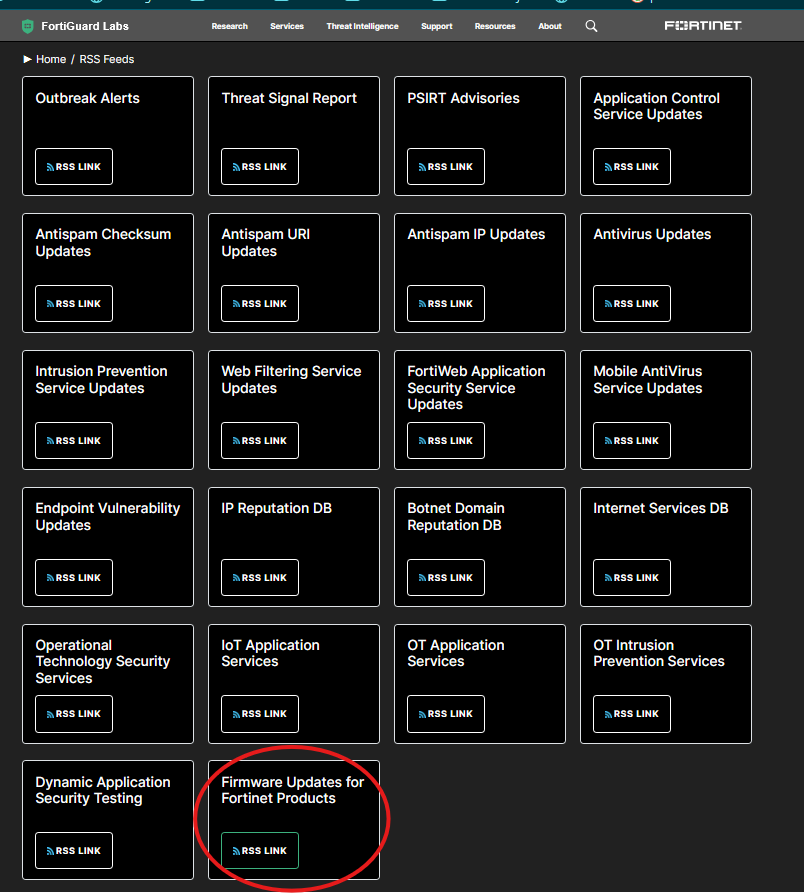
This article covers two possible options for subscribing to an RSS feed: using Microsoft Outlook or a dedicated RSS Reader application, such as 'Ark View RSS Reader'.
Note that it is also possible to use automation stitches on the FortiGate to send an e-mail when new firmware images are available for that FortiGate. This process is described in Technical Tip: Using automation stitches to be notified when a new FortiOS is available.
Option 1: Use Microsoft Outlook to add the 'Fortinet Firmware Updates' RSS feed:
Step 1: Open Microsoft Outlook. Under the 'Mail' section, add a new RSS feed as follows:
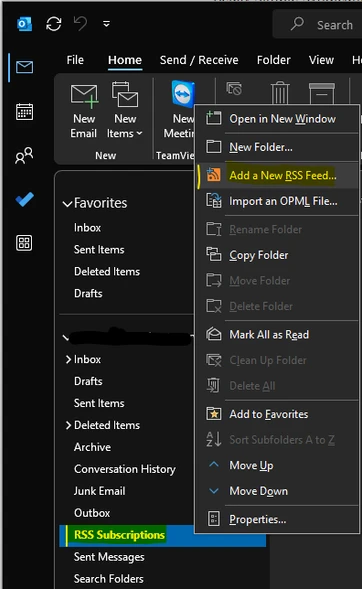 As noted in Can I add an RSS feed in Outlook for Mac?, adding a new RSS feed on Outlook for MAC is not supported as of the date of writing this article, so Outlook for Windows is used.
Step 2: For the RSS URL, enter 'https://support.fortinet.com/rss/firmware.xml' and add the feed.
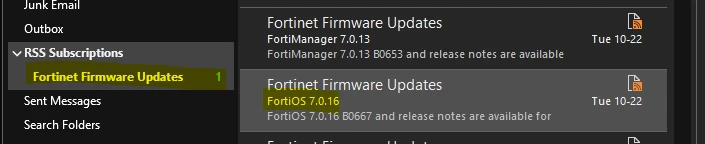
Step 3: Monitor the updates as needed:
 Option 2: Ark View RSS Reader available in the Microsoft Store.
Follow these steps to subscribe: Install and open the Ark View application. On the Home page, use the Search option. Open the context menu (usually via right-clicking) on any RSS Link in the browser and select 'Copy Link Address'. Paste the link into the Search field of the Ark View application and search. This article uses the Firmware Download RSS Feed.
Information similar to the following will appear: 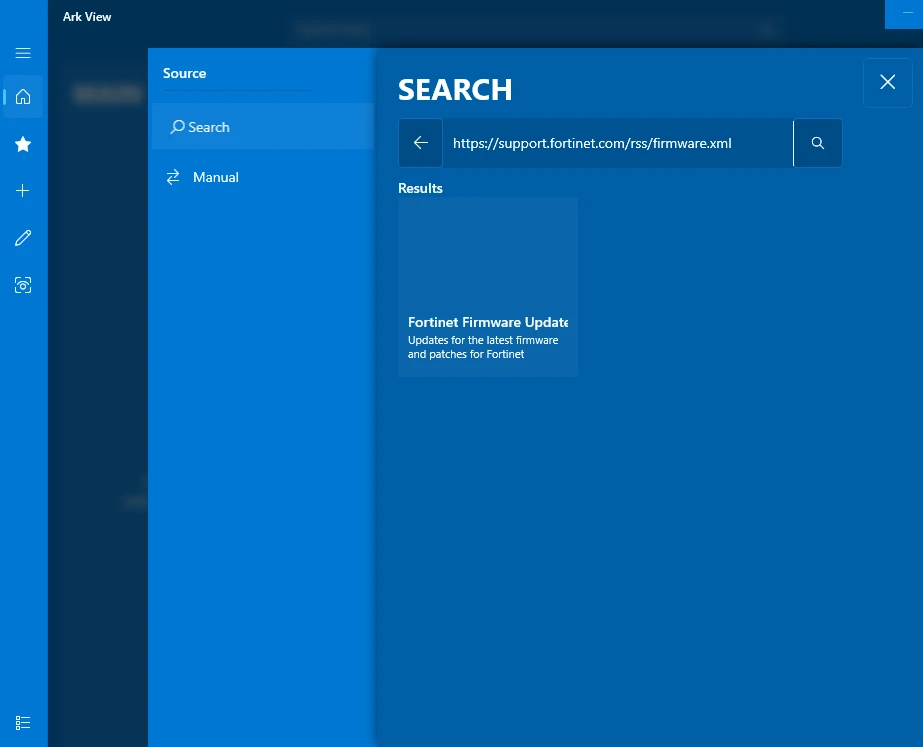 Select the result. The following screen will open:
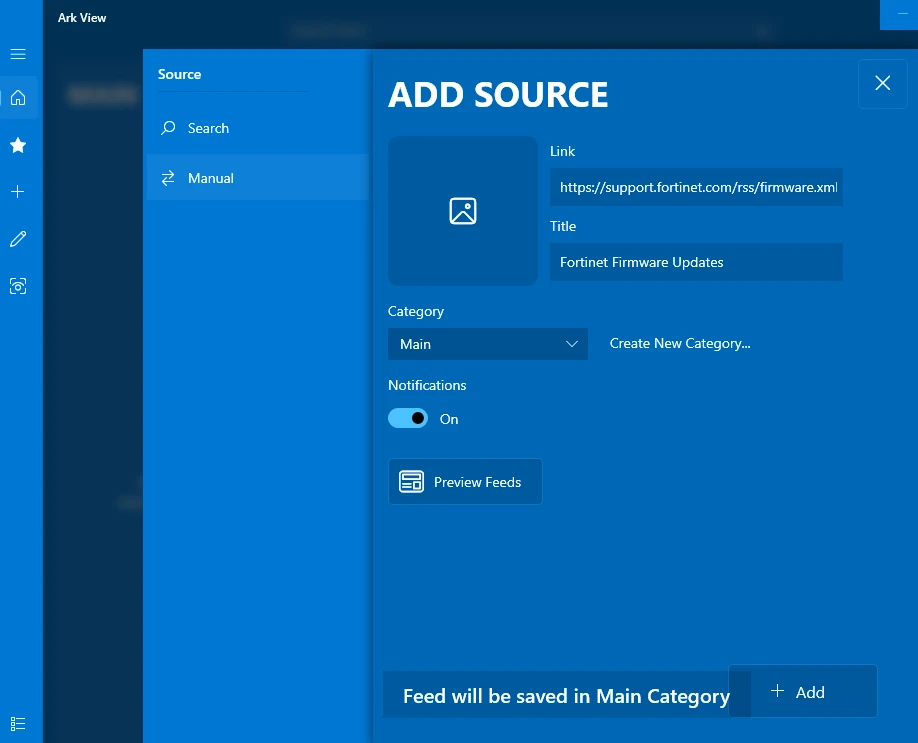 Make any desired or necessary changes to the settings (other than the main link) and select 'Add'. Notifications should be received when there is a new Firmware Release for any Fortinet Product.
|