Solution | When dealing with failures involving a FortiGate with a single license shared among Cluster/HA members, the license transfer procedure during an RMA differs significantly from the procedure used for a FortiGate with a conventional license.
As multiple FortiGate units are covered by the same license, the new FortiGate provided through the RMA cannot be added to the existing single license when the standard RMA process is followed.
In this case, when opening a ticket with Fortinet Support, indicate that the firewall has a license shared across the Cluster to prevent automatic license transfer.
For instructions on creating a support ticket, refer to Customer Service Tip: How to create a ticket for Fortinet TAC.
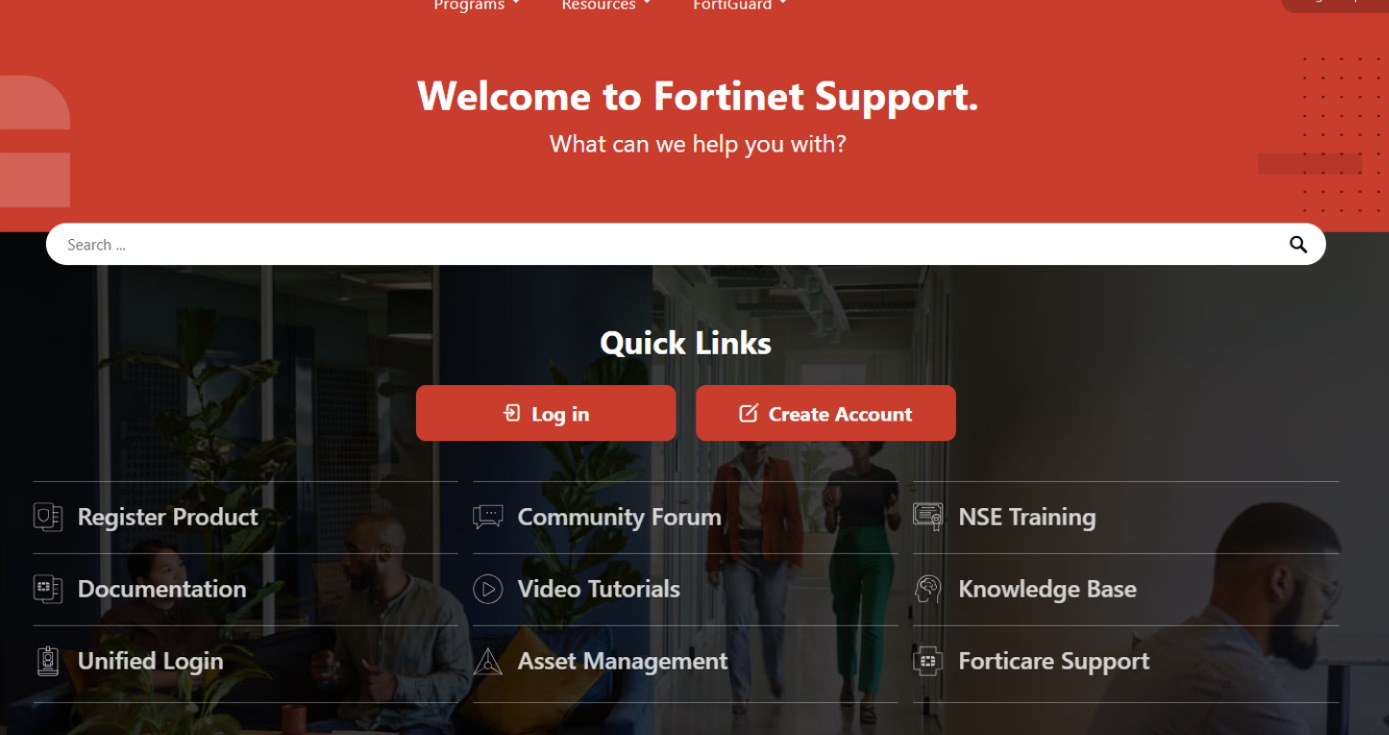
After opening the ticket and confirming the firewall failure, when transferring the license, follow the steps below: Access Fortinet Support:
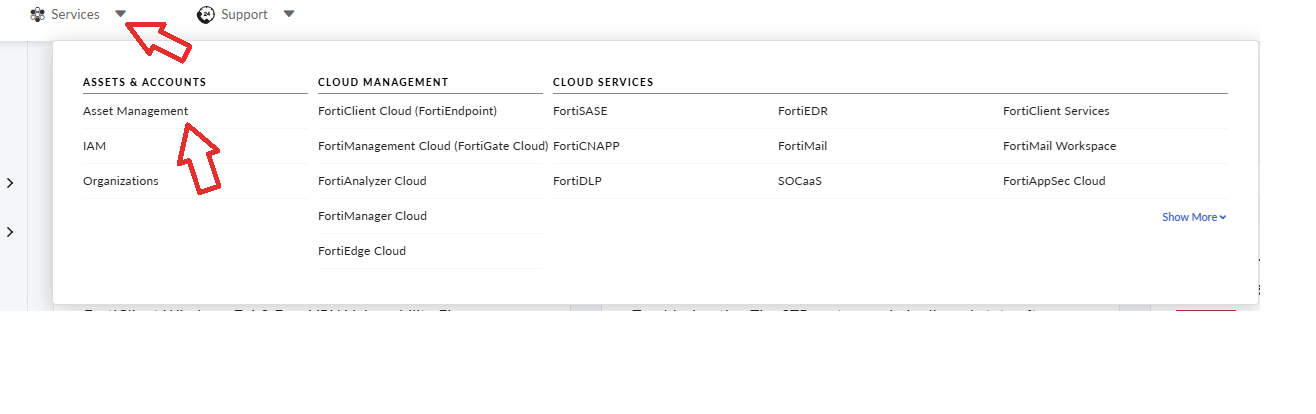
After logging in, go to Services and select Asset Management.
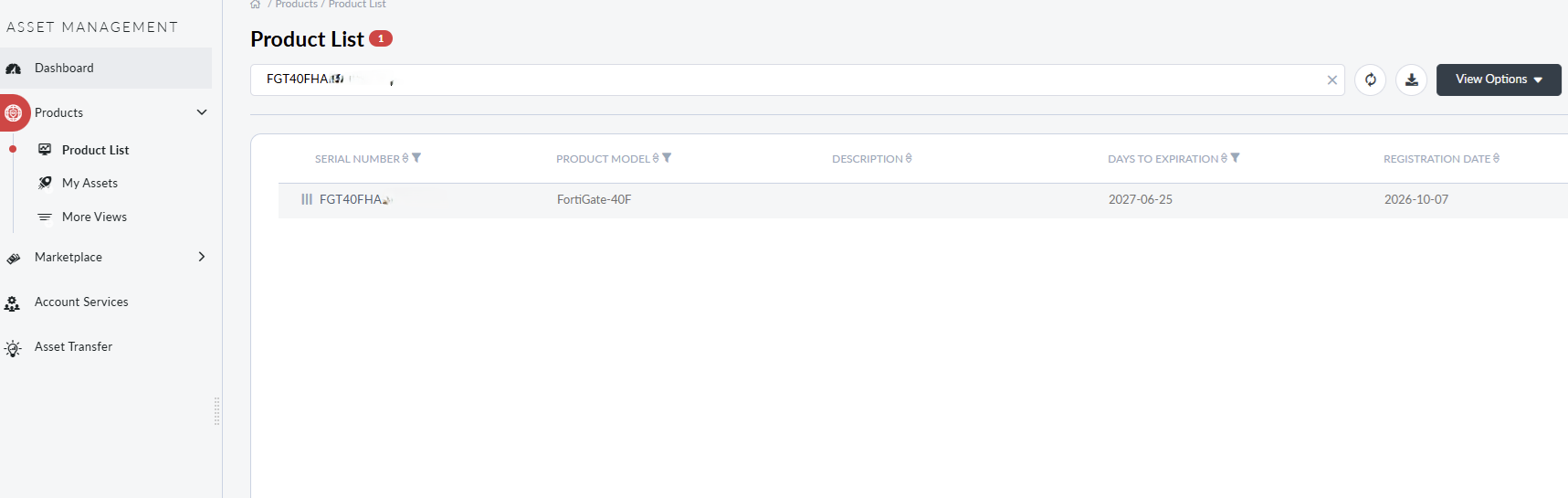
Under Product, select Product List and search for the HA serial number instead of the serial number of the faulty firewall.
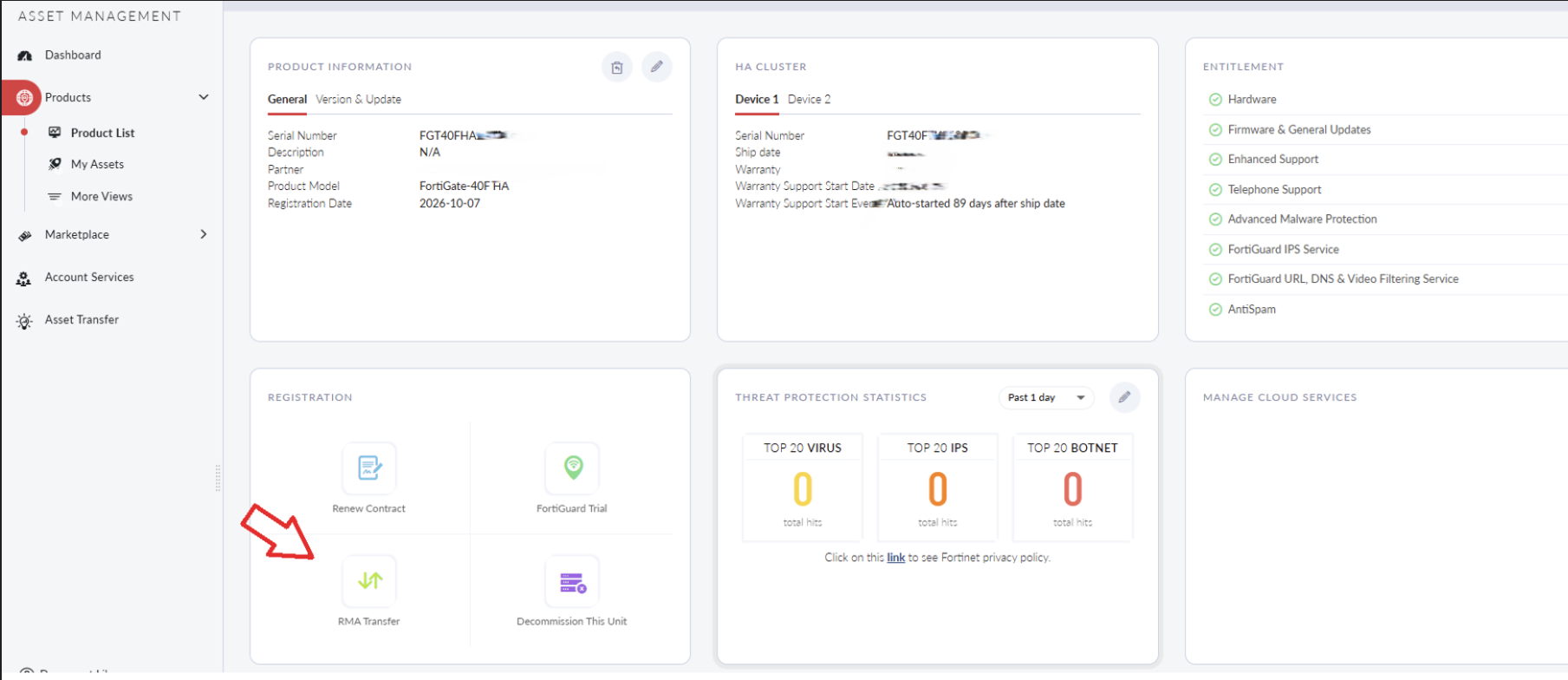
Select the device and go to RMA Transfer.
Select the faulty firewall, either Device 1 or Device 2. Then enter the serial number of the replacement firewall and select Replace. Verify all information and complete the transfer.
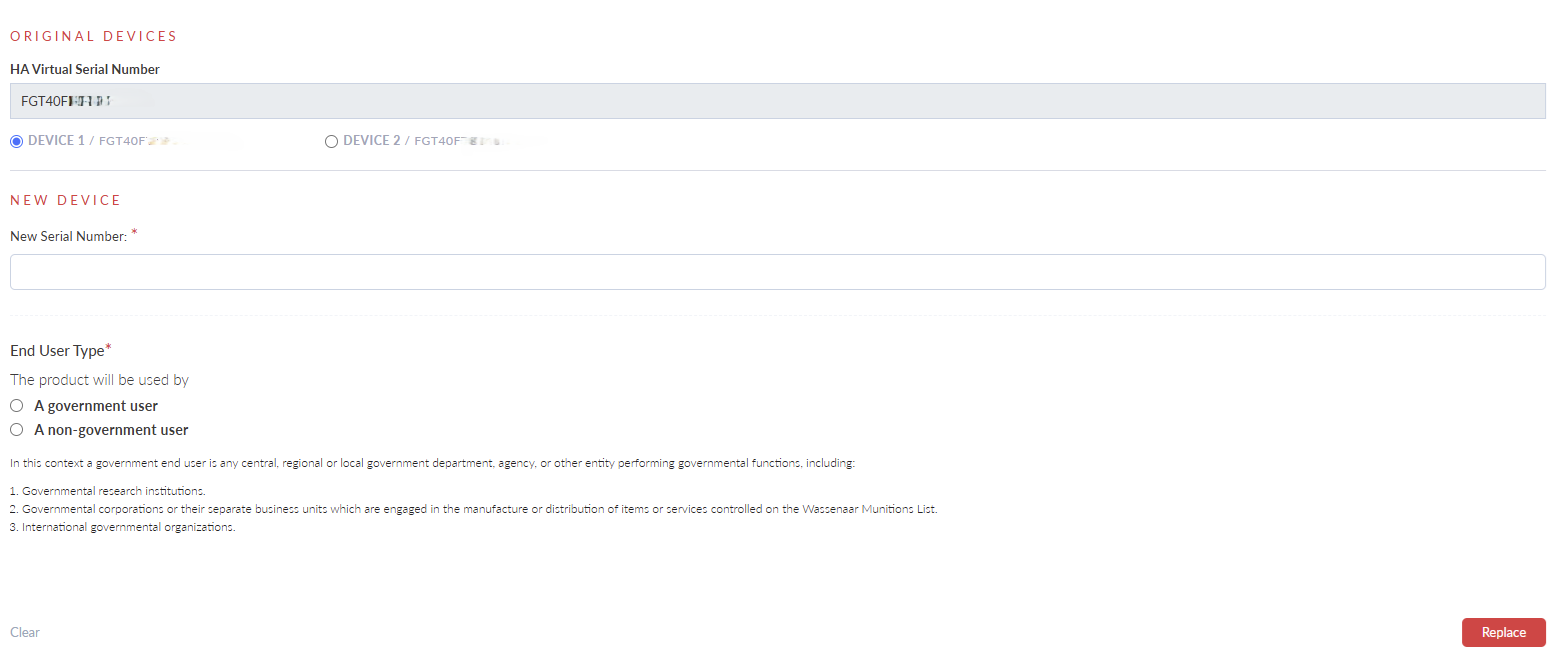
The license transfer has been completed successfully, allowing the new FortiGate to be added to the cluster and share the same license. For questions regarding this process, contact FortiCare Support: Customer Service.
Note: Do not change the HA mode from A-P to A-A while logical-sn is enabled, as this will cause the FortiGate to lose its virtual serial number (vSN).
Disabling logical-sn will also result in the loss of the vSN. Consequently, the service entitlements will no longer be registered to the HA cluster.
Related articles: |