


Technical Tip: Prevent Malicious IP addresses from accessing SSL VPN with brute-force attacks on FortiGate
Description | This article describes how to prevent malicious actors from using brute-force attacks on the FortiGate to access SSL VPN. |
Scope | FortiGate. |
Solution | The utilization of the TOR network by attackers offers an elevated level of anonymity, which frequently drives to heavily rely on brute-force attacks from within this network. By employing ISDB objects, the FortiGate can be configured to block SSLVPN login attempts from known databases of IP addresses, for example: VPN-Anonymous.VPN, Tor-Relay.Node, Tor-Exit.Node, Malicious-Malicious.Server. In v7.6.0+, there is the option to configure a local-in policy via the GUI.
 ISDB objects can be directly applied as source addresses in the local-in policy (starting with v7.4.4 onwards). Below v7.4.4, ISDB objects can be applied as source only within Firewall Policies. Internet service as source addresses in the local-in policy 7.4.4 Technical Tip: Local-in policy using ISDB as a source address
Pre-requisite: Ensure that the FortiGate is set to use the 'full' version of the Internet Service Database:
It is required for the SSL VPN to instead listen in on a loopback, so a Firewall Policy is needed to reach the VPN.
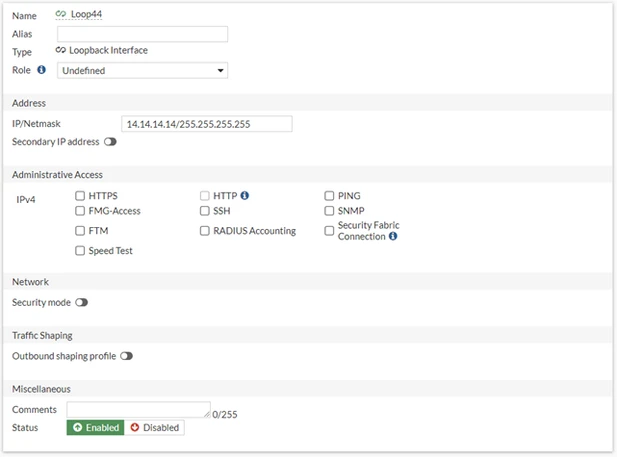
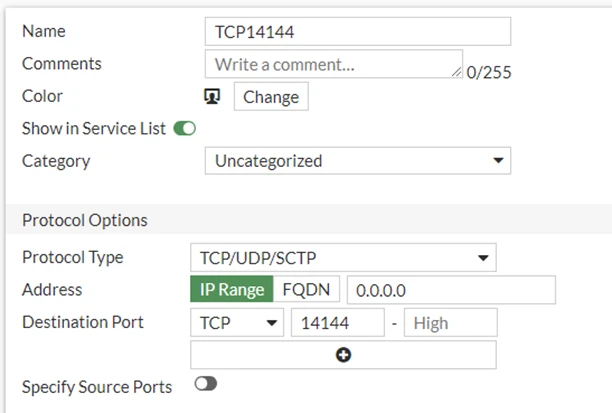
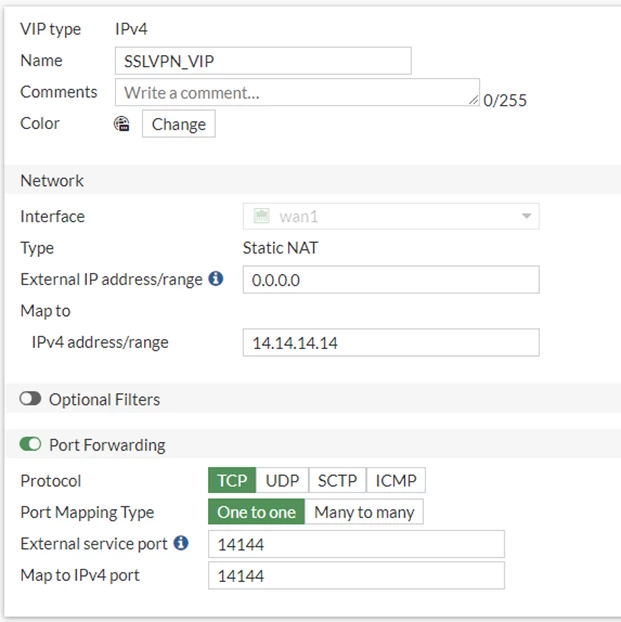
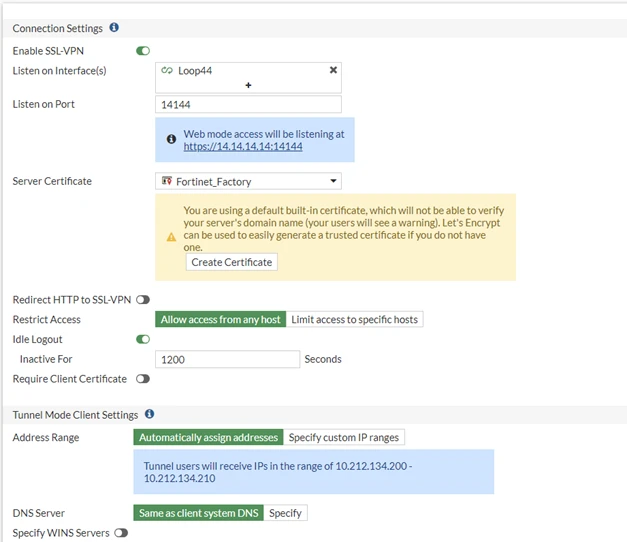
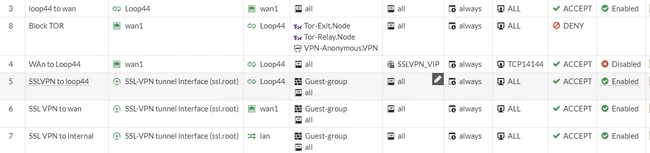
The following ISDB objects can be added to the blocked list:
Further, to check if any of the IPs from which the login attempts are originating belong to known databases (ISDB), follow this process:
Navigate to Log & Report -> System Events -> VPN Events and add a column for 'Remote IP'. Apply the filter 'SSL user failed to log in' under Message. The IPs listed under 'Remote IP' can be cross-referenced with existing ISDB databases on the CLI:
This will show if the 'Remote IP' is part of any known databases.
Note: When using 'all' as the destination, the traffic may sometimes fail to match and subsequently get allowed, so it is recommended to enable the 'match-vip' option using the CLI as follows:
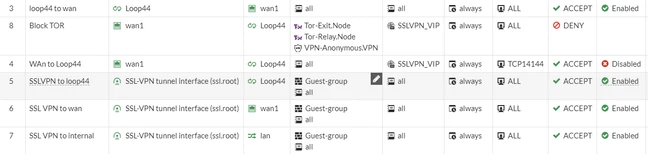
The match-vip option is disabled by default until v7.2.3. In versions after v7.2.3, the option is enabled by default. The 'set match-vip' option is only available if the policy action is set to 'deny'. Alternatively, try selecting the specific VIP as the destination to match the policy:
Related documents: Technical Tip: Virtual IP (VIP) port forwarding configuration Troubleshooting Tip: VIP traffic not matching the firewall policy with an 'all' destination SSL VPN security best practices Technical Tip: Hardening FortiGate SSL VPN - best practices for enhanced security |
