


Technical Tip: How to validate MD5 checksum hash for FSSO installer
Description
This article describes how to validate the file integrity of the FSSO-CA installer using MD5 hash.
Scope
FSSO, FSSO-CA.
Solution
Once the .exe installer has been downloaded and the md5sum.txt file has been copied to the computer. (see Technical Tip: Downloading FSSO agent software for more details), Open Windows Explorer and locate the download directory, then write 'cmd' without quotes in the navigation bar and press enter:
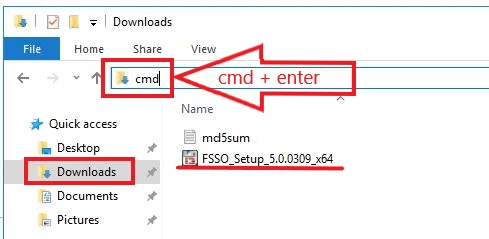
A command prompt will be launched directly into this directory, then replace the installer file name in the next command:
certutil -hashfile <FileName.exe> MD5
Then open the md5sum.txt file with the text editor and compare the command output with the HASH string in the txt file:
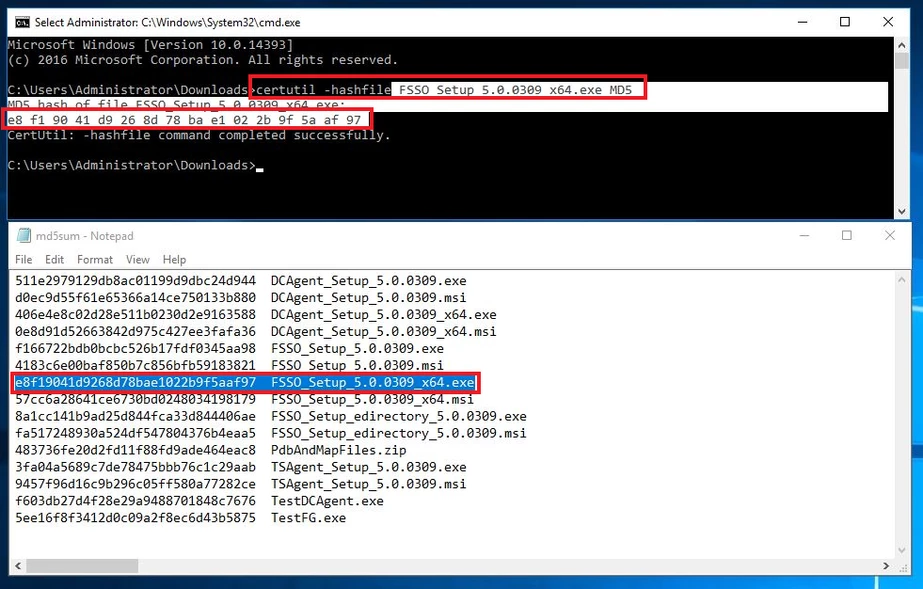
If both strings are the same, the integrity of the installer has been validated. The second way to check a file's MD5 hash is via the PowerShell cmdlet Get-FileHash.
Command looks like:
Get-FileHash <FileName.exe> -Algorithm md5
Open PowerShell prompt, navigate to the folder where the target file is located, and type the command from the picture:

Related articles:
Technical Tip: Downloading FSSO agent software
Troubleshooting Tip: HA troubleshooting information for TAC tickets
