


Technical Tip: How to use failover flag to change active unit
Description
This article describes the usage of the HA Failover Flag mechanism.
How to set it by issuing the command 'execute ha failover set [vcluster]' to perform a forced failover on an HA primary/active unit.
How to unset the flag safely without causing an additional failover if it is not desired.
Key elements to keep in mind when using in production, such as:
The unit with the flag set will stay in a failover state regardless of any conditions!
When an active member leaves the cluster due to a failure or configuration, this change is only temporary until its return to the cluster.If the 'Remote Linked Monitor' is down (die), there will be no HA failover triggered.
This is explained in detail in this KB article: Troubleshooting Tip: HA does not failover even if the Remote Link Monitor status is ‘die’ due to an EXE_FAIL_OVER flag.If any monitored interface goes down, no HA failover will be triggered.
Higher priority setting is ignored, and there will be no HA failover triggered.
A higher Serial number will not be considered as a tie-breaker, and there will be no HA failover triggered.
Note: 'execute ha failover set' will only work if heartbeat ports are connected and both devices recognize each other in the HA cluster.
There are a few ways to remove the failover flag.
Manually turn it off by issuing the command 'execute ha failover unset [vcluster]'.
Setting the failover flag on another device in the cluster.
Rebooting the device. This setting is only meant to be temporary and will not be saved.
For the entire duration of the failover flag setting, redundancy is preserved - example:
Consider the following scenario: 2 FortiGates, FortiGate A and FortiGate B.
Currently, A is the Active (Primary) unit.
When performing the command 'execute ha failover set 1' on unit A, unit B will become the Active (Primary).
In case B fails for whatever reason (such as a hardware failure or reboot), A will take over the Active role.
However, the moment B comes back online in the cluster, it will re-take the Active (Primary) role.
Warning:
This is only used for testing, troubleshooting, and demonstrations. Do not use it in a production environment.
It is commonly set but forgotten to be unset, which will cause confusion and can impact production, as mentioned above.
To failover in a production environment safely, use the following command instead:
diagnose sys ha reset-uptime
get system ha status
If the 'reset-uptime' command is unsuccessful, run 'execute ha failover unset' and retry the operation. Use 'get system ha status' to verify the current HA state.
Caution:
When using this command, do not add a factory-reset unit to the cluster. It will wipe the configuration of the existing unit that has this flag set.
For other suitable options to use, see Technical Tip: Different options to trigger an HA failover (FGCP).
Scope
FortiGate.
Solution
To set the failover flag:
Run this command on the Active unit to force a failover:
 execute ha failover set 1
 Caution: This command will trigger an HA failover.
 It is intended for testing purposes.
 Do you want to continue? (y/n)y
To check the failover flag status:
execute ha failover status
failover status: set
diagnose sys ha dump-by group

<hatalk>             HA information.
group-id=240, group-name='HA-CLUSTER'
has_no_hmac_password_member=0
[......]
'FGT3HD3914-----3': ha_prio/o=0/0, link_failure=0, pingsvr_failure=0, flag=0x00000001, uptime/reset_cnt=0/3
'FGT3HD3914-----9': ha_prio/o=1/1, link_failure=0, pingsvr_failure=0, flag=0x00000002, uptime/reset_cnt=27561870/6
Notes:
Flag 0x00000002 means the HA failover flag is set on the device.
Flag 0x00000001 means the device is a Primary.
Flag 0x00000000 means the device is Secondary.
There can only be 1 device with the flag set (0x00000002) at any given moment in a cluster of 2. Only 2 devices with the flag set (x00000002) in a cluster of 3 and so on.
Setting the failover flag on a second device in the cluster with 2 members will automatically unset the status on another device if it is already set.
To view the system status of a unit in forced HA failover:
get system ha status
HA Health Status: OK Model: FortiGate-300D
Mode: HA A-P
Group: 240
Debug: 0
Cluster Uptime: 0 days 2:11:46
Cluster state change time: 2020-03-12 17:38:04
Master selected using:
FGT3HD3914-----3 is selected as the master because it has EXE_FAIL_ OVER flag set.
FGT3HD3914-----9 is selected as the master because it has the largest value of override priority.
ses_pickup: disable
override: enable
Configuration Status:
FGT3HD3914-----9(updated 4 seconds ago): in-sync
FGT3HD3914-----3(updated 3 seconds ago): in-sync
System Usage stats:
FGT3HD3914-----9(updated 4 seconds ago):
sessions=5, average-cpu-user/nice/system/idle=0%/0%/0%/100%, memory=30%
FGT3HD3914-----3(updated 3 seconds ago):
sessions=41, average-cpu-user/nice/system/idle=0%/0%/0%/99%, memory=30%
To unset the failover flag:
execute ha failover unset 1
Caution: This command may trigger an HA failover.
It is intended for testing purposes. Do you want to continue? (y/n)y
Whether unsetting the failover status will cause a cluster failover depends on the HA configuration (priority, override enabled, etc.).
Refer to the Primary unit selection process: Technical Tip: FortiGate HA Primary unit selection process when override is disabled vs enabled.
To view the system status of a device after forced HA failover is disabled:
get system ha status
HA Health Status: OK
Model: FortiGate-300D
Mode: HA A-P
Group: 240
Debug: 0
Cluster Uptime: 0 days 2:14:55
Cluster state change time: 2020-03-12 17:42:17
Master selected using:
FGT3HD3914-----9 is selected as the master because it has the largest value of override priority.
FGT3HD3914-----3 is selected as the master because it has EXE_FAIL_ OVER flag set.
FGT3HD3914-----9 is selected as the master because it has the largest value of override priority.
ses_pickup: disable
override: enable
Configuration Status:
FGT3HD3914-----9(updated 3 seconds ago): in-sync
FGT3HD3914-----3(updated 2 seconds ago): in-sync
System Usage stats:
FGT3HD3914-----9(updated 3 seconds ago):
sessions=0, average-cpu-user/nice/system/idle=0%/0%/0%/100%, memory=30%
FGT3HD3914-----3(updated 2 seconds ago):
sessions=38, average-cpu-user/nice/system/idle=0%/0%/0%/100%, memory=30%
A useful command to review past failovers (or even changes in the HB interfaces' status):
diagnose sys ha history read
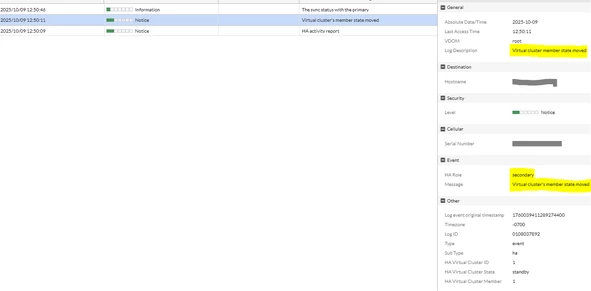
To view logs in the FortiGate GUI, go to Log & Report -> System Events -> HA Events. It shows the message as 'Virtual cluster's member state moved' and the HA role as 'secondary' when the failover flag is set.
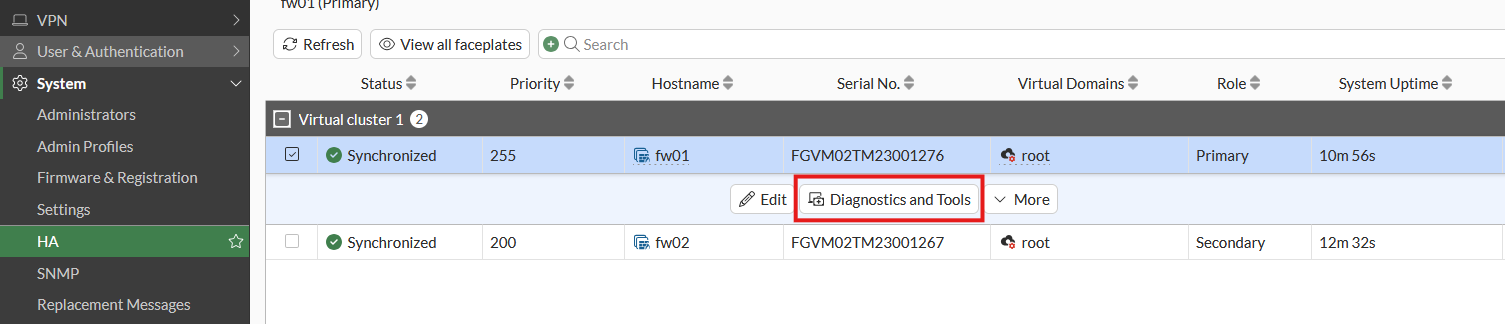
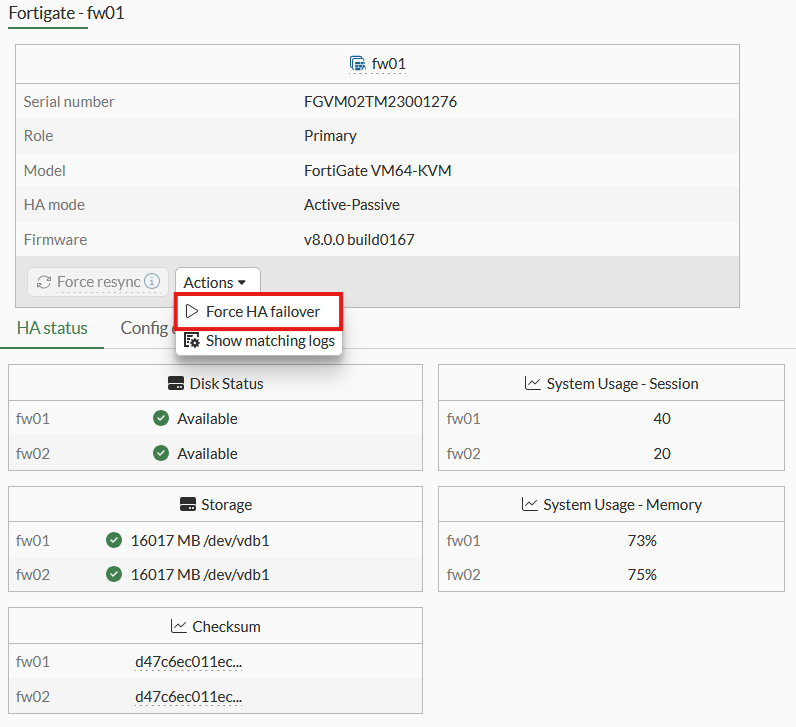
Starting with version 8.0, HA failover can be performed from the GUI.
Go to System -> HA -> Select Primary device -> Diagnostics and Tools -> Actions -> Force HA failover.
Verification:
fw01(Secondary) # get sys ha status

HA Health Status: OK
Model: FortiGate-VM64-KVM
Mode: HA A-P
Group Name: Azure-HA
Group ID: 92
Debug: 0
Cluster Uptime: B days 19h:57m:3s
Cluster state change time: 2026-05-95 13:34:14
Primary selected using:
<2026/85/85 13:34:14> vcluster-1: FGVM02TN23001267 is selected as the primary because EXE_FAIL_OVER flag is set on peer member FGVM02TN23001276
<2026/05/05 13:21:34> vcluster-1: FGVM02TN23001276 is selected as the primary because its override priority is larger than peer member FGVM02TN23001267
ses_pickup: enable, ses_pickup_delay-disable
fw01 (Secondary) # execute ha failover status
failover status: set
fw01 (Secondary) #