


Technical Tip: How to show packet capture
Description
This article describes how to show 'Packet Capture' under Log & Report -> Sniffer Traffic.
Scope
FortiGate.
Solution
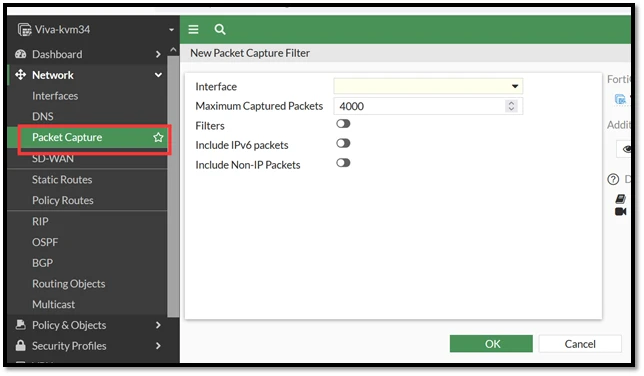
Create a new packet capture filter under: Network -> Packet Capture and select 'New'.
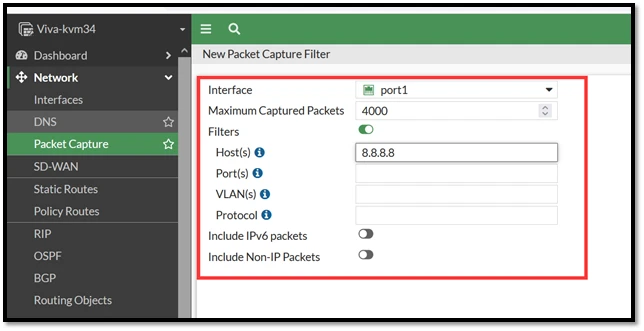
- Put the appropriate filter on the traffic to be captured and select 'Start'.
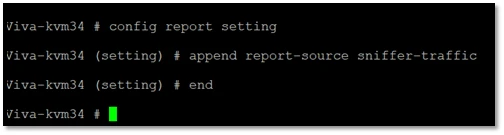
- (Optional) Login to FortiGate via SSH and execute the following command:
# config report setting
append report-source sniffer-traffic
end
This command will allow the packet capture to be used when querying data from a FortiView widget. It is not required to save the capture.
See more details here: Enabling FortiView from devices.
- Run the traffic on a client and wait the packet capture to complete and the log is saved on the FortiGate under Log & Report -> Sniffer Traffic.
Important notes:
Local disk is required in order to work, as it relies on the FortiView function.
