

Technical Tip: How to filter and clear sessions on a FortiGate using GUI
| Description | This article explains how to filter and clear sessions on a FortiGate using the GUI. |
| Scope | FortiGate. |
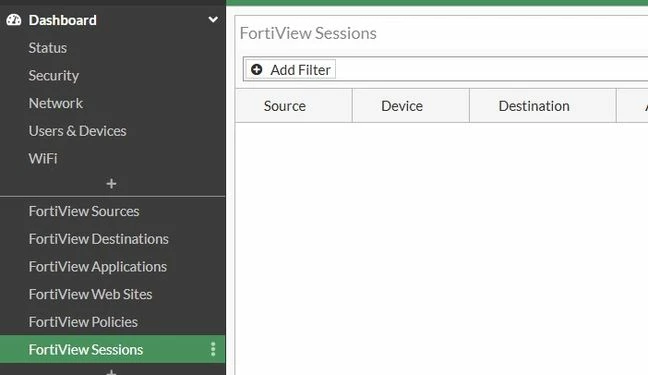
| Solution | The FortiView Sessions monitor can be used to end sessions. To view the FortiView Sessions dashboard, go to Dashboard -> FortiView Sessions.
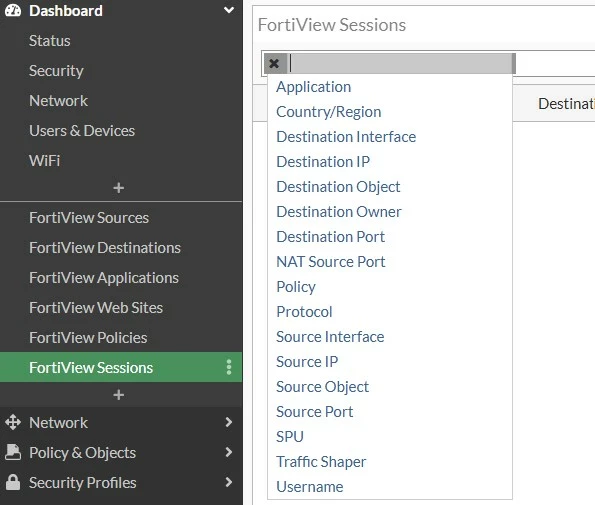
To filter sessions in the session table, select the Add Filter button at the top of the session table and select the required filtering option.
It is possible to add multiple filters as required.
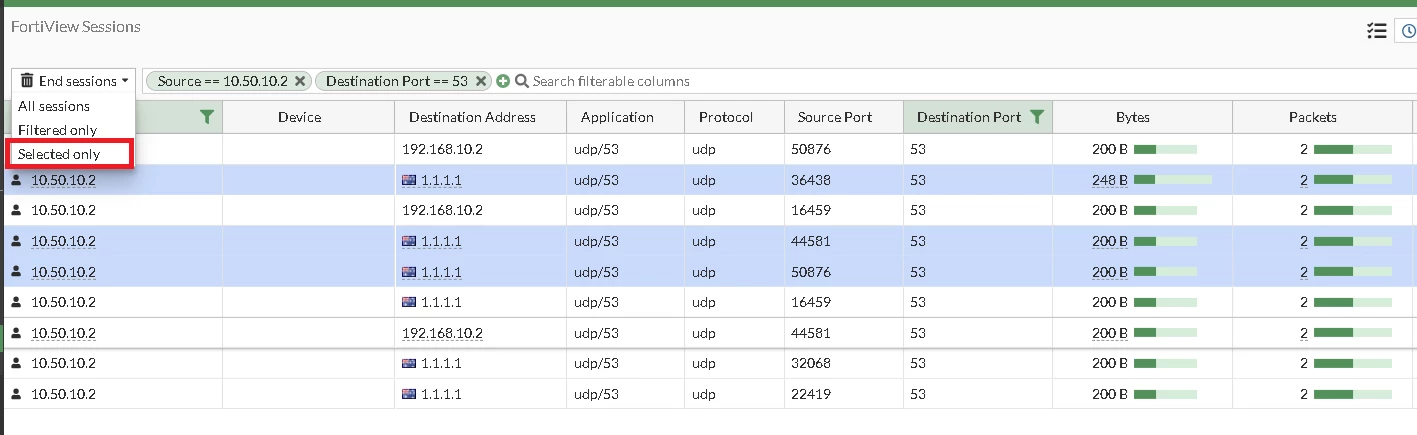
Select End Session(s) to end the selected sessions. Select OK in the confirmation pop-up window.
It is also possible to select multiple session by pressing the CRTL key and clicking the desired rows individually. End the selected sessions by clicking Selected only from the drop-down menu.
Note:
If All sessions is selected, the FortiGate will end all the active session regardless of the filters applied.
For a large number of sessions, it is recommended to use the CLI to clear the sessions. Select OK in the confirmation dialog.
See Technical Tip: Using filters to clear sessions on a FortiGate in the CLI for instructions on how to clear sessions in the CLI.
Related document: |