Technical Tip: How to customize log received through automation stitch.
| Description | This article describes how to customize log content receiving through automation stitch. |
| Scope | FortiGate. |
| Solution | It is possible to customize the log part in the email alert as per the user requirement. To do so, open the automation stitch in which email is configured as the Action.
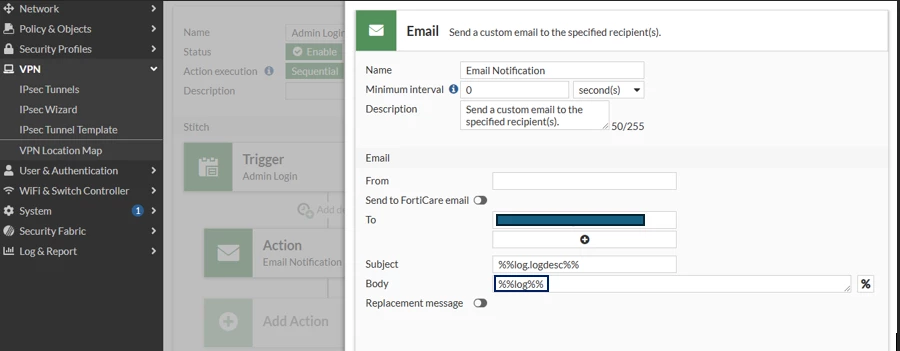
Edit Automation Action and change the Body part accordingly. For example, if the automation stitch is configured to receive an email whenever the admin user logs in, a full log will be sent as shown below:
When the Body part is set to '%%log%%' the email body will contain a full log which has all the details:
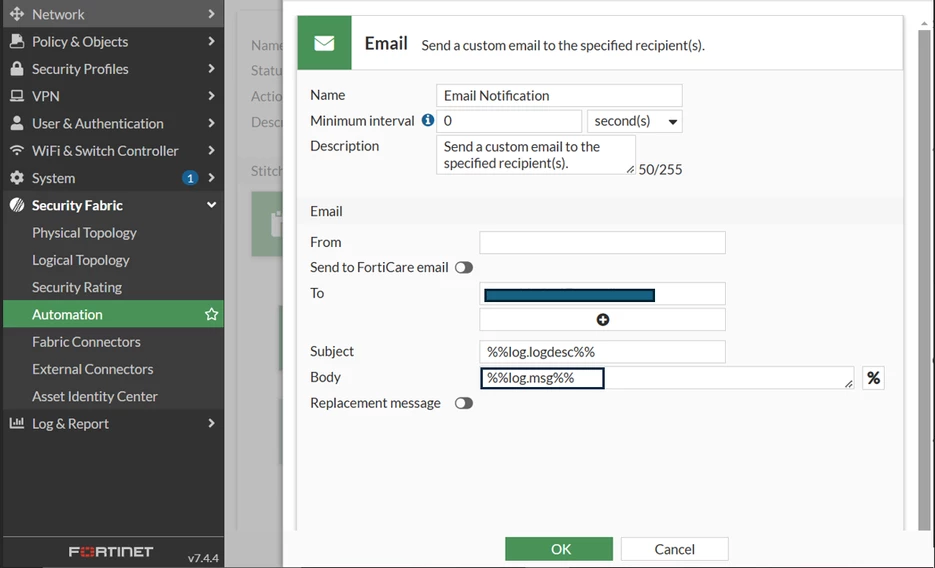
To customize this log to have just one specific detail, edit the body part. For example, customize the body part so that only the Message part of the log is received instead of the whole log. To do so, use the below syntax: '%%log.msg%%'
In the email alert, only the message part will be there instead of a complete log:
Similarly, the below syntax can be utilized:
Multiple fields can also be combined, for example:
|