| Solution | - To create an admin user to perform only the packet capture, log in to the firewall with a super admin credentials.
- Navigate to System -> Admin Profiles. In the Admin profiles tab, select Create New.
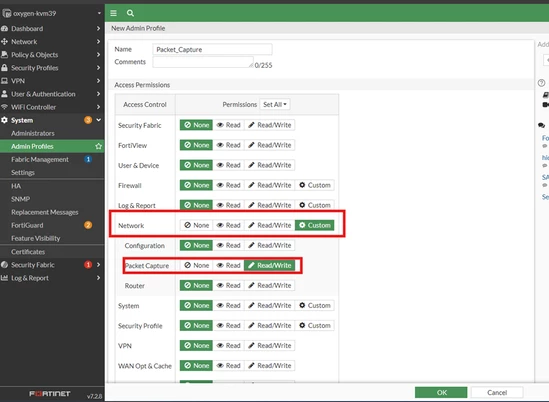
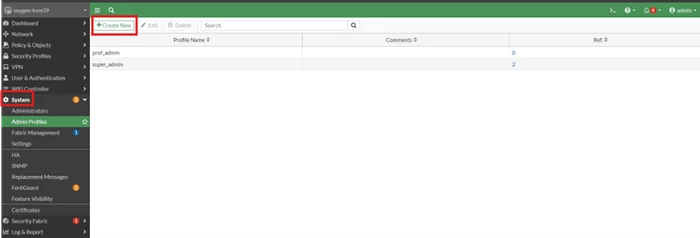 - Add the Name for the Admin profile.
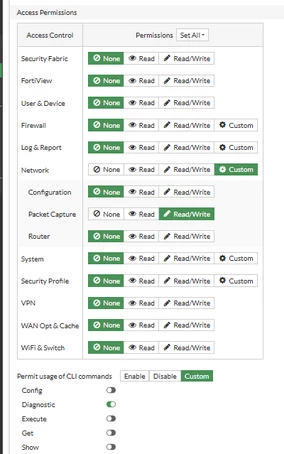
- In the Access Permissions tab, check for the Network in Access Control and under Permissions, select Custom.
- In the Packet Capture tab, select Read/Write to provide the permission for the Packet Capture(To allow captures from CLI, set permit usage of CLI commands to custom and enable diagnostic).
- Select OK.
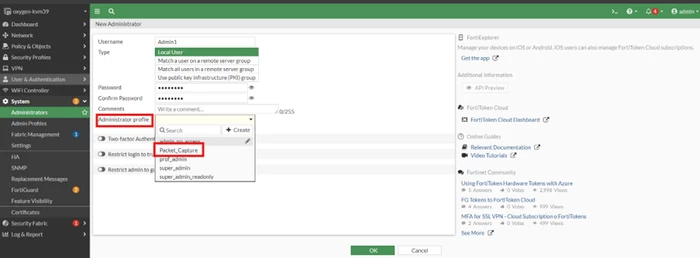
- Once the admin profile is created, select System -> Administrators and, in the Administrator tab, select Create New.
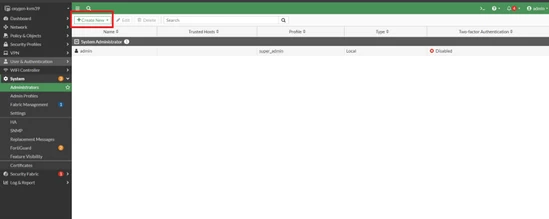
- Provide the username and password. In the Administrator profile tab, select the profile name.
- Select OK.
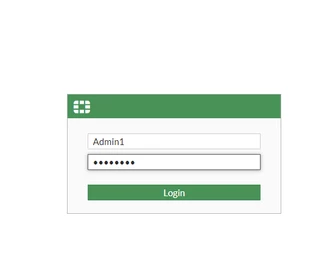
- Once the Administrator is created, log out of the firewall and log in using the credentials for the created account (Admin1).
 - Select Network -> Diagnostics to see that the user has permissions only to perform the packet capture.
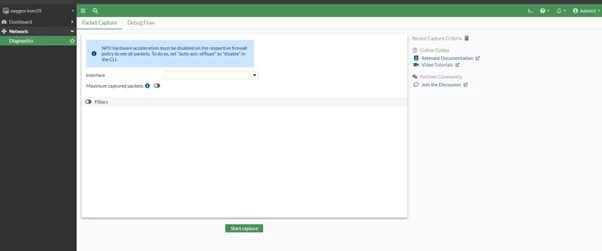
- Select the Interface, specify the number of packets to capture in the Maximum captured packets field, set the required filters, and then select 'Start Capture'.
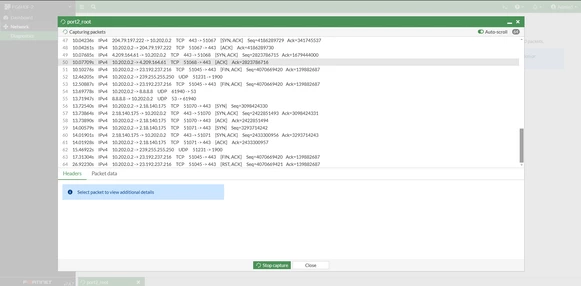 CLI captures: 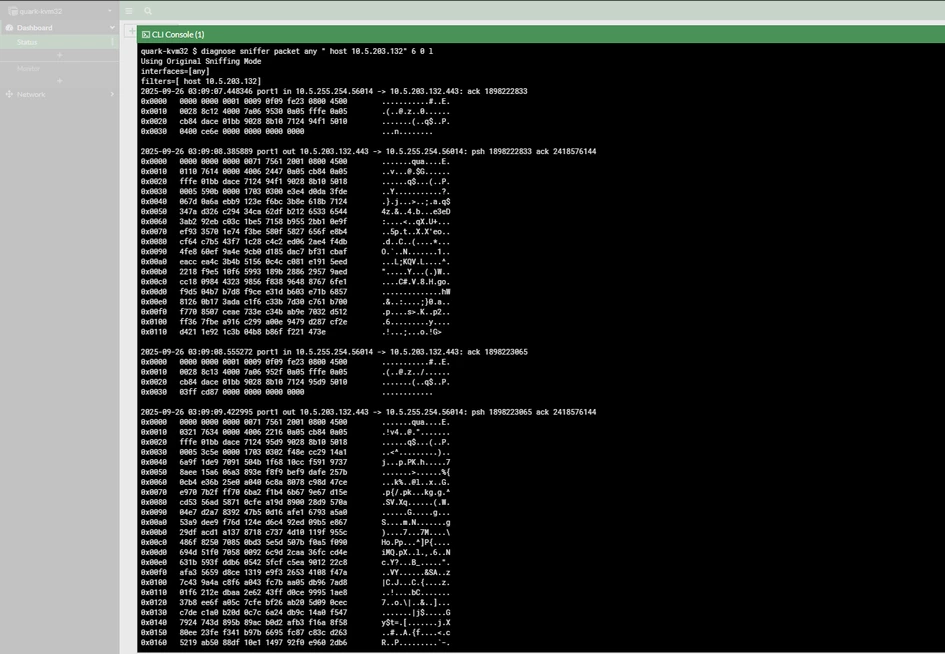
|