- Enable Application Control:
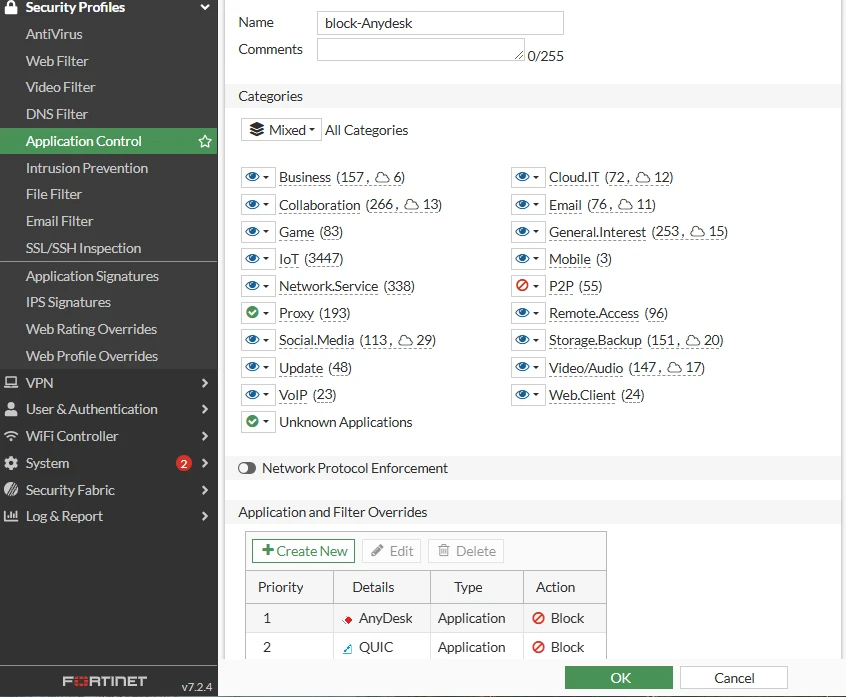
- Go to Security Profiles -> Application Control.
- Select 'CREATE NEW' to create an application control profile.
- Name the profile.
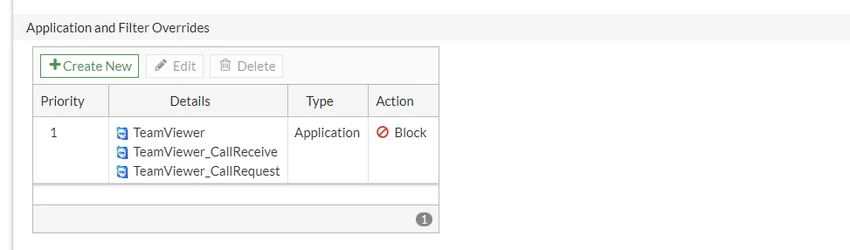
To Block AnyDesk and TeamViewer in the Application Control profile: - Under 'Application and Filter Overrides'.
- Select 'CREATE NEW'.
- Search for 'AnyDesk' and 'Team' in the application signature database.
- Set the 'Action' to 'Block'.
- Save the changes.
- Apply the Application Control Profile to a Policy:
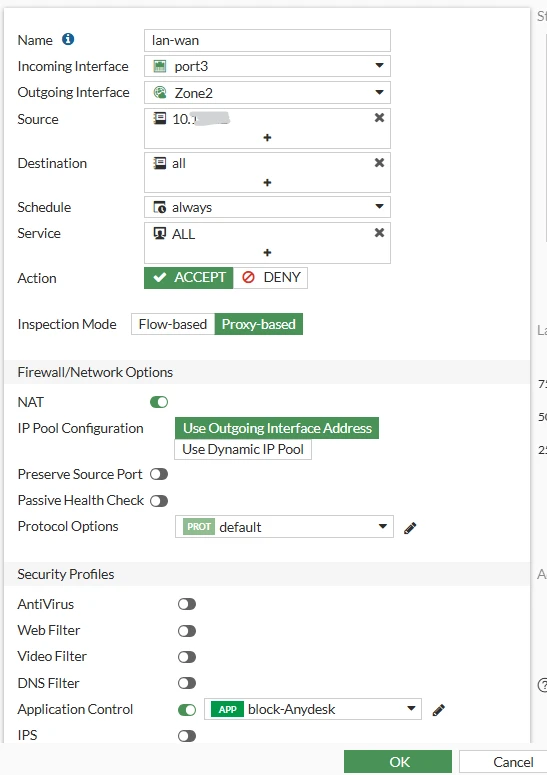
- Go to Policy & Objects -> IPv4 Policy.
- Identify the policy handling outgoing internet traffic.
- Edit the policy and:
- Select the Inspection mode 'Proxy-based'.
- Enable 'Application Control'.
- Select the created application control profile.
- Enable 'SSL/SSH Inspection' and select a profile configured for **Deep Inspection**.
- Install the Deep Inspection certificate on the client.
- Save the policy.
- Monitor Traffic: Go to Log & Report -> Security Events -> Logs -> Application Control to verify that application traffic is detected and blocked.


Note: The latest AnyDesk application version 9.x may not be blocked when the firewall is operating in proxy mode using Application Definitions v34.00124. However, it is successfully blocked when flow inspection mode is used.
This issue is resolved in Application Definitions v35.00130 and later, where the AnyDesk Application signature has been improved to account for traffic changes in newer versions. |