


Technical Tip: How to add Two-Factor Authentication for Administrative access for LDAP users
Description | This article describes how to enable 2-Factor Authentication for Admin Users from LDAP through FortiToken MFA. |
Scope | FortiGate. |
Solution | Step 1: Create an LDAP user group. Go to User & Authentication -> User Groups -> Create new.
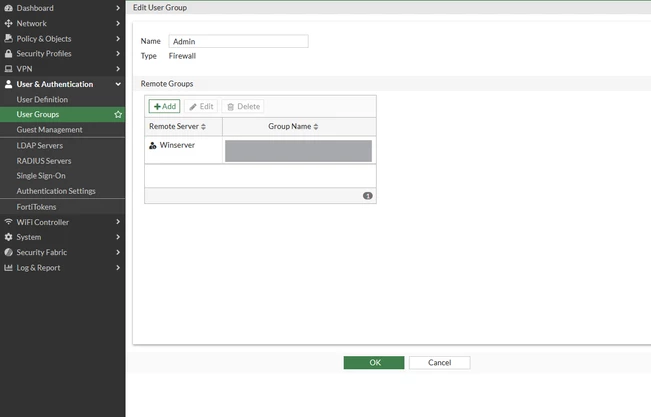
After giving a name to the user group, choose the type as firewall. In the remote Groups, select Add and select the LDAP server and group that is supposed to get authenticated for the administrative access.
Step 2: Create an Admin User. Go to System -> Administrators -> Create new.
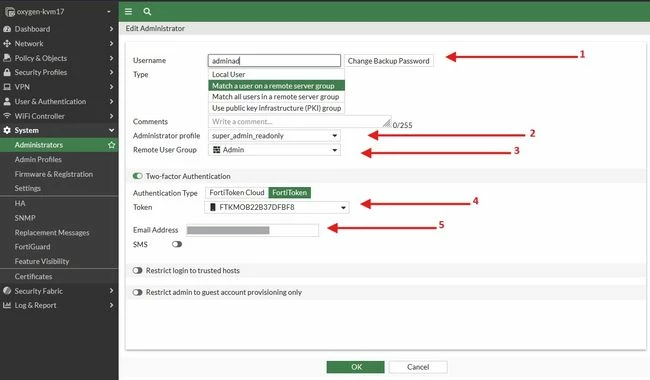
For more information about ‘Match all users in a remote server group’ and ‘Match a user on a remote server group’, follow this document: Remote authentication for administrators.
2. Choose the Administrator profile required for this user. Administrator profiles explains how to configure Administrator Profiles. 3. Choose the User Group created in Step 1. Here, the group name is Admin. 4. Enable Two-factor Authentication, select FortiToken, and then select the Token serial number that is needed to be used for this admin user. 5. Give the email address that is needed to receive the activation code for the FortiToken activation.
Step 3: Now that the configuration has been completed it is ready to test. 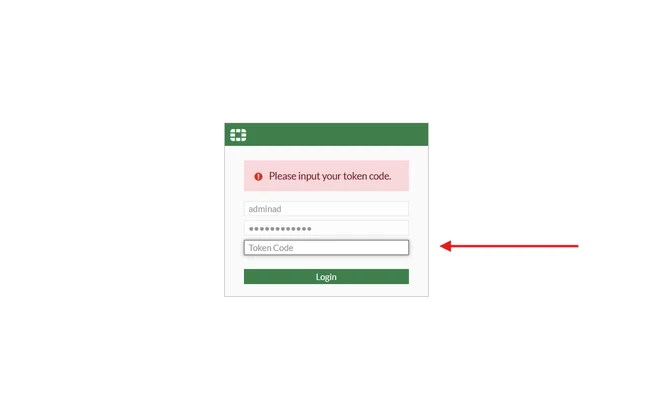
Once the correct username and password are given for the authentication, it asks for the FortiToken input to proceed further.
Step 4: Verification.
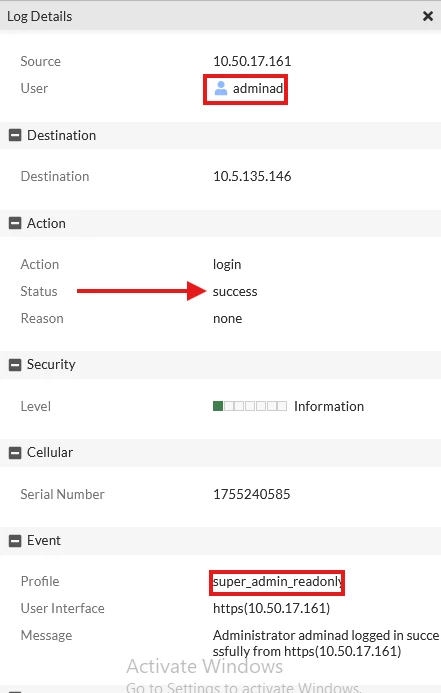 Now the user adminad has been logged in to the device successfully and the correct Administrator profile has been assigned to the user.
Related article: Technical Tip: Add Two-Factor Authentication for FortiGate Administrators using FortiToken |
