
Technical Tip: How to add Connection-specific DNS suffix in DHCP server settings of FortiGate
| Description | This article describes how to add a Connection-specific DNS suffix in the DHCP server settings in handing over to Internal DHCP client machines. |
| Scope | FortiGate. |
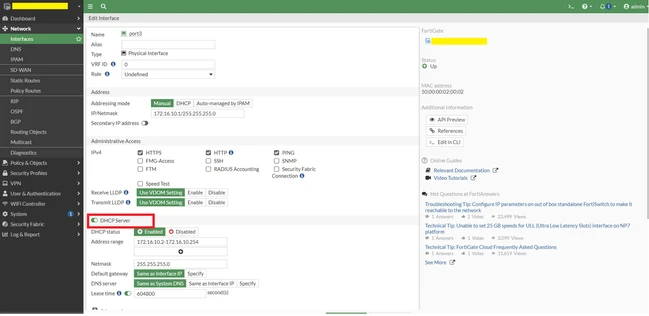
| Solution | First, enable DHCP services in FortiGate Firewall under the interface: Go to Network -> Interfaces -> Enable DHCP server on port3 -> Select OK.
Search for the ID where the interface port3 is configured. In this case, it is ID #3:
show system dhcp server config system dhcp server edit 3 set dns-service default set default-gateway 172.16.10.1 set netmask 255.255.255.0 set interface "port3" config ip-range edit 1 set start-ip 172.16.10.2 set end-ip 172.16.10.254 next end end
Configure a connection-specific DNS suffix in the DHCP server in FortiGate firewall via the CLI:
config system dhcp server edit 3 set domain test.local end
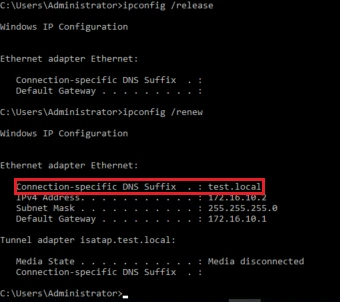
To verify if the client is getting the connection-specific DNS suffix test.local, perform either of below actions.
ipconfig /release ipconfig /renew
Note: For the DNS resolution to work properly, the primary DNS server for the hosts on the network adapter must be the one that can resolve the hostname.
Related article: |