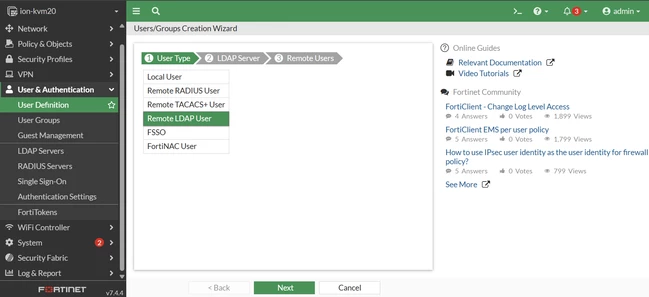
| Solution | - Go to User & Authentication -> User Definition -> Create New -> Remote LDAP User -> Select the LDAP server.
-
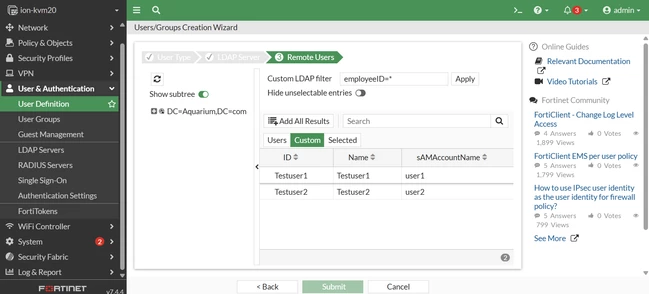
Select Users Using a Custom LDAP Filter: To narrow down the search results to users with a specific custom attribute, apply a custom LDAP filter. This allows for precise querying of user objects based on attribute values. The LDAP filter can be customized as follows: - To search for users based on a custom attribute (for example, employeeID), use the filter format: objectclass=* example: employeeID=*. This filter will return all users that have a value set for the employeeID attribute.
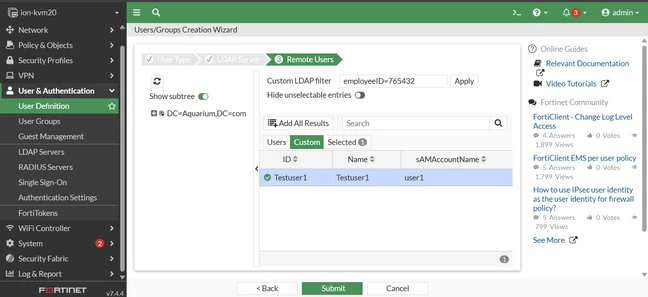
- To refine the search and display a specific user based on a known value for the custom attribute, modify the filter to: objectclass=* example:employeeID=765432. This will retrieve the user whose employeeID is exactly 765432.
-
After applying the custom filter, the search results will display users who meet the specified criteria. Select the appropriate users from the list based on the results. To add all users to the list select 'Add All Results'. To add a specific user, 'Right-click' and select 'Add Selected'. -
Select Submit to create the user. The same can be followed for selecting a custom attribute-based user for a user group. |



