

Technical Tip: Access to WILDCARD FQDN using SSL VPN
Description
This article describes how to access multiple sites that have the same domain name (wildcard FQDN) using SSL VPN.
Scope
FortiGate.
Solution
To meet this requirement, follow the steps outlined below:
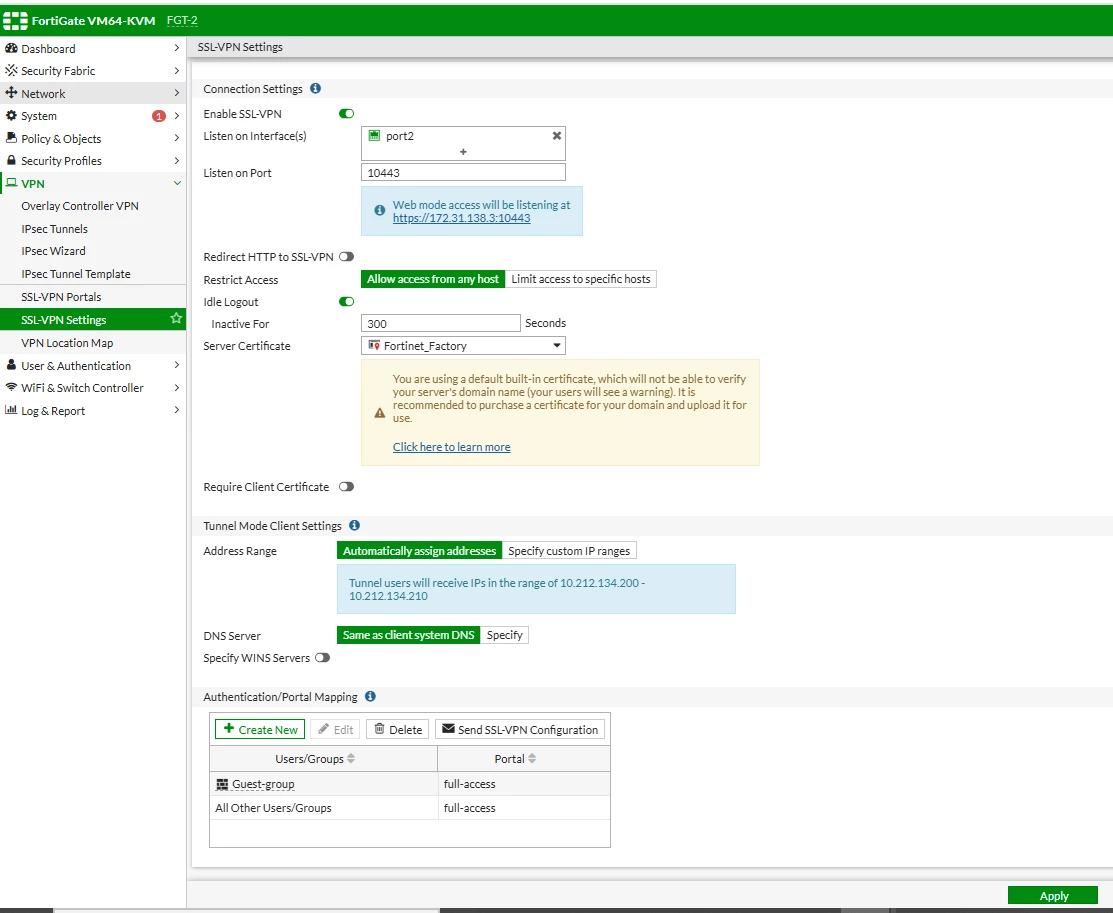
Set up SSL VPN settings. For additional details, refer to the article below: SSL VPN full tunnel for remote user.
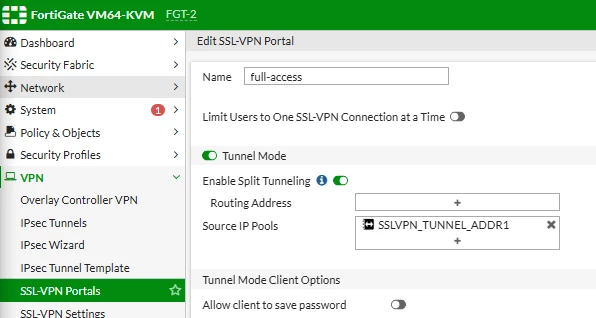
Go to VPN -> SSL-VPN Portals, select an SSL VPN portal, enable split tunneling, and leave the Routing Address field blank.
To configure a wildcard FQDN, navigate to Policy & Objects -> Addresses, and then create a new address object. Make sure to specify the wildcard in the appropriate format (e.g., `*.yourdomain.com`) for the FQDN.
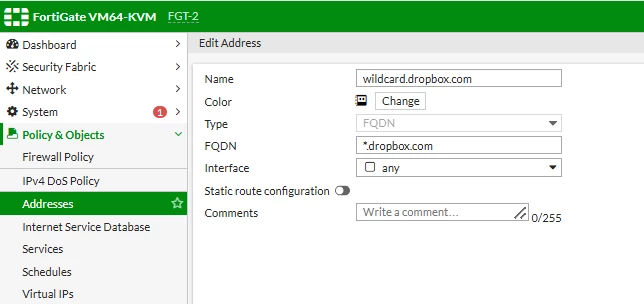
In this scenario, the wildcard FQDN is configured for '*.dropbox.com'.
To configure a firewall policy, navigate to Policy & Objects -> Firewall Policy and select 'Create New'. Set up the rule to apply from the ssl.root interface to the desired exit interface (in the example below, it is configured as port1). Specify the source details and the user group information, and for the destination, use a WILDCARD FQDN. Refer to the snapshot below for further details.

Create a DNS traffic policy for SSL VPN users to flow through the firewall. Make sure the destination field is configured to only the DNS server IP address.

Note: At the initial stage, if a user connects to SSL VPN, the Wildcard FQDN route will not be installed on the user's system because the FortiGate DNS database will not have the IP resolution available.
To verify the route in Windows, use the command: 'route print'.
To check the FQDN IP resolution on FortiGate, run the following command:
diagnose test application dnsproxy 6
Or:
diagnose firewall fqdn list
For v7.0 and above:
diagnose firewall fqdn list-all
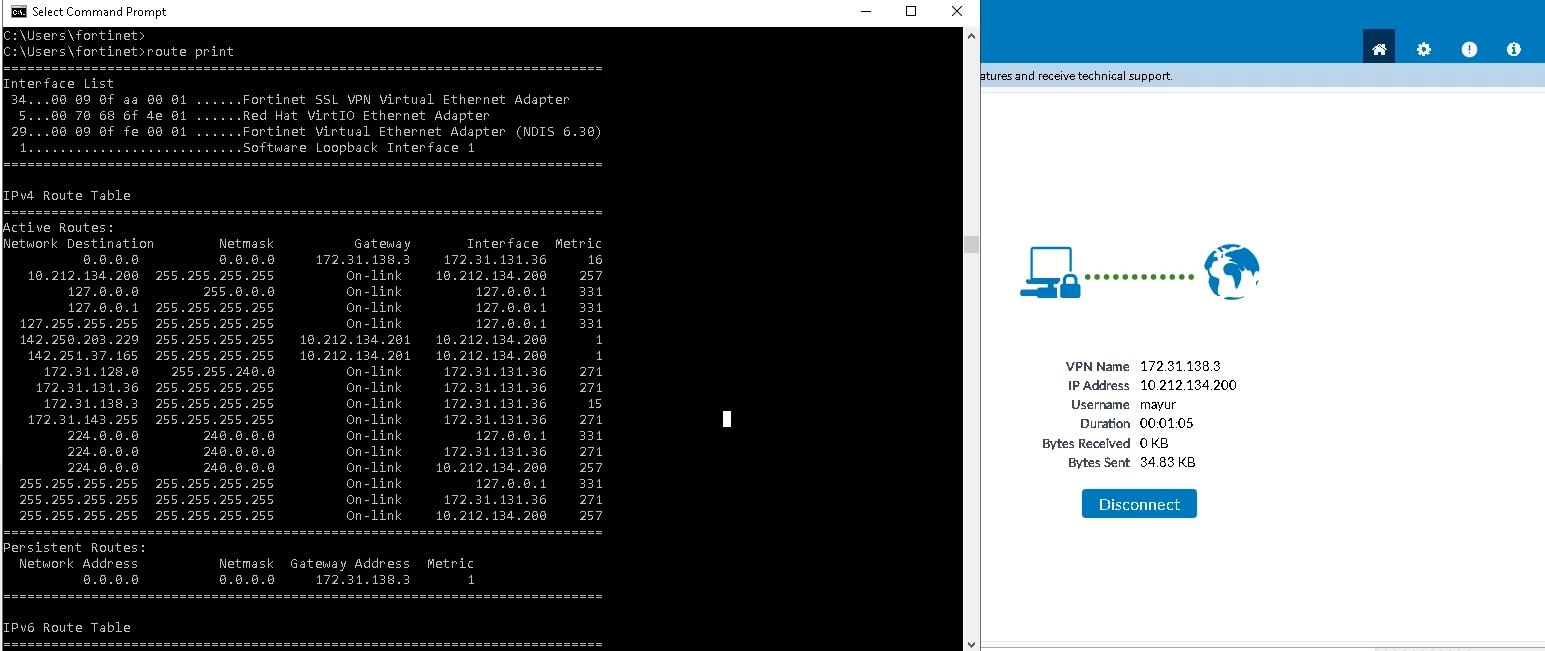
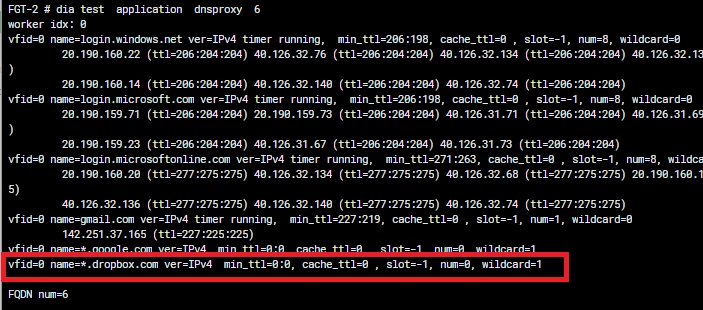
Once the user generates DNS traffic towards the destination, the route will be installed in the FortiGate DNS cache. However, this route will not be installed on the user’s system immediately or dynamically. The SSLVPN remote user will need to disconnect from the SSLVPN and then reconnect to have the routes installed on their system.
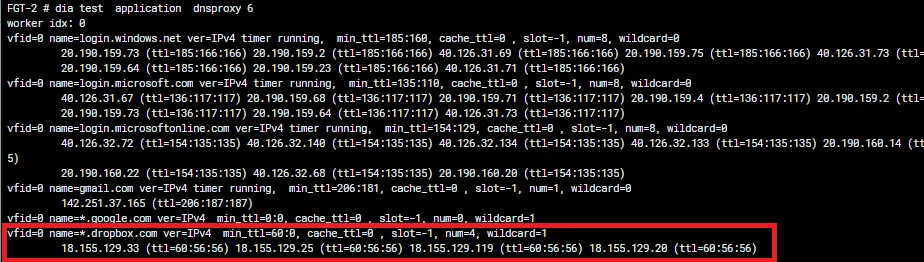
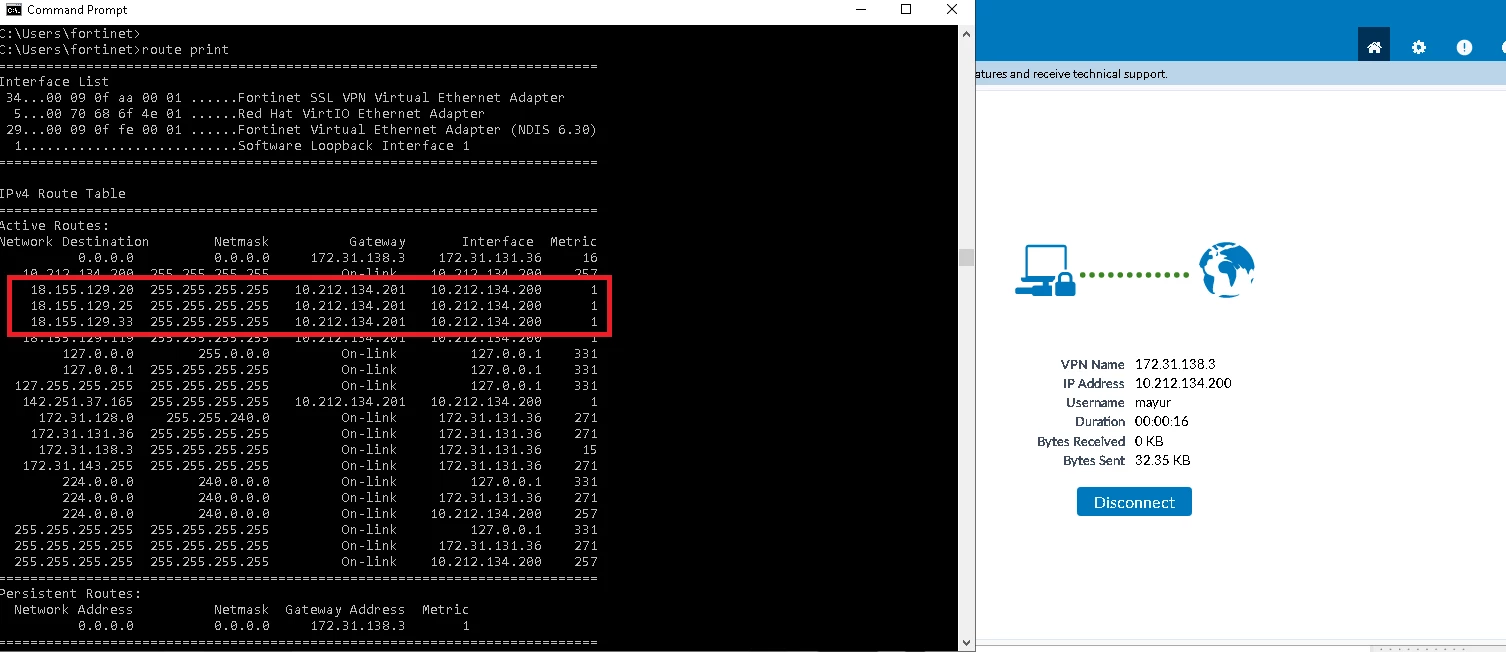
Note: If the wildcard FQDN resolves to different IP addresses on the FortiGate and SSL VPN client, split-tunnel traffic may not match the installed route and can bypass the VPN. Ensure both use consistent DNS resolution and compare the results using 'diagnose firewall fqdn list-ip' and 'nslookup'. For more information: Troubleshooting Tip: SSL VPN split tunnel traffic not working on FQDN destinations
Summary of the steps:
The user generates DNS traffic to the desired destination.
The route gets cached in FortiGate's DNS cache.
To install the route on the user's system:
Disconnect from SSL VPN.
Reconnect to SSL VPN.
The routes will only be properly installed on the user's system after the reconnection.