


How to manually download firmware of FortiGate and how to upload it on FortiGate
Description
The process for manually downloading FortiGate firmware from the Fortinet Support Portal and uploading the firmware to a FortiGate device.
Scope
FortiGate.
Solution
In this article, the FortiGate 100D is on FortiOS 6.0.5 build 0268, and the aim is to download FortiOS 6.0.7 build0302 and upload it to the unit.
Before downloading a firmware image, make sure to choose the correct upgrade firmware(s) by following the upgrade path dictated by the Fortinet upgrade tool: Upgrade Path Tool Table.
The upgrade path can be checked from the Support portal as shown below:
Navigate to the Support portal, then log in to the account.
Go to Support -> Downloads -> Firmware Images and select UPGRADE PATHS. Choose the FortiGate Model, then the Current version and the Upgrade to version and select Confirm.
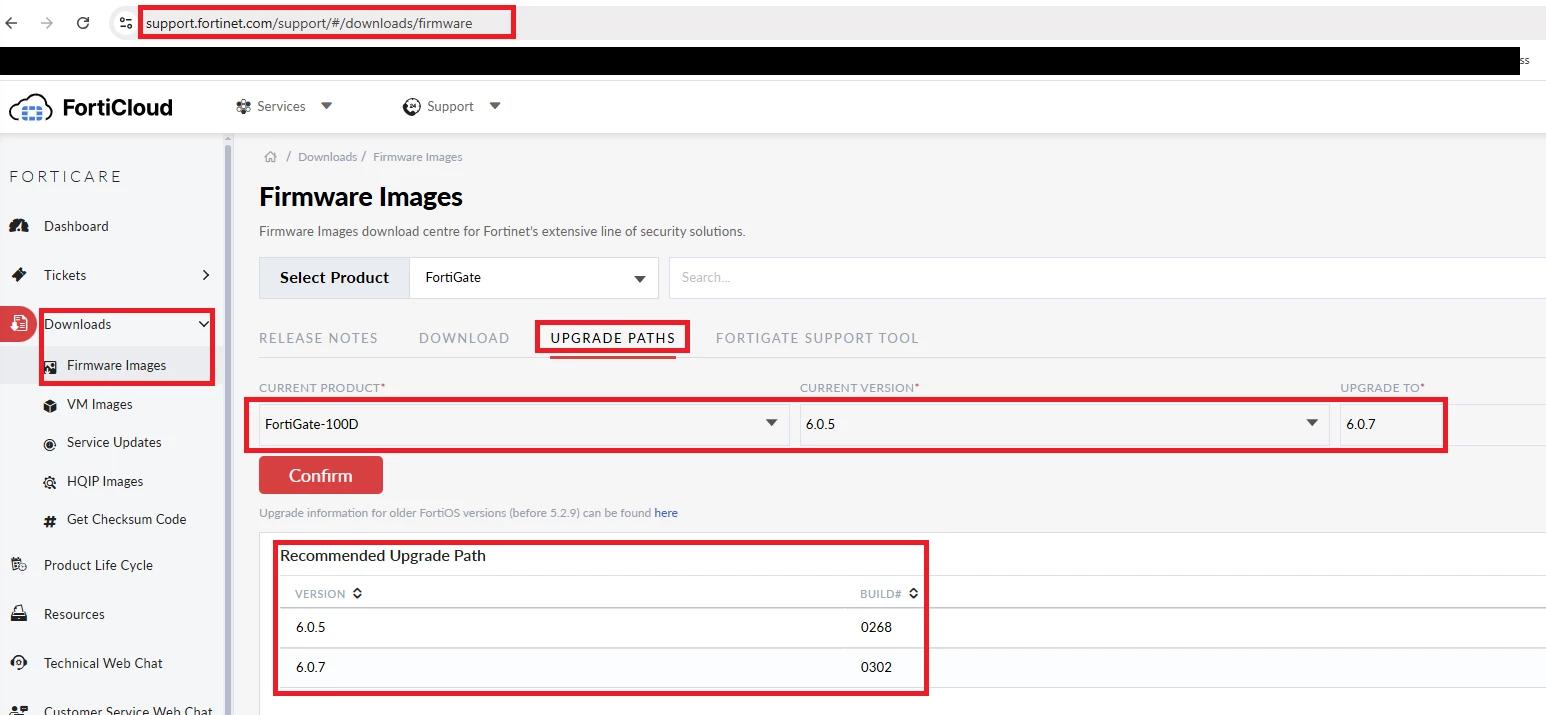
Once the upgrade path is confirmed, download those firmware images hops by following the instructions below
Under Downloads -> Firmware Images. Then, under Select Product, choose FortiGate, and select the Download Tab and choose the v6.00 folder.
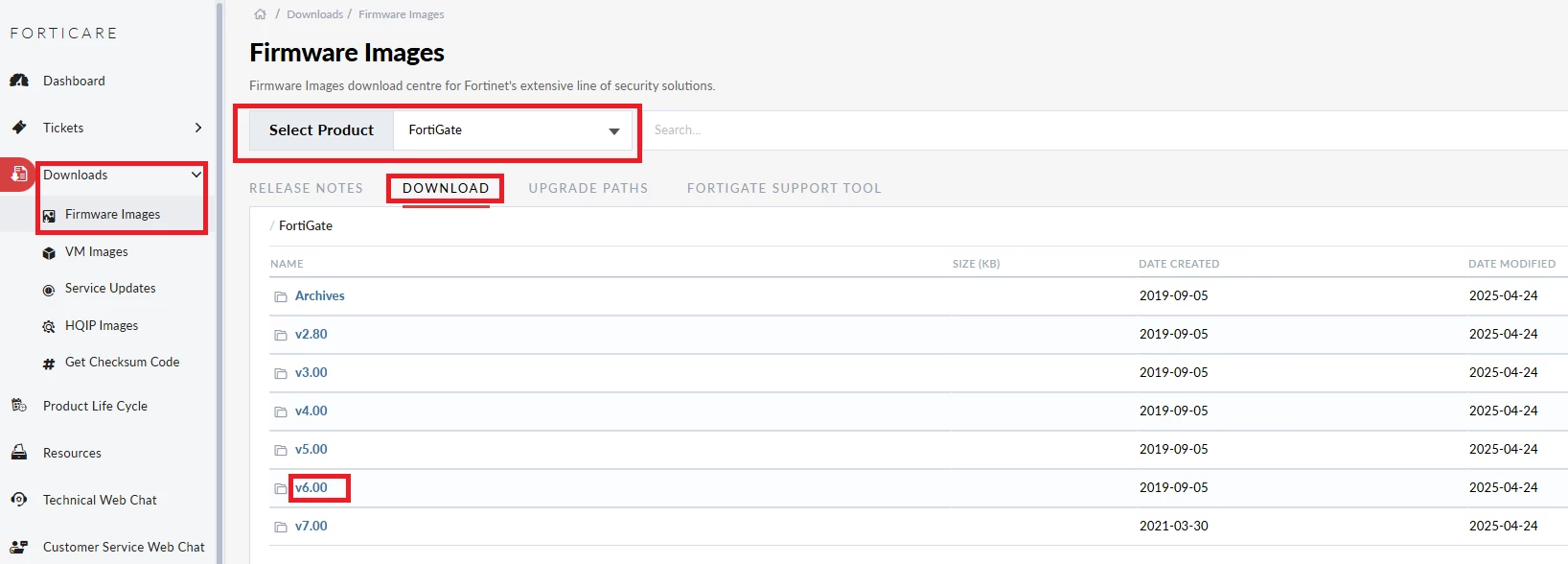
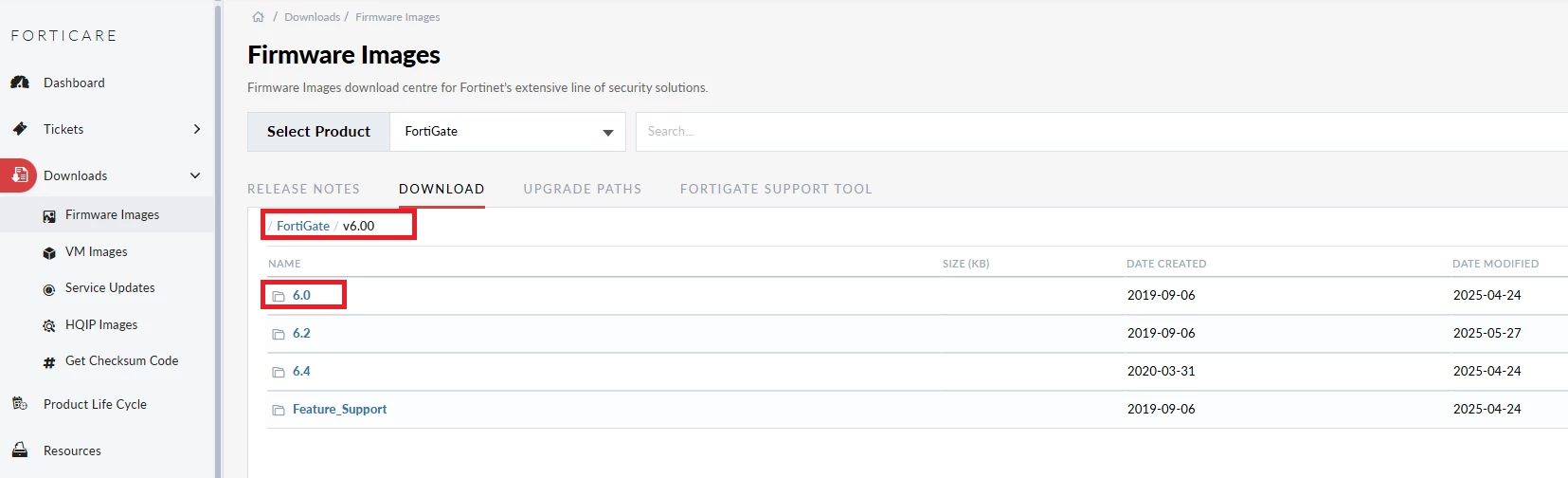
Choose the 6.0 folder, since the goal of this example is to download the v6.0.7 build 0302 Firmware Version.
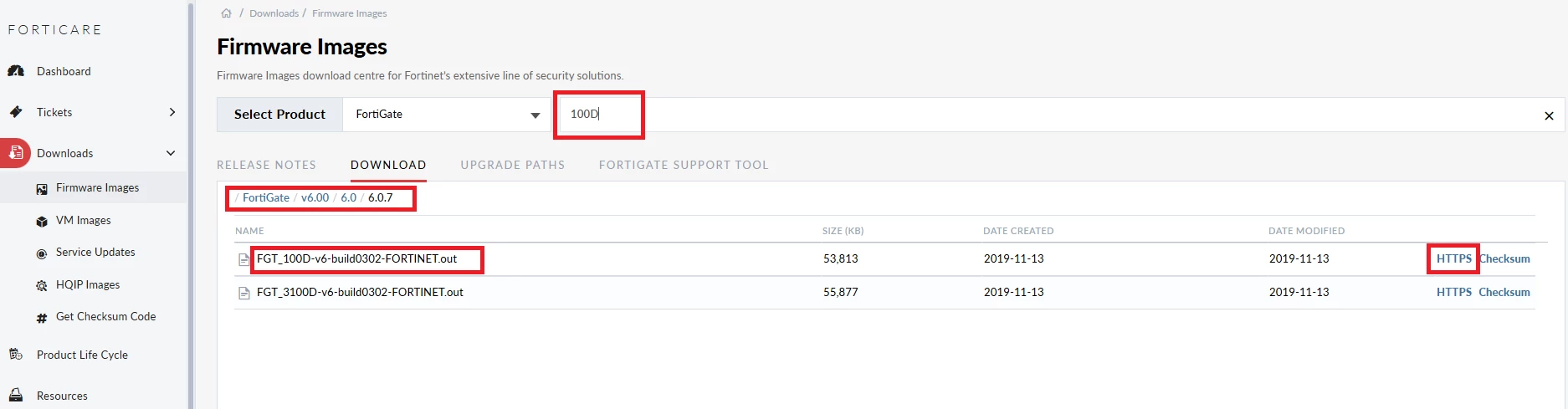
In the 6.0 folder, choose the 6.0.7 folder. To look for the specific Model in the search bar, enter the model number. For example: here, it is '100D'. Next, download the .out file by selecting 'HTTPS'.
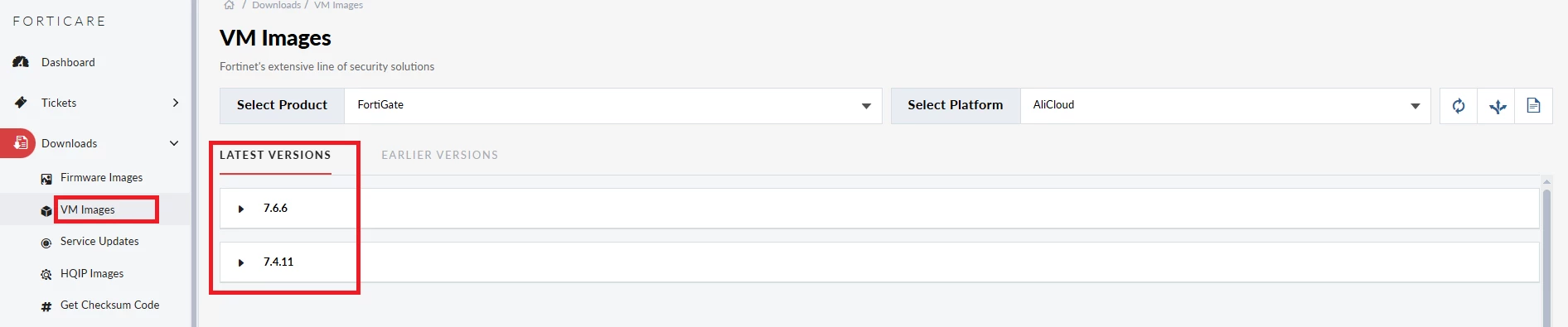
Note: The option 'VM Images', which is seen just below the Firmware Images, shows only the latest Images for Virtual Machines available to download and is not for all VM Images. To check or download the Images for Virtual Machines of any Versions or Platforms, it must be found in the same way as shown above.
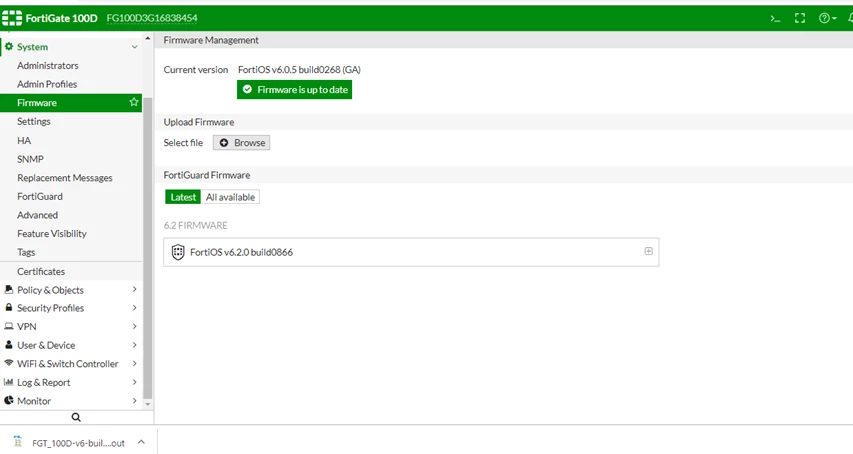
Once it has been downloaded, access the FortiGate GUI under Systems -> Firmware and select Browse to upload the downloaded firmware.
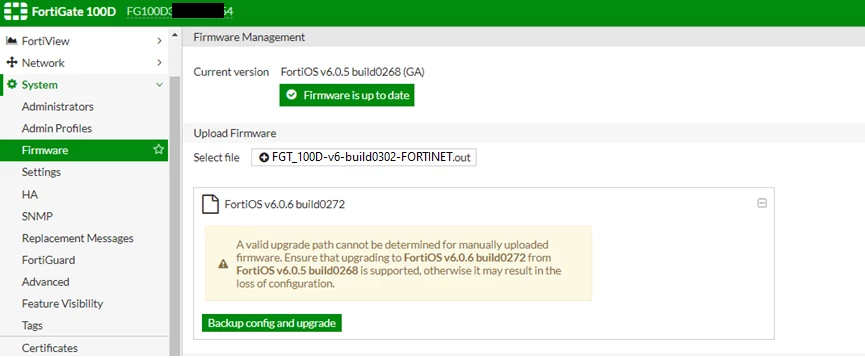
Choose the Firmware that was downloaded and select the option 'Backup config and upgrade'.
Note:
The FortiGate connects to the FortiGuard server to verify the upgrade path. This is to ensure that the upgrade path is valid and supported for the specific device model. For manually uploaded firmware, the message can be safely ignored to proceed with the upgrade as long as the correct upgrade path is followed. For more details, refer to Troubleshooting Tip: A valid upgrade path cannot be determined for manually uploaded firmware.
For new Firmware versions starting from 7.0 and above: The next example is for the FortiWifi 80F Firmware image because FortiGate 100D in the first example cannot go above the FortiOS version 6.2.x.
In the GUI, go to System -> Fabric Management and select the FortiGate to upgrade and select the Upgrade option on the top or 'right-click' on FortiGate and select the Upgrade option.

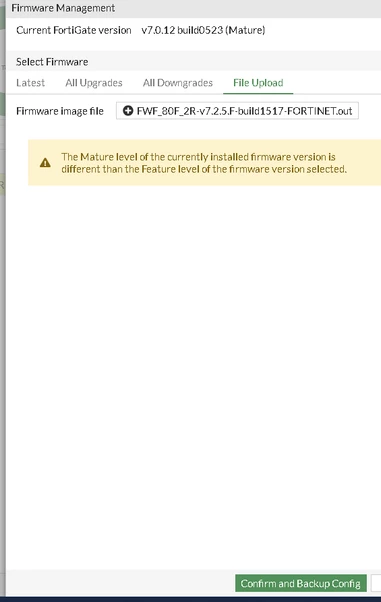
Select the File Upload option, and select Browse to upload the downloaded firmware.
Note:
The warning indicates that the newly uploaded firmware image is the Feature Firmware version and the previously installed firmware version on this firewall has the Mature Firmware version. The Feature Firmware indicates that the release includes new functionalities, capabilities and enhancements, while the Mature Firmware focuses on bug fixes and security patches. The firmware upgrade will still proceed normally using the Feature Firmware version.
Starting from 7.4.0 and above, the firmware upgrade option is seen under the System -> Firmware and Registration. Refer to the following screenshot of 7.6.5:
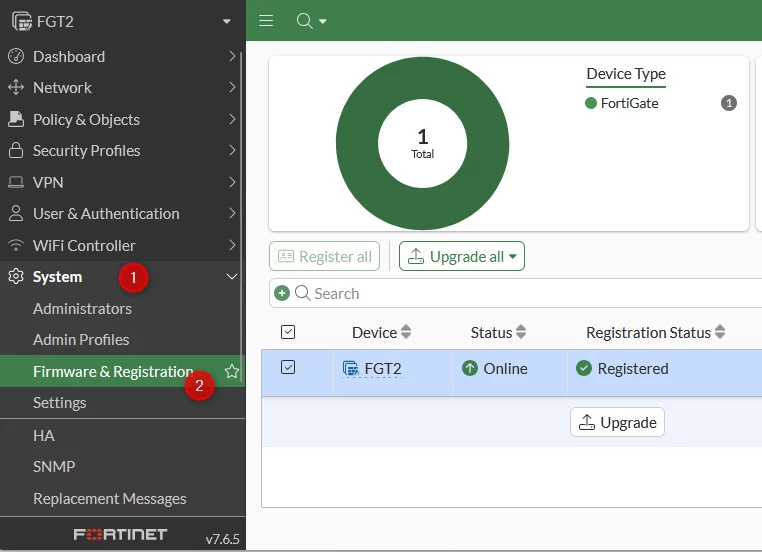
Ensure pop-ups are allowed by the web browser. Otherwise, the firmware download will not work. For more information: Technical Tip: Cannot download firmware image from Support Portal.
Note: The Local ID configuration should match the identity type and value expected by the remote VPN peer, especially when establishing IPsec tunnels between FortiGate and third-party VPN devices.
Related articles:
