


General captive portal explanation, flow and troubleshooting of the 'walled garden'
Description
This article describes the general captive portal flow inside of captive portals, as well as troubleshooting advice for captive portal flow.
Captive portals can be set up in various ways, which are described in other articles and documents such as the following:
Scope
FortiGate (and additional products integrated).
Solution
To troubleshoot a captive portal issue, it is best to understand how the end user device that should get its traffic 'captured', sees its internet access. Generally, browsers and operating systems come with means to detect whether it is behind a captive portal. Typically, an unencrypted HTTP GET is sent to a certain website. If the response is unexpected, the device assumes it is behind a captive portal, and it may then give a message to log in before using the network, similar to this:
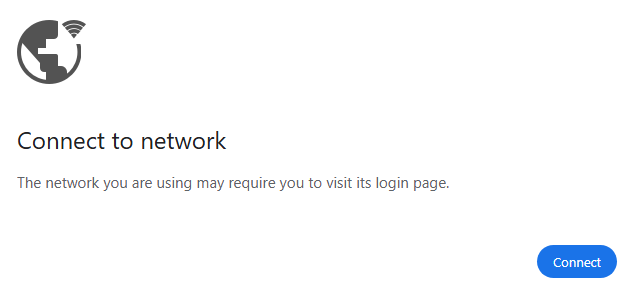
The client detected it is in a 'walled garden' - a captive portal will be displayed on connect.
The following is a general captive portal redirection that may apply to other solutions as well. Note that a 'redirect' in this context, if not explicitly stated, means:
Start with an HTTP response that contains a URL.
The FQDN on the URL will have to be resolved (if the URL is not an IP) via DNS.
The client will attempt a regular TCP handshake to that IP.
The client may have to do a TLS handshake to encrypt (that requires a proper certificate setup for each of the involved nodes).
HTTP GET to the URL indicated in the previous HTTP response.
The captive portal flow on FortiGate follows this schema:
DNS for some external FQDN, ideally HTTP unencrypted captive portal detection site (to get the IP for the external resource).
Each OS/Browser has some built-in unencrypted web pages it uses for testing. Most of them are listed below.
(Note: If DNS traffic is passing through the FortiGate as well, then DNS traffic needs to be exempted from the captive portal, in order for this detection mechanism to work. In this case, the CLI setting "captive-portal-exempt" in the firewall policy that allows DNS traffic can be used. More information about the option "captive-portal-exempt" can be found in How to troubleshoot if captive portal not getting triggered in the firewall.)
Windows / Microsoft Edge | http://www.msftconnecttest.com/connecttest.txt, http://www.msftncsi.com/ncsi.txt |
Android (Google) | http://connectivitycheck.gstatic.com/generate_204, http://clients3.google.com/generate_204, http://connectivitycheck.android.com/generate_204 |
iOS / macOS (Apple) | http://captive.apple.com/hotspot-detect.html, http://www.apple.com/library/test/success.html, http://www.appleiphonecell.com/, http://www.itools.info/ |
Chrome Browser (All Platforms) | http://www.gstatic.com/generate_204 |
Firefox Browser | http://detectportal.firefox.com/success.txt |
Opera Browser | http://www.opera.com/portaltest.txt |
Ubuntu / GNOME NetworkManager | http://connectivity-check.ubuntu.com/ |
Fedora / Red Hat | http://fedoraproject.org/static/hotspot.txt |
Amazon Kindle / Fire OS | http://kindle-wifi.amazon.com/app.html |
Note:
To preserve automatic captive portal detection, exempt DNS traffic as required, but keep HTTP requests to the connectivity-check destinations subject to captive portal authentication. Exempting these destinations may prevent the device from automatically displaying the captive portal login prompt.
TCP handshake and HTTP connect (HTTP GET) to that IP. To learn how it works, refer to Technical Tip: Understanding Captive Portal Auto-Detection Mechanisms.
FortiGate blocks the HTTP request and redirects with an HTTP response 302 or 303, or in later versions with HTTP 200. The response contains a JavaScript that points the user to the FortiGate itself (http://<FQDN>:1000 for HTTP, https://<FQDN>:1003 for HTTPS).
The URL/FQDN must point to the interface IP of this FortiGate, facing this client's captive portal network. Typically, that IP is the gateway IP for the client.
Note:
For HTTPS to FortiGate, 'config firewall auth-portal' is required to be set with a resolvable FQDN for the FortiGate. It must resolve to the FortiGate interface IP, the default gateway for the client's subnet.
Note that this requirement does not change when an external captive portal is used. This still must reflect the FortiGate FQDN. It must not reflect the external captive portal, like FortiAuthenticator.
At this step, the browser or operating system detects it is behind a captive portal and a message similar to the example above may be displayed.
Optional HTTPS: DNS for the redirect URLs FQDN (resolves to the FortiGate's client-facing interface).
TCP handshake and HTTP/HTTPS connect to that IP (i.e. FortiGate's IP of the client-facing interface). Display of the portal.
Adding an external captive portal (like FortiAuthenticator):
Invisible to the user, the FortiGate portal responds with a JavaScript (HTTP 200) to redirect to a FortiGate external resource (FortiAuthenticator, Azure, other portals), configured on the FortiGate interface as the 'External' address in the setting, 'Authentication Portal'.
Optional: DNS query for the captive portal FQDN, that is the redirect URL configured on the FortiGate interface as an external link. With FortiAuthenticator, for example, it would be the FortiAuthenticator - FQDN that is contained in the (https://) FortiAuthenticator-FQDN/portal/ URL.
TCP handshake and HTTP/HTTPS (inside TLS) connect to that IP (with redirect link included HTTP parameters, like (https://) portal.forti.lab/captive?login&post=(https://) fgt.fortilab.net:1003/fgtauth&magic=[...]&usermac=de:ad:be:ef:ca:fe&apmac=00:11:22:33:44:55&apip=102.189.68.135&apmac ...).
Typically, a portal policy evaluation against the redirect parameters (like a comparison against the parameters, like usermac=de:ad:be:ef:ca:fe, apip, etc.).
Display of the portal to the user via HTTP/HTTPS.
Disclaimer or User Authentication. If both Disclaimer and authentication are used, another HTTP redirect will be done to get from the disclaimer page to the authentication page. The disclaimer agreement directs the URL of that redirect.
Redirect by FortiAuthenticator with HTTP 302 back to FortiGate.
This redirect requires the URL to include the session ID ('magic'), the username, and the password given in the HTTP parameters. The FQDN must be the FortiGate again, the URL/FQDN was handed over as an HTTP parameter in step 8.
FortiGate can recognize the client that it sent to FortiAuthenticator in step 6). The client has to use these to create an HTTP POST to the FortiGate URL. Unlike step 8, the 'data' is embedded in the HTTP POST message in JSON format:
{
"magic"="<step_8_number>",
"username"="<client_username>"
"password"="<client_password>"
}
The URL should look like https://fgt.fortilab.net:1003/fgtauth.
With the HTTP POST to FortiGate from the client, FortiGate will attempt a regular authentication:
FortiGate sends a RADIUS Access-Request with a User-Name attribute (value taken from HTTP redirect in 12) and the password that FortiAuthenticator accepts with an Access-Accept, including other Attribute Value Pairs/Vendor Specific Attributes (like Fortinet-Group-Name as VSA) that may have to be returned.
Note that if the external portal is not a FortiAuthenticator and relies on a different method, the user database may have to be stored on the FortiGate in 'config user local'.FortiGate lists the user in the firewall user list (diag firewall auth list or via GUI dashboard). If a value of the VSA Fortinet-Group-Name was handed over in the Access-Accept, matching a FortiGate local user group (config user group) referencing that RADIUS server (config match), the output will reflect that group name.
The following steps are for social login with FortiAuthenticator and are replacing step 11):
Selection of the social network provider (Facebook, X, etc...), which results in another HTTP redirect.
DNS for the social network FQDN (can be multiple, like CDNs or other sites).
TCP handshake and HTTP/HTTPS (inside TLS) connect to that social network provider. The FortiGate must allow these with a policy with the 'captive-portal-exempt' option enabled. Internet Service Database objects (ISDB) as a destination object may be the best choice. If the providers change IPs or even FQDNs, this breaks the connection to the provider. Bad website display or no connection at all would be a result. See Technical Tip: A common use case for captive portal exemption with Microsoft ISDB for an ISDB exemption example on the captive portal.
User authentication to that provider. The provider must have an 'application' that contains configuration pointing to FortiAuthenticator and allowed URLs that the FortiAuthenticator has been spoken to (step 9).
The FortiAuthenticator must contain the application 'key'. The redirect link to the social provider contains the exchanges of that info.
Redirect from the social provider to FortiAuthenticator with HTTP 302, parameters in the URL, and a cookie.
FortiAuthenticator now knows a 'social user', listed in the Social Login Users section.
Troubleshooting:
The steps above must be followed. In case of issues with the captive portal, this indicates a deviation from the described procedure. Troubleshooting captive portals is best done with a packet capture that shows the end user's DNS queries and HTTP traffic. Steps 1-4, as well as any DNS queries and resulting HTTP requests, are typically visible in plaintext.
Every hop in the chain, that is FortiGate's portal, an external portal and a social provider, repeats this same cycle on protocols: DNS -> TCP -> (TLS ->) HTTP GET.
The same is true for the path backwards that redirects each time to the previous hop.
If the firewall policy on FortiGate towards the external captive portal does not require NAT, the packet capture against the client IP address is sufficient as a capturing filter.
The browser development tools (usually these can be opened with the keyboard press of F12) in conjunction with the packet capture via Wireshark may also add details as they show the HTTPS traffic as well as the HTTP responses. These are methods to read the DNS queries (for the captive portal detection pages, FortiGate, and attached external portal FQDNs) and the TCP/HTTP/TLS traffic to the respective nodes one by one.
During the troubleshooting of HTTP, strict transport security (HSTS) captive portal errors might also be experienced. Check the Technical Tip: How to troubleshoot HSTS captive portal error in Google Chrome for more information.
Keep in mind that the flow described above must be followed strictly, and error cases will usually deviate from it, indicating where to troubleshoot.
The captive portal setup may also not work well if multiple captive portals or authentication methods are chained together, leading to broken redirects. If unexpected browser messages appear, the link the browser is currently on will indicate which steps worked or whether there is another captive portal between the client and the intended network resource. Make sure to use only one captive portal rather than multiple.
To collect additional debug info related to the captive portal, run the following commands. These may help to show issues with the FortiGate portal being opened:
diagnose debug application authd 4095
diagnose debug console timestamp enable
diagnose debug enable
Run this to disable the debugging:
diagnose debug disable
Related articles:
