


FortiGate intermittently loses FortiAnalyzer serial number
Description
The behavior of a FortiGate losing the FortiAnalyzer serial number from the settings.
Scope
FortiGate
Solution
The solution for this problem is to upgrade FortiOS to a version with fix (see below).
In this example, FortiGate runs on firmware 7.2.8 managed by FortiManager 7.2.5, where the FortiAnalyzer IP address and Serial Number are configured using the FortiManager system template.
The behavior is triggered randomly when the OFTP session gets disconnected. Once the FortiManager notices that the serial has disappeared, it tries to push it again.
config log fortianalyzer setting
    set status enable
    set server "10.10.10.10"
    set upload-option realtime
    set reliable enable
end
Considering that the behavior is intermittent, the issue can be reproduced by using one of the methods below to disconnect the OFTP session:
By killing the OFTP daemon on the FortiGate.
On the FortiGate, find and clear the FortiAnalyzer session in the CLI:
Replace with the FortiAnalyzer IP address:
diagnose sys session filter dst x.x.x.x
diagnose sys session clear
A new session is visible with:
diagnose sys session list
Check if the FortiAnalyzer serial number is missing with the following command:
show full log fortianalyzer setting
When the issue is encountered, another prompt will appear in the web interface to verify the FortiAnalyzer serial number and certificate.
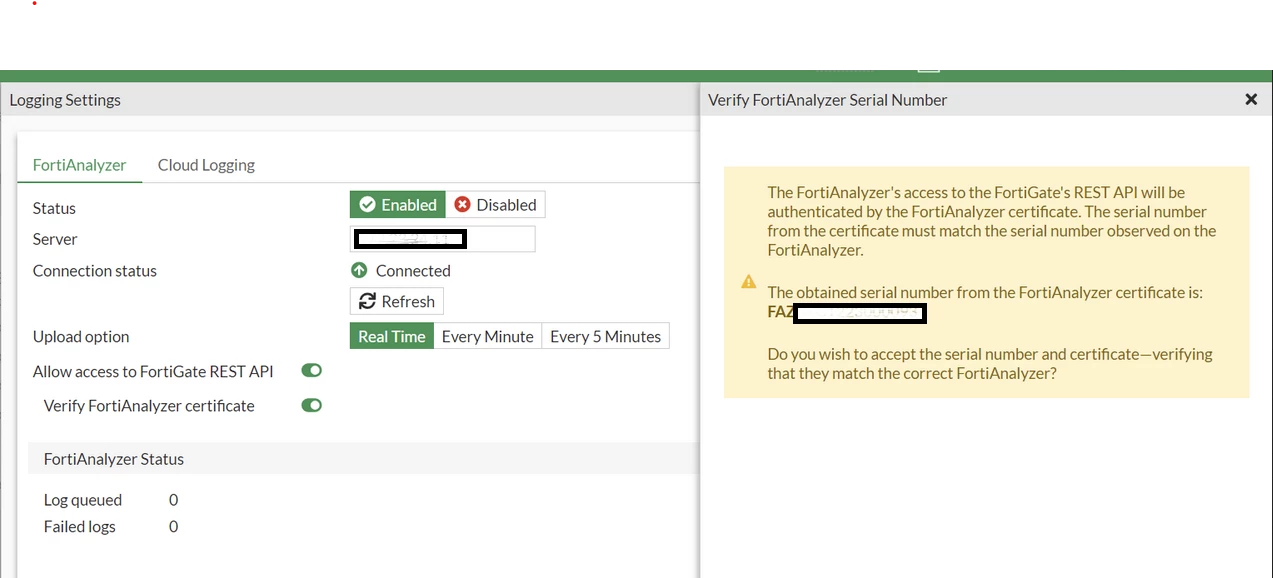
Workaround:
Verify/accept the FortiAnalyzer certificate again
Or push the Serial Number using a CLI Script:
execute batch start
config system central-management
    set type fortimanager
    set serial-number "FMG-XXXXXXXXXXXX"
    set fmg "FMG IP"
end
config log fortianalyzer setting
    set status enable
    set server "FAZ IP"
    set serial "FAZXXXXXXXXXXX"
    set upload-option realtime
    set reliable enable
end
execute batch end
If requirements are met, run the following debug commands and raise a ticket with the TAC support team to further analyze the output.
diagnose debug reset
diagnose debug console timestamp enable
diagnose debug enable
diagnose debug app fgtlogd -1
As soon as the issue occurs, stop fgtlogd debugging with the commands below:
diagnose debug disable
diagnose debug app fgtlogd 0
diagnose debug reset
Check the debug outputs:
write config file success, prepare to save '/tmp/system.conf.8075.MyEyZO' to '/data/./config/sys_global.conf.gz' on flash
flash: block_sz=4096, free_blocks=31059
[__create_file_new_version:293] the new version config file '/data/./config/sys_global.conf.gz.v000002957' is created
[symlink_config_file:360] a new version of '/data/./config/sys_global.conf.gz' is created: /data/./config/sys_global.conf.gz.v000002957
[symlink_config_file:404] the old version '/data/./config/sys_global.conf.gz.v000002956' is deleted
[symlink_config_file:406] '/data/./config/sys_global.conf.gz' has been symlink'ed to the new version '/data/./config/sys_global.conf.gz.v000002957'. The old version '/data/./config/sys_global.conf.gz.v000002956' has been deleted
zip config file /data/./config/sys_global.conf.gz success!
This problem is tracked in the internal engineering ticket 1083537 and is resolved in versions 7.2.11, 7.4.8, 7.6.1 (and above). The issue is listed in the release notes for the mentioned versions under the section Resolved issues.
