


Firmware image cannot be installed because the device's FortiGuard license for firmware upgrades could not be verified or may have expired.
Description | The error message 'This is a FortiOS vX.X.X-buildxxxx firmware image that cannot be installed because the device's FortiGuard license for firmware upgrades could not be verified or may have expired. Verify or renew the license to install upgrades', may appear for the FortiGate VM Azure platform with a PAYG license.
When the administrator manually upgrades FortiOS by downloading the firmware image from FortiCare on the Azure platform, this error message can appear. |
Scope | FortiGate-VM Azure PAYG, FortiGate-VM GCP PAYG. |
Solution | To download the image of FortiGate VM for the Azure platform, the following document can be followed: Downloading the FortiGate image
After downloading the image, the administrator can upload the image to upgrade FortiOS. The manual upgrade with a firmware image is explained in this KB article: Technical Tip: How to manually perform a firmware upgrade from the GUI
Once the license is uploaded, the following error may appear in the Azure FortiGate VM: 'This is a FortiOS vX.X.X-buildxxxx firmware image that cannot be installed because the device's FortiGuard license for firmware upgrades could not be verified or may have expired. Verify or renew the license to install upgrades'.
This error appears once the user has the PAYG license from the marketplace, but the downloaded firmware is not for the PAYG version. To resolve and avoid this error, the admin must be careful while downloading the firmware image and must download the PAYG version.
Once the correct image is used, the error should not appear anymore. For FortiGate-VM instances deployed using a PAYG/On-Demand licensing model, ensure that the firmware image matches the cloud platform and licensing model of the deployed instance.
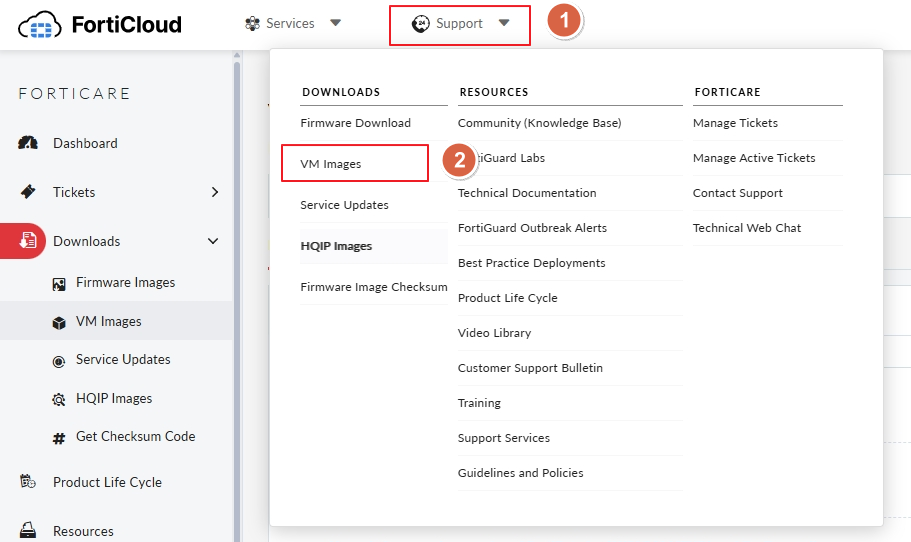 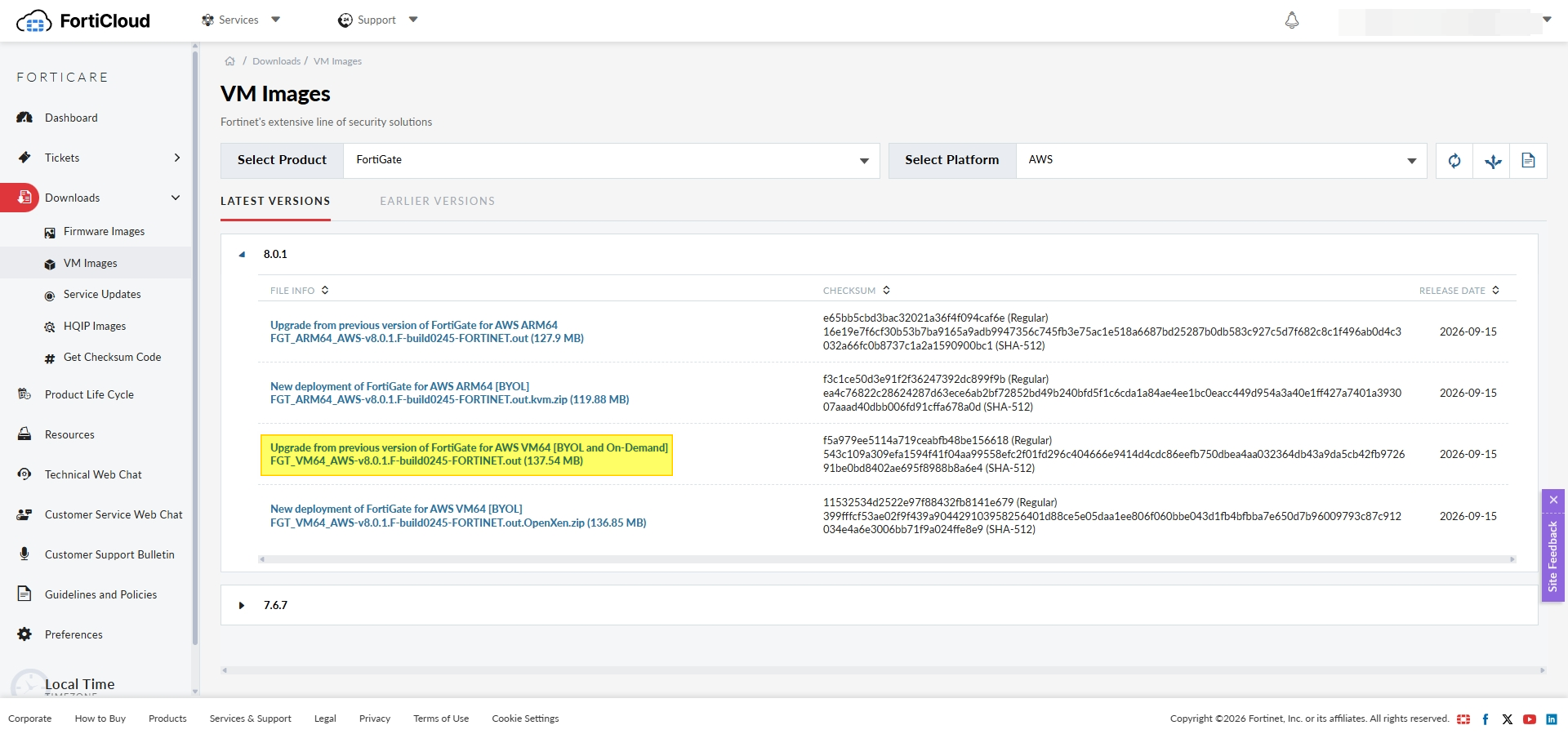
After downloading the appropriate image, follow the manual firmware upgrade procedure described in this article.
To disable the debug processes:
|
