


How to configure and debug 4G LTE connection issues on FortiExtender
Description
This article describes how to configure and debug 4G LTE connection issues on FortiExtender managed by FortiGate.
Scope
FortiGate, FortiExtender.
Solution
Setup:
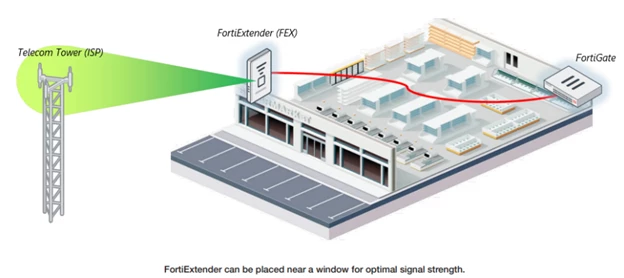
FortiGate is using FortiExtender 4G LTE connection as its Internet uplink connection
Caveats:
To begin with, ensure FortiExtender is running on latest FortiExtender - GA firmware version, FortiExtender firmware can be downloaded from the Fortinet support portal.
A SIM card is activated with Call and 3G/4G data services
Configuration:
Ideally when the SIM card is inserted onto FortiExtender SIM Slot – FortiExtender modem is automatically detecting the SIM card and also LTE Internet connection works automatically without any additional config on FortiExtender
If FortiExtender modem does not detect the SIM card and LTE Internet connection does not work, then ensure FortiExtender is configured with the following (screenshots below):
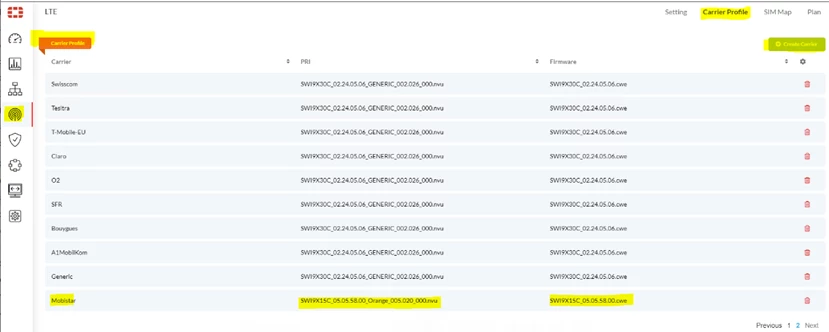
Create Carrier profile of service provider (Example: Mobistar/Verizon/AirTel/Orange).
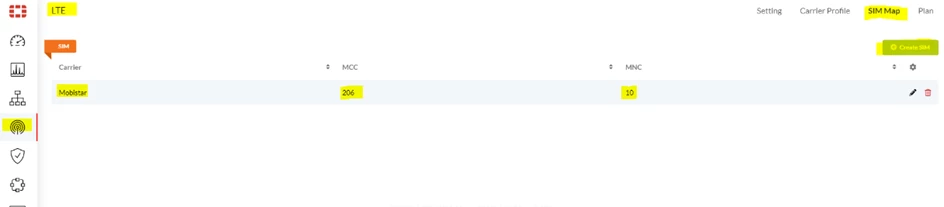
Create MCC MNC map.
Configure APN.
Note:
If the SIM Card is not detecting (modem not showing SIM info such as IMSI etc. in the "get modem status" output) on the FortiExtender modem, try setting the SIM PIN: How to configure SIM-PIN for SIM1 and SIM2 on FortiExtender managed by FortiGate.
Note:
MCC MNC and APN details are provided by the service provider.
Refer to Configure LTE settings in Page #54 of the FortiExtender 4.1.3 Admin Guide.
Screenshot 1: ‘Mobistar’ Carrier profile as shown below:
Screenshot 2: ‘Mobistar’ MCC MNC map as shown below:
Screenshot 3: ‘Mobistar’ APN settings as shown below:
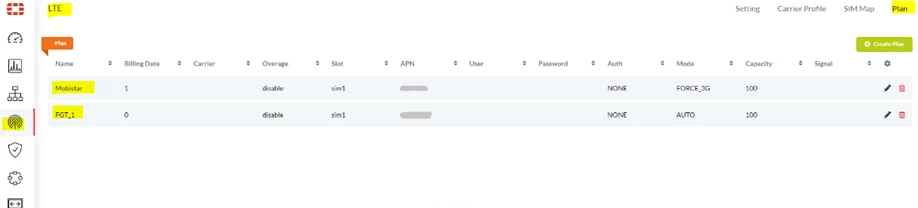
If FortiExtender is managed by FortiGate, APN details have to be configured on the FortiGate side by going to Network -> FortiExtender -> Configure Settings.
Verify FortiExtender 4G LTE internet connection status.
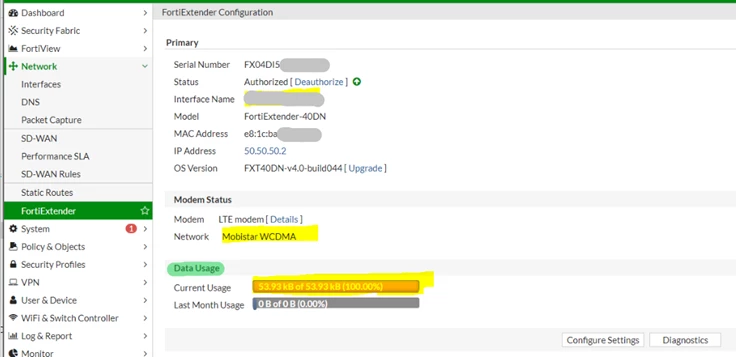
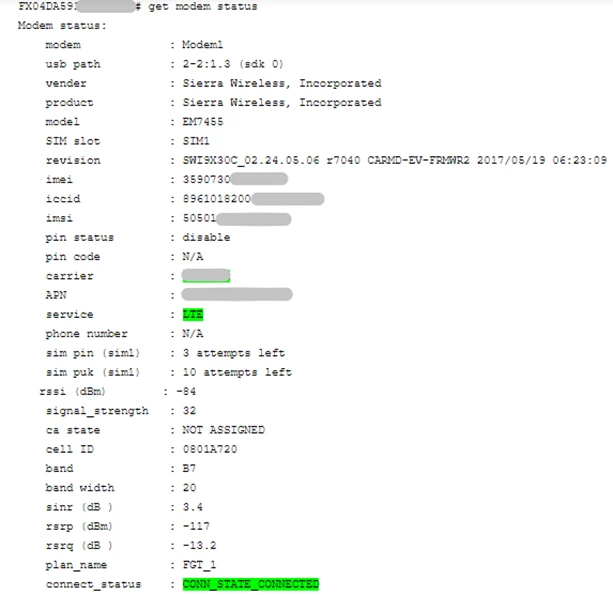
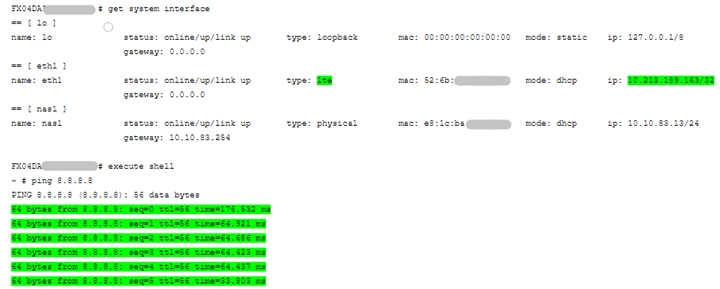
FortiExtender 4G LTE connection status can be verified on FortiExtender CLI or FortiExtender GUI or FortiGate GUI as shown below:
Screenshot 1: FortiExtender managed by FortiGate GUI - ‘Mobistar’ Data Connection usage status as shown below:
Screenshot 2: FortiExtender 'get modem status' command output shows ‘connect status’ is connected as shown below:
Screenshot 3: FortiExtender 'get system interface' command output shows FortiExtender has received the Public IP address from the ISP. Additionally, FortiExtender can ping the internet address as shown below:
Debug:
If the FortiExtender modem does not detect the SIM card, check the following:
Ensure FortiExtender is running on the latest FortiExtender GA build.
The FortiExtender modem has to be installed with latest modem firmware.
To verify the SIM card is detected by the modem, use the 'get modem status' output to see the SIM slot, IMEI, ICCID, and IMSI values, as shown below. If not, then follow the steps included afterward:
get modem status

Modem status:
    modem             : Modem1
    usb path          : Modem index1
    vender            : Sierra Wireless, Incorporated
    product           : Sierra Wireless, Incorporated
    model             : EM7305
    SIM slot          : SIM1
    revision          : SWI9X15C_05.05.58.00 r27038 carmd-fwbuild1 2015/03/04   21:30:23
    imei              : 3577260XXXXX
    iccid             : 89320XXXXXX
    imsi              : 20610XXXXXX
To verify if FortiExtender modem firmware is installed on FortiExtender, use the following commands on the FortiExtender CLI:
execute modemfw show all
execute modemfw show curfw
If the service provider modem firmware is unavailable in modem firmware package (.out extension file) then use 'Generic' modem firmware or import the full modem firmware package file on FortiExtender.
Latest Modem firmware package can be downloaded from Fortinet Support Portal
https://support.fortinet.com/ go to Downloads -> Image File Path: / FortiExtender/ MODEM-Firmware/.
Refer to Page #9 for 'FortiExtender and modem firmware upgrade' steps: FortiExtender 4.0.1 release notes.
Try inserting the same SIM card in the second SIM slot on FortiExtender.
Try SIM card on a Smartphone and check if the phone can detect the SIM card and also can access Internet using 4G LTE Data connection.
Try another SIM card of different Service Provider to rule-out SIM card defect issue.
If FortiExtender modem successfully detects the SIM card, but cannot establish Internet connection on FortiExtender then check the following:
Change FortiExtender management mode from FortiGate to Standalone mode to rule-out FortiGate side APN config issue.
Ensure FortiExtender antennas are attached/plugged properly as described in FortiExtender QuickStart Guide. Also to rule out antenna fault, try spare antennas of a spare FortiExtender model (same FortiExtender model) on the affected FortiExtender and then check LTE status after a few minutes (for example, 10-15 minutes).
The FortiExtender device is designed for placement near a window (desk or wall mount) to achieve the best 3G/4G signal strength:
FortiExtender QuickStart guide.
Try different APN on FortiExtender, typically the same Service Provider has different APN names for 3G/4G connections to rule out an APN-specific issue.
Reload FortiExtender or factory reset and then reconfigure FortiExtender and check if LTE connection works on FortiExtender.
Try the same SIM card and config on a spare FortiExtender if any to rule out FortiExtender hardware issues.
The FortiExtender region codes (NAM/INTL/AMEU) role does not dictate whether a SIM Card carrier connection works in a specific region (AMER/EU/ME/APAC/ANZ) or not
The respective SIM Carrier's band is supported by FortiExtender modem model (Sierra EM7355/EM7305/EM7455) for the SIM Card to work on FortiExtender (regardless of which region code 'NAM/INTL/AMEU' is associated on a FortiExtendermodel).
Ensure the following:
Check the bands used by the SIM carrier
Check if the bands are supported by FortiExtender modem e.g. EM7455 modem
FortiExtender modem model-specific supported bands info can be found in the FortiExtender datasheet
Run "CONNMGR" logs on FortiExtender CLI for about 10 minutes to check LTE connection failure reason if any:
execute debug CONNMGR all
execute debug log-to-console on
To disable log prints and logging, use the following commands:
execute debug log-to-console off
execute debug clear
execute debug CONNMGR clear
Other useful FortiExtender CLI commands:
get system version
get modem firmware-version
get extender status
get modem status
get system status

execute poweroff

execute reboot
execute factory-reset

execute ifconfig

execute modemfw show curfw
execute modemfw show curfw all
execute modemfw show disk-util
get modem data-usage

show config
show full

get system interface

get router info routing-table all
execute ping <IP_address>

execute log event display
Related articles:
