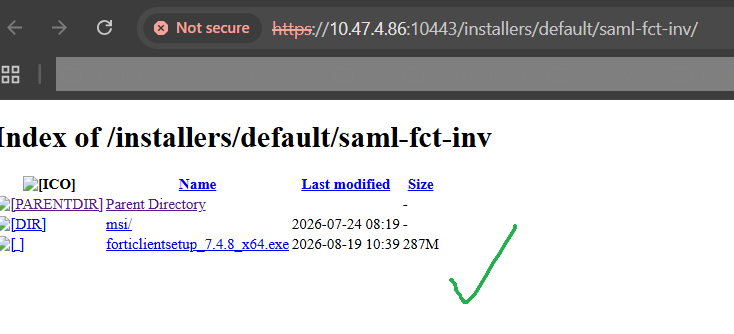
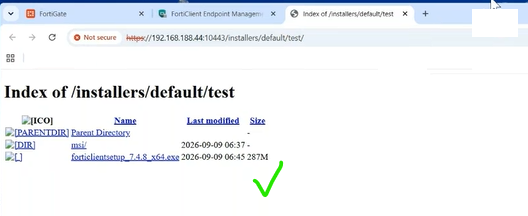
After creating a FortiClient installer in FortiClient EMS, clicking on 'Download Link' should open a new browser tab and display the installer directory.
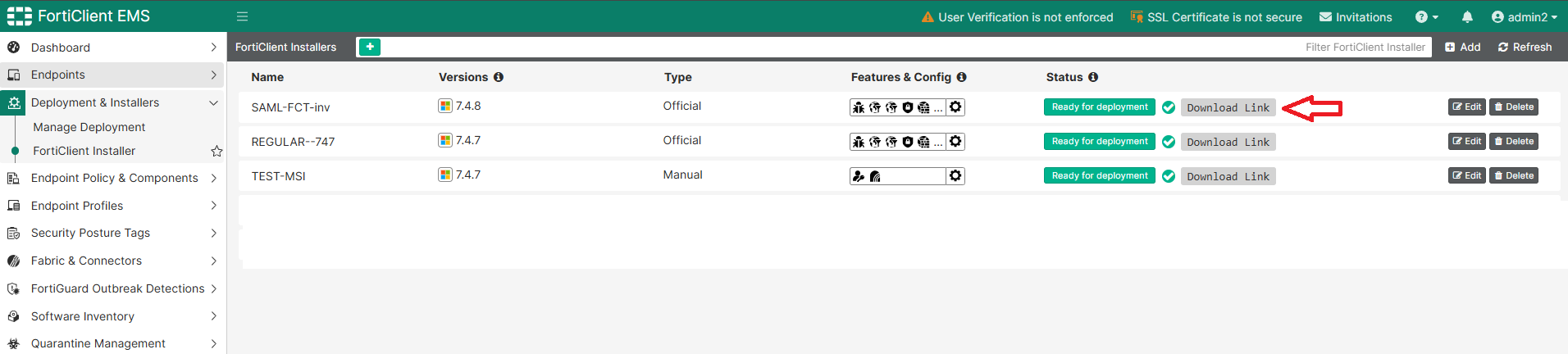
Expected behavior:
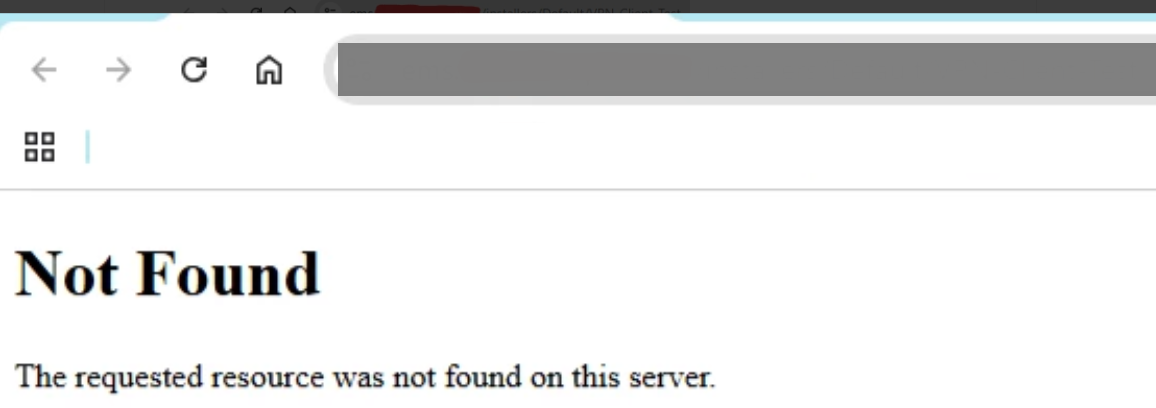
Issue symptoms that might occur: 'The requested resource was not found on this server.'.
Solution:
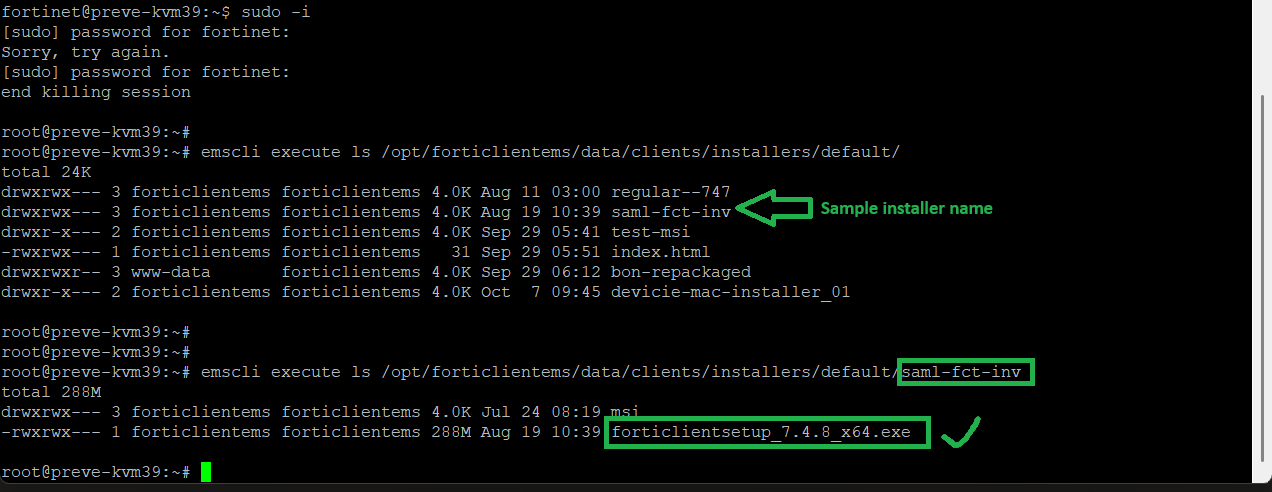
SSH to the FortiClient EMS server. Verify if the installer exists on the server; run the command:
emscli execute ls /opt/forticlientems/data/clients/installers/default/
emscli execute ls /opt/forticlientems/data/clients/installers/default/<installername>
The FortiClient installer should exist in the directory:
If the FortiClient installer does not exist, contact Support and share the related screenshots: 'The connection was reset.'.
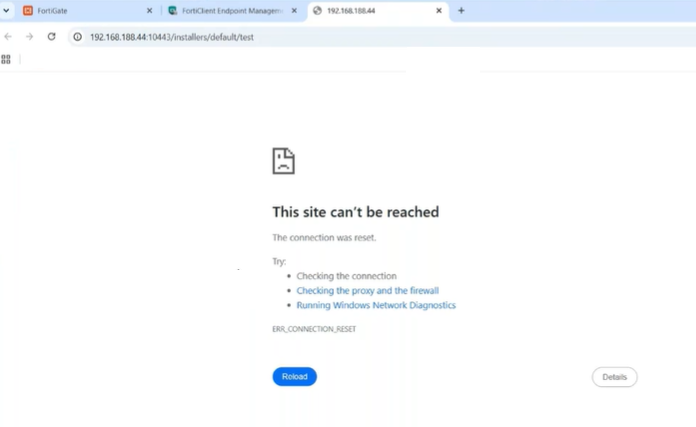
Solution:
Verify that port 10443 to FortiClient EMS is reachable. In this example, the EMS IP is 192.168.188.44. Open Windows Command Prompt and run the command:
telnet 192.168.188.44 10443
If it is showing a blank black screen, meaning it is reachable. This is the first checkpoint. Next is to verify the SSL handshake. Open a Windows Command Prompt and run the command:
curl.exe -vk https://10.47.188.44:10443/installers/default/<installername>/
On the right, it should get a 'Moved Permanently' message:
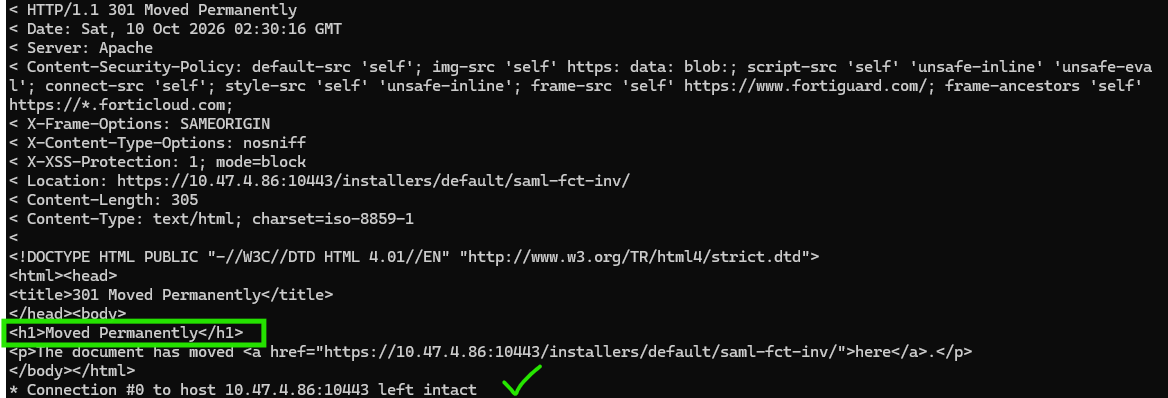
If it is showing 'Connection was reset', meaning there is some upstream devices blocking port 10443.
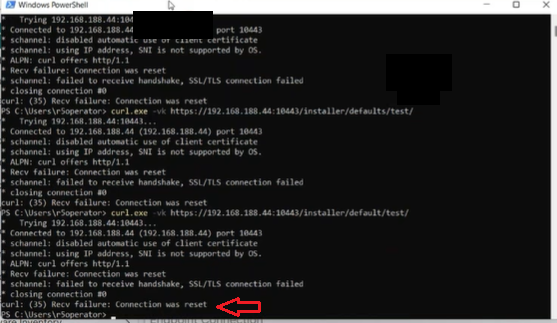
Check further on upstream devices to see where the SSL handshake is failing. This is the second checkpoint. After identifying and resolving the issue on upstream devices (it can be Fortinet or non-Fortinet devices), the installer link should work fine.
 |