


Technical Tip: Steps to create a custom admin user with limited permissions
Description | This article explains how to create a custom admin user with limited permissions on FortiAuthenticator. |
Scope | FortiAuthenticator |
Solution | Follow the steps below to create a custom admin user with limited permissions:
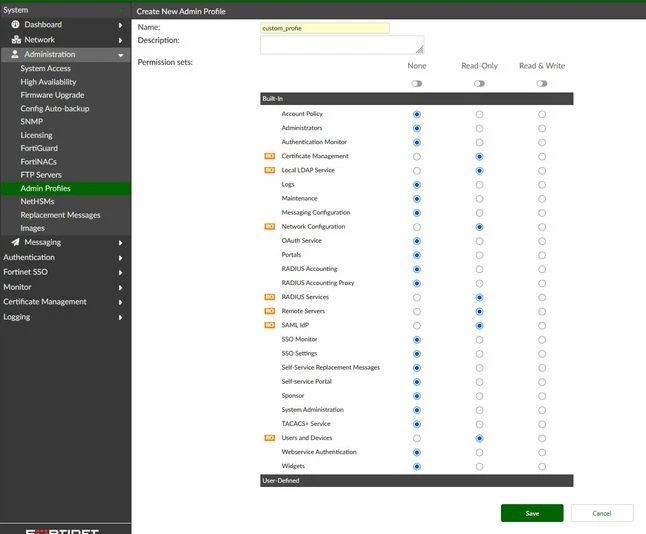
System -> Administration -> Admin Profiles -> Create new.
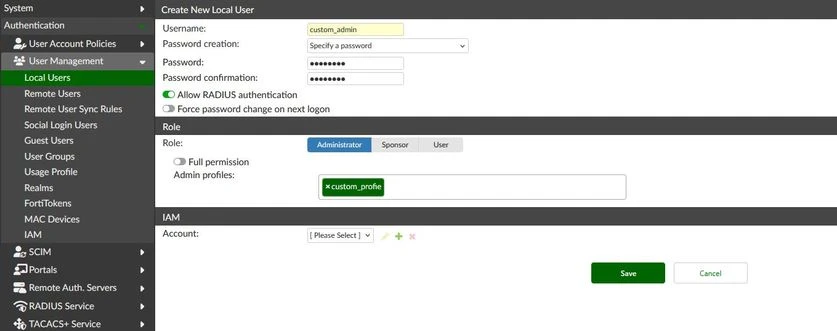
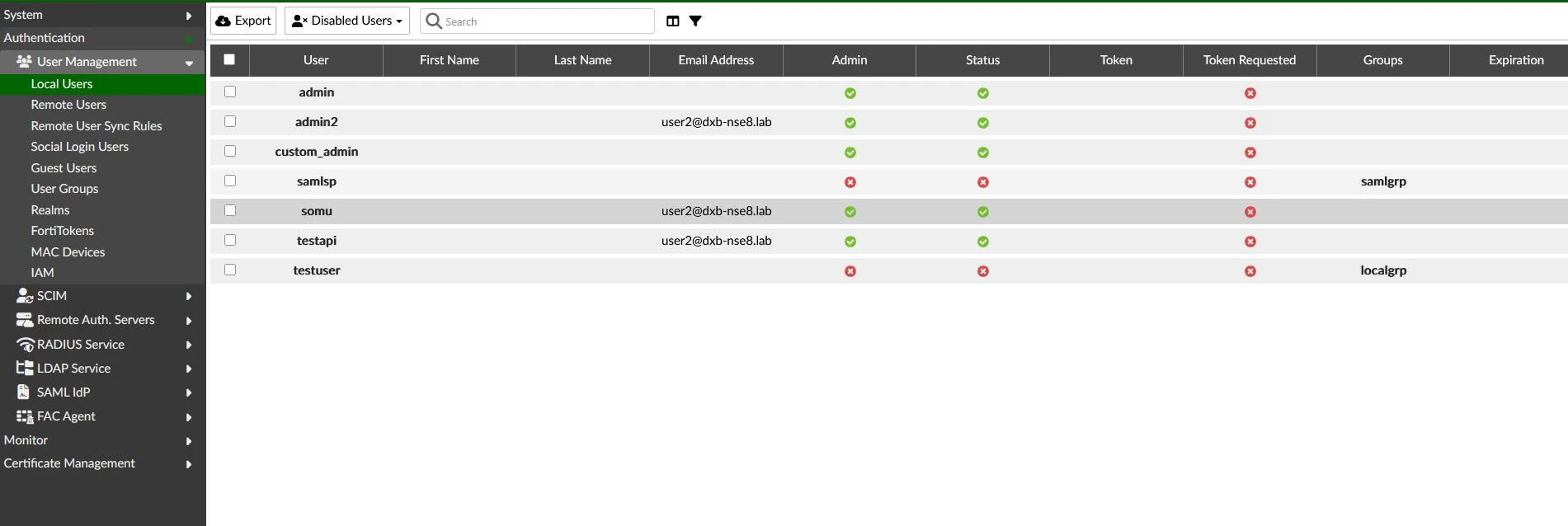
Go to Authentication -> User Management -> Local Users -> Create new.
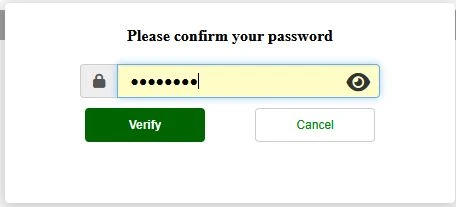
Under Role, select Administrator and select the previously created custom profile (as per the image below). After selecting the 'Save' option, FortiAuthenticator will ask to verify the information. The user needs to provide the 'super_admin' password.
Note: In firmware version 8.0.0 and 8.0.1, there is a known issue with the ID 1224409. Restricted admin accounts can not see and assign tokens under user settings. The notification shows 'The results could not be loaded'. This issue is resolved in firmware version 8.0.2, and is listed in the release notes. |
