


Troubleshooting Tip: How to recover from a 'Degraded' RAID status
Description
This article describes the possible ways to recover a disk array (RAID) from a 'Degraded' status.
Scope
FortiAnalyzer/FortiManager - Platforms with hardware RAID controllers and externally accessible hard disks.
Solution
In the event of a disk failure that does not affect the data integrity, FortiManager/FortiAnalyzer indicates a 'Degraded' RAID status.
This RAID status, as well as the statuses of the individual disks, are visible under GUI -> System Settings -> RAID Management and in the output of the following CLI command:
diagnose system raid status
For example:
diagnose system raid status
Mega RAID:
RAID Level: Raid-50
RAID Status: Degraded
RAID Size: 16763GB
File System: ext4 16501GB
Groups: 2

Disk  0:           OK     2793GB    Group-1
Disk  1:           OK     2793GB    Group-1
Disk  2:           OK     2793GB    Group-1
Disk  3:           OK     2793GB    Group-1
Disk  4:       FAILED     2793GB
Disk  5:           OK     2793GB    Group-2
Disk  6:           OK     2793GB    Group-2
Disk  7:           OK     2793GB    Group-2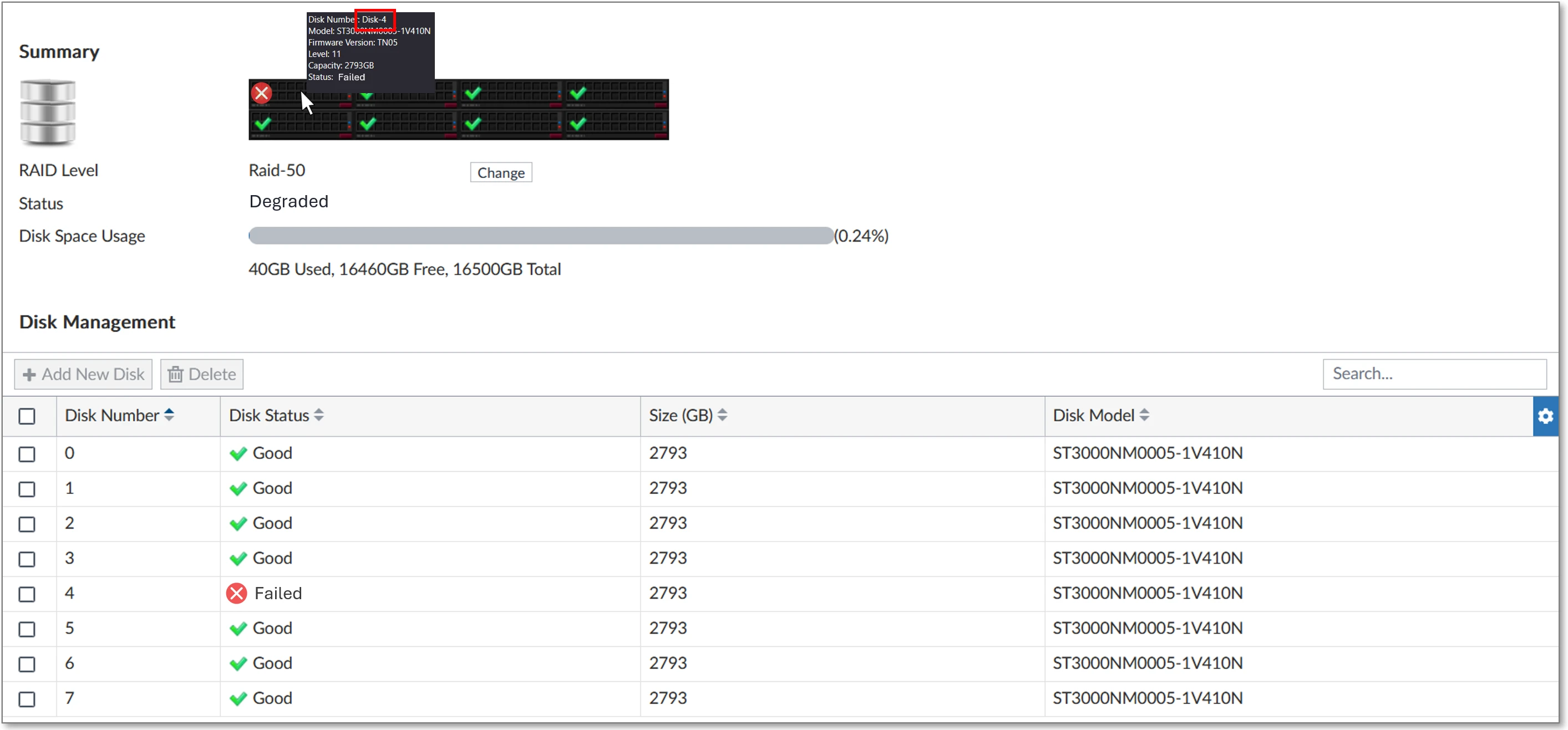
In this example, Disk-4 is in a 'Failed' state but other disk statuses, like 'Unused' or 'Unavailable', are also possible.
This may indicate a physical problem with the disk; however, such non-normal disk status may also occur if an otherwise healthy disk was inadvertently removed during maintenance.
The following steps can potentially recover the disk, as long as it has no other indicators of failure (see the diagnostic commands at the bottom of this article):
Make sure to correctly identify the physical position of the disk, as the different models have different numbering and placement of the disk trays.
Go to GUI -> System Settings -> RAID Management and place the mouse pointer over the picture of the failed disk. An information label, including the disk number, should be displayed (as shown in the screenshot above).
Alternatively, find the Quick Start Guide of the respective model, which should include a photo of the front panel, indicating the disk numbers. However, in some model/firmware combinations, the disk numbering schema may differ between the physical labels and the OS, i.e. the first disk may be labeled 1 on the front panel but 0 in the software. If unsure, contact FortiCare Technical Support to clarify the disk positions of the hardware in use.
Remove the tray with the affected disk and physically inspect the connectors and the disk itself. If any obvious damage is detected, replace the damaged component, before proceeding further.
Insert the disk back into the unit and make sure to properly latch the tray.
Use the CLI command 'diagnose system raid status' to check the RAID status again.
If the disk status has changed to or remained 'Unavailable', create an RMA ticket and replace the disk.
If the disk status remained 'Failed', continue with step 5.
If the disk status has changed to 'Unused', go to step 6.
If the disk status has changed to 'Rebuilding' and the RAID status is 'Background-Rebuilding (0%)', wait for the process to complete. Depending on the array type, size and number of disks, this may take from few hours to about a day. In this status, the I/O performance may be slightly degraded but the storage is operational.
If the RAID status returns to 'OK' when the rebuild is complete, skip steps 5 and 6.
Use the following CLI command to logically delete the failed disk (use the correct disk number in the command):
execute raid delete-disk <number>
After, check if the disk status has changed to 'Unused'. If not, create an RMA ticket and replace the disk.
If the disk status is 'Unused', run the following CLI to add the disk back to the RAID (use the correct disk number in the command):
execute raid add-disk <number>
After adding the unused disk, the RAID status should change to 'Background-Rebuilding (0%)'. If not, create a Technical Support ticket with Fortinet Support for further investigation: Welcome to Fortinet Support.
The output of the following CLI commands is required when contacting the Fortinet Technical Support and RMA departments in this context:
get system status
diagnose system raid status
diagnose system disk info
diagnose system disk health
diagnose system disk errors
diagnose system disk attributes
Related articles:
