| Solution | Section 1. Check firmware compatibility between FortiGate and FortiAnalyzer. Section 2. - Check whether FortiAnalyzer DNS able to resolve below:
execute ping mapserver.fortinet.com
execute ping maps.googleapis.com
diagnose system geoip info
diagnose system geoip-city info
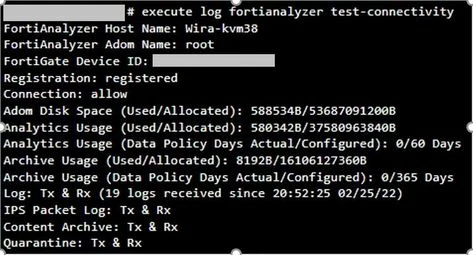
diagnose system geoip-city ip 8.8.8.8 - Check whether FortiGate sending log to FortiAnalyzer.
- Verify FortiGate Geographic Coordinate has been configured in the FortiAnalyzer GUI. Go to Device Manager, select FortiGate, then select Edit.

After taking the steps above, the screen below should appear. Verify that coordinates have been configured. 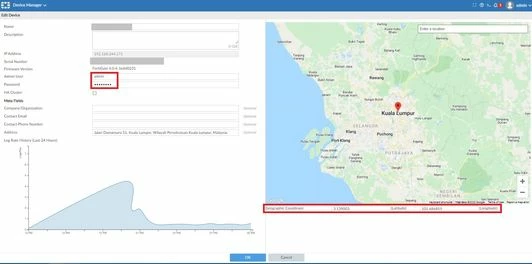
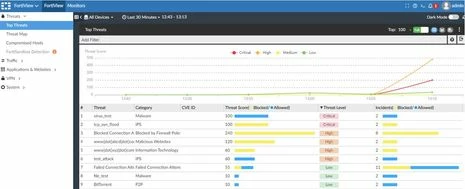
Section 3. - In FortiAnalyzer FortiView, it will be possible to see Top Threats.
- Next, to test the map, execute diagnose log test on the FortiGate CLI.
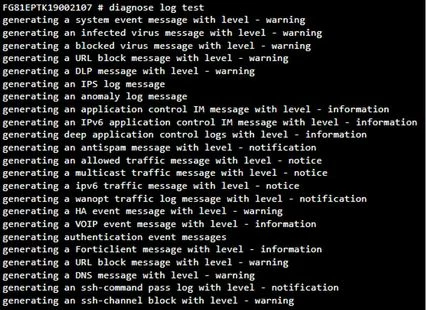
- After, it will be possible to see some output on the Threat Map, as below. (As it is real time, logs may be generated from the FortiGate CLI using the <diag log test> command.)
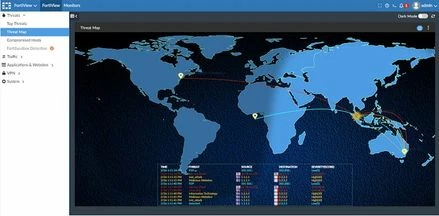
The threat Map will be visible if: - There is a device geo-location configured. This will draw a device icon in the map, as well as a switch for enabling/disabling the threat map.
- Utm log with a crscore of more than 0, and either srcip or dstip is a public IP (this can locate a city in a map). Srcip is preferred.
The threat map only shows the new live log. It does not replay the history log.
Related articles:
|

