Technical Tip: How to create reports on a FortiAnalyzer based on single user's IP address
Description
Scope
FortiAnalyzer.
Solution
Firmware v7.x:
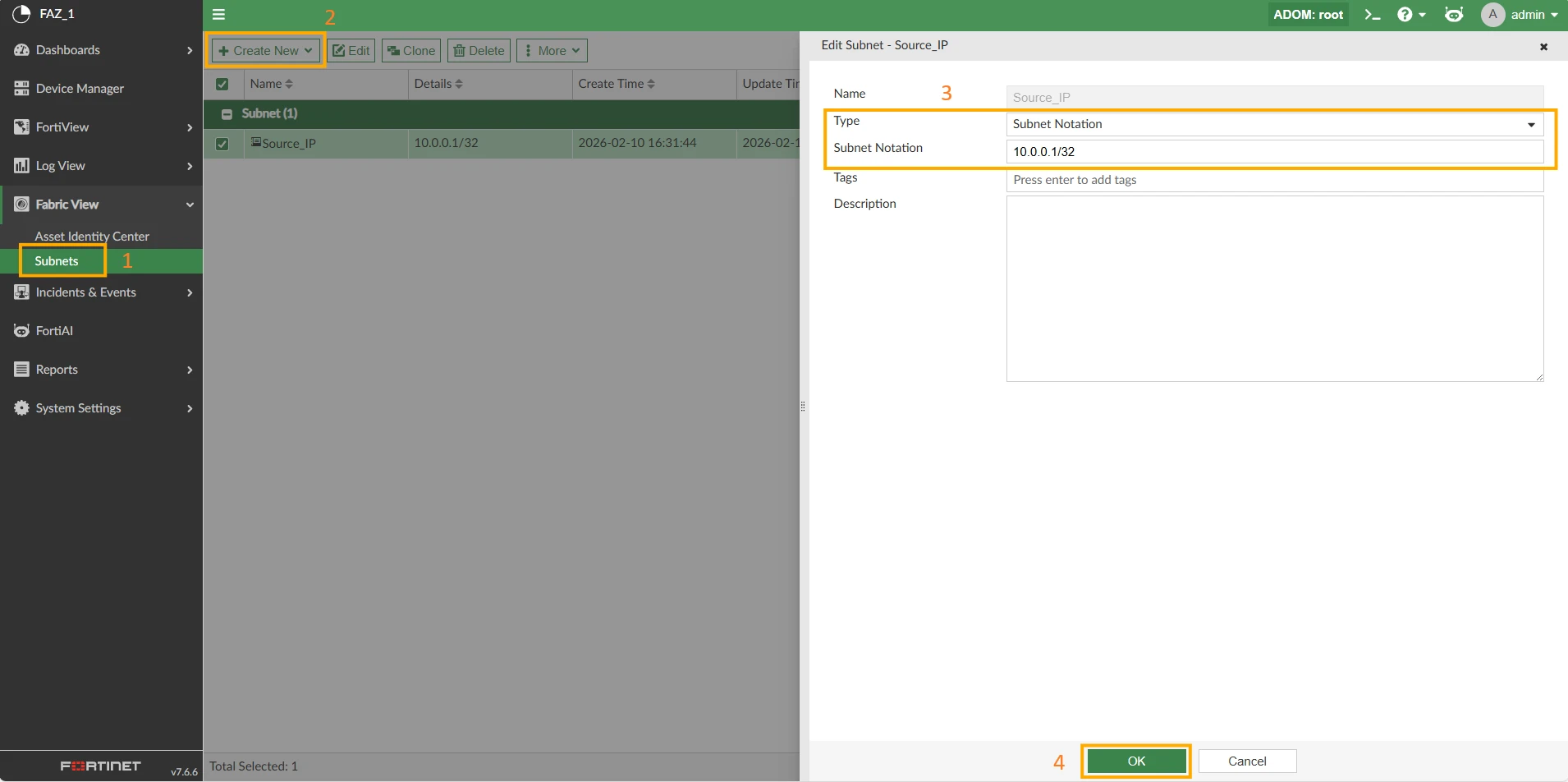
- First create a subnet object defining the User IP. Go to Fabric View -> Subnets -> Create New.
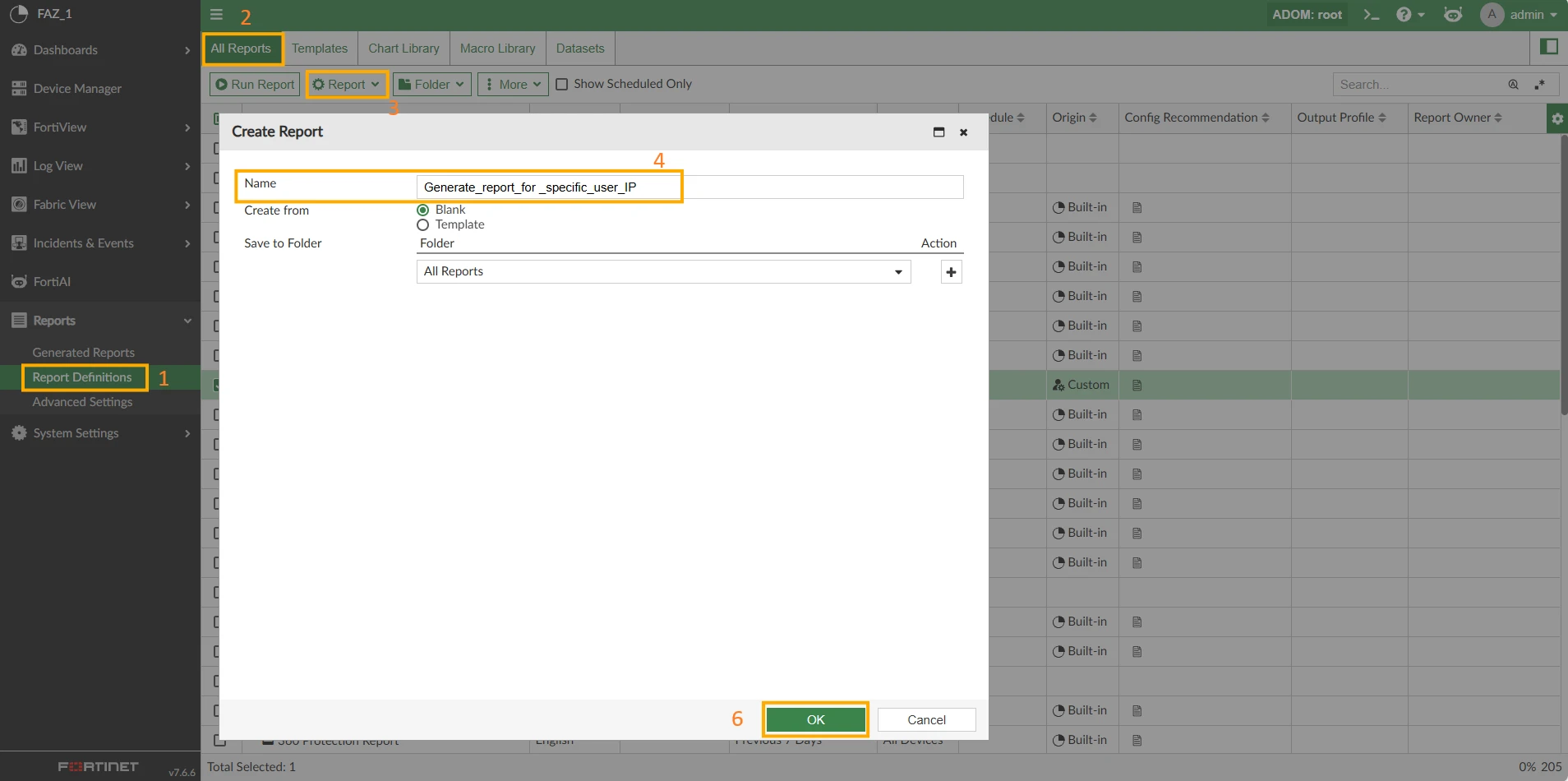
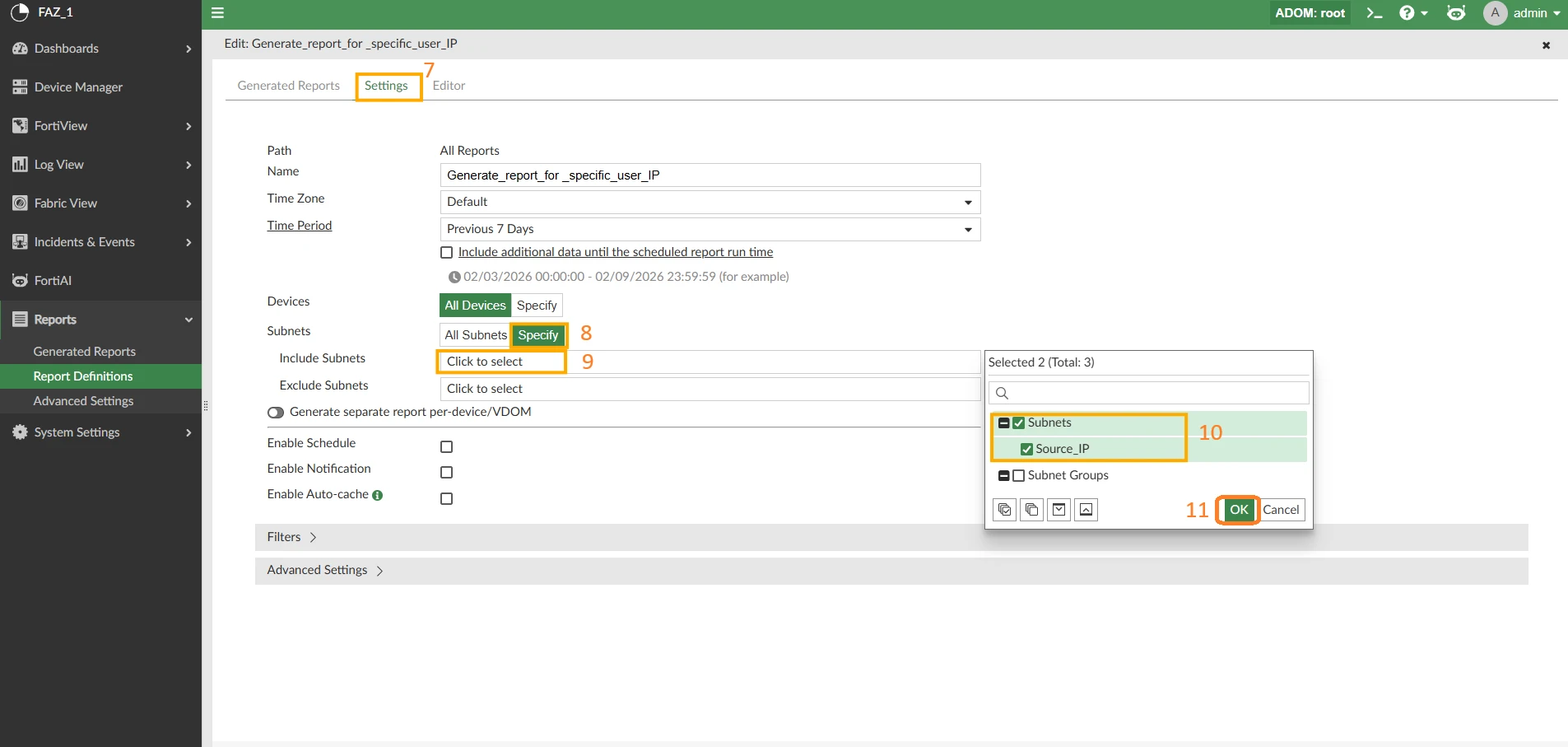
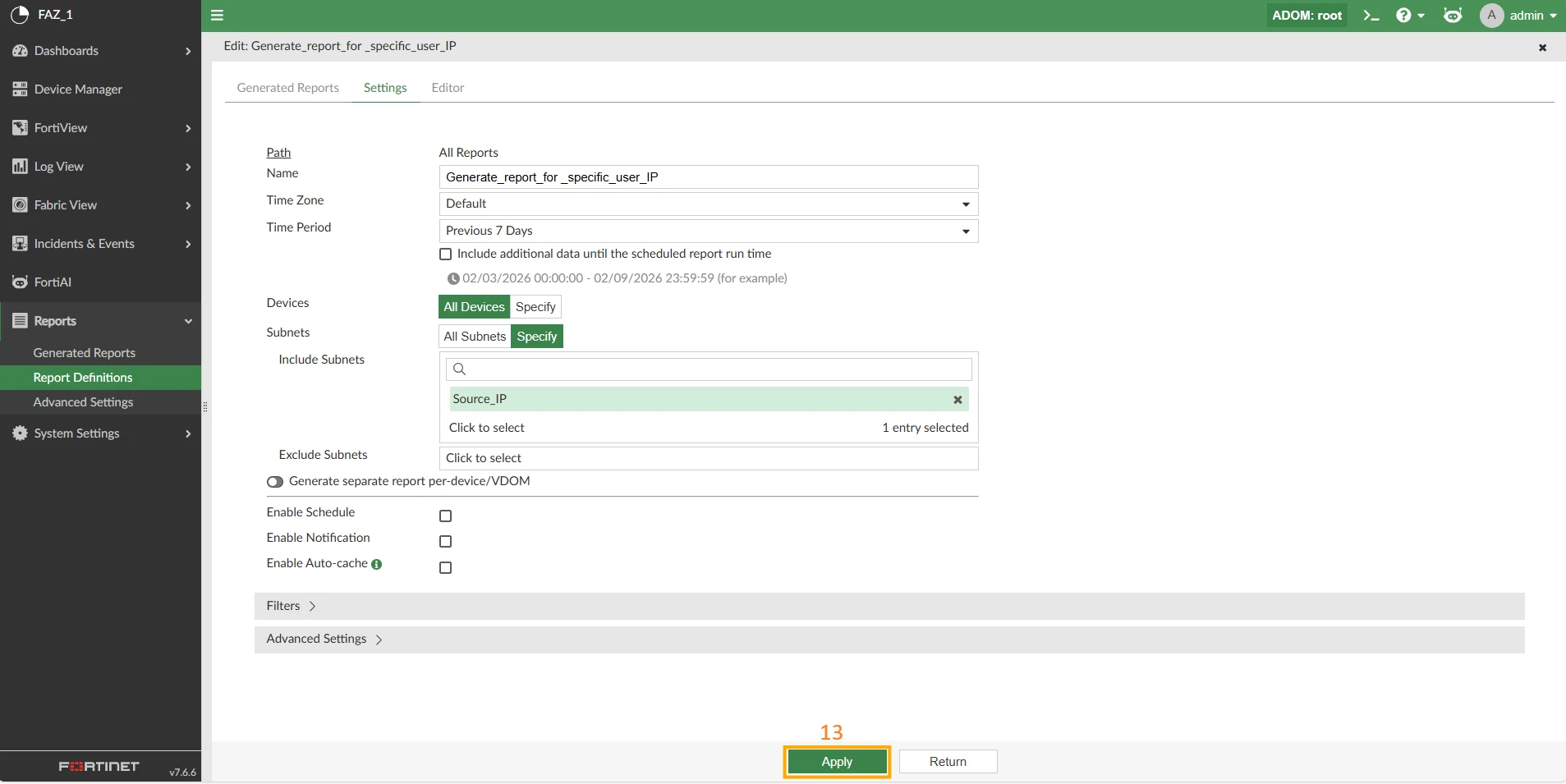
- Map the subnet created above to an existing or new Report Template. Go to Reports -> Report Definitions -> All Reports -> Expand the 'Report' drop-down menu and select 'Create New' or edit an existing one.
Firmware v5.x:
Select the report which needs to be generated based on the single IP.
Under Advanced Settings -> Add Filter -> Select the 'Source IP' filter -> Set the middle value to 'Equal to'. In the third field, enter the IP address (for example, 10.0.0.1), then select 'Apply'.
Firmware v4.x:
Log in to the FortiAnalyzer and navigate to 'Report -> Config -> Layout'. Select 'Create New' or edit the existing one. Specify any name and then select 'Add Charts -> Add Charts' (Select the '+' icon to add) based on the requirement and apply the settings.
Create a new data filter from 'Report -> Config -> Data Filter'. Select 'Create New', specify any name and configure the following settings:
- Filter Logic: Select the 'Any' radio button.
- Generic Filter: Configure the following settings (example: source IP 10.10.11.1).
- Key:
- srcValue: 10.10.11.1
Select 'Add'. Leave the remainder of the settings at their default values and apply the settings.
- Navigate to 'Report -> Schedule' and select 'Create New'. Specify any name and configure the following settings:
- In the Layout drop menu, select the layout created in step 1.
- In 'Log Data Filtering -> Device/Group' drop down menu select the firewall to which the user belongs.
- In the 'Data Filter' drop down menu, select the data filter created in step 2.
- In the 'Time period' drop down menu select the 'time scope' as required.
- Under 'Output', select 'PDF' as addition format if required and apply the settings.
Once the report is generated manually (or set to auto schedule), its data will be filtered for that particular IP address.
Related article:
Technical Tip: How to create a FortiAnalyzer user forensic analysis report